TABLE OF CONTENTS
1. Send an extension/update request to the provider
2. Accept an extension/update request sent by the provider
Yep, you can.
Requests to extend treatments are very common (it’s a great compliment to therapists by the way!) – especially for 60-minute massages.
If you wish to extend your massage, simply ask your therapist. If your therapist is available (e.g. he/ she doesn’t have another client to go to), then you can:
1. Send an extension/update request to the provider
Via Web:
Please refer to this video tutorial for more clarity on How to extend the session at Blys?
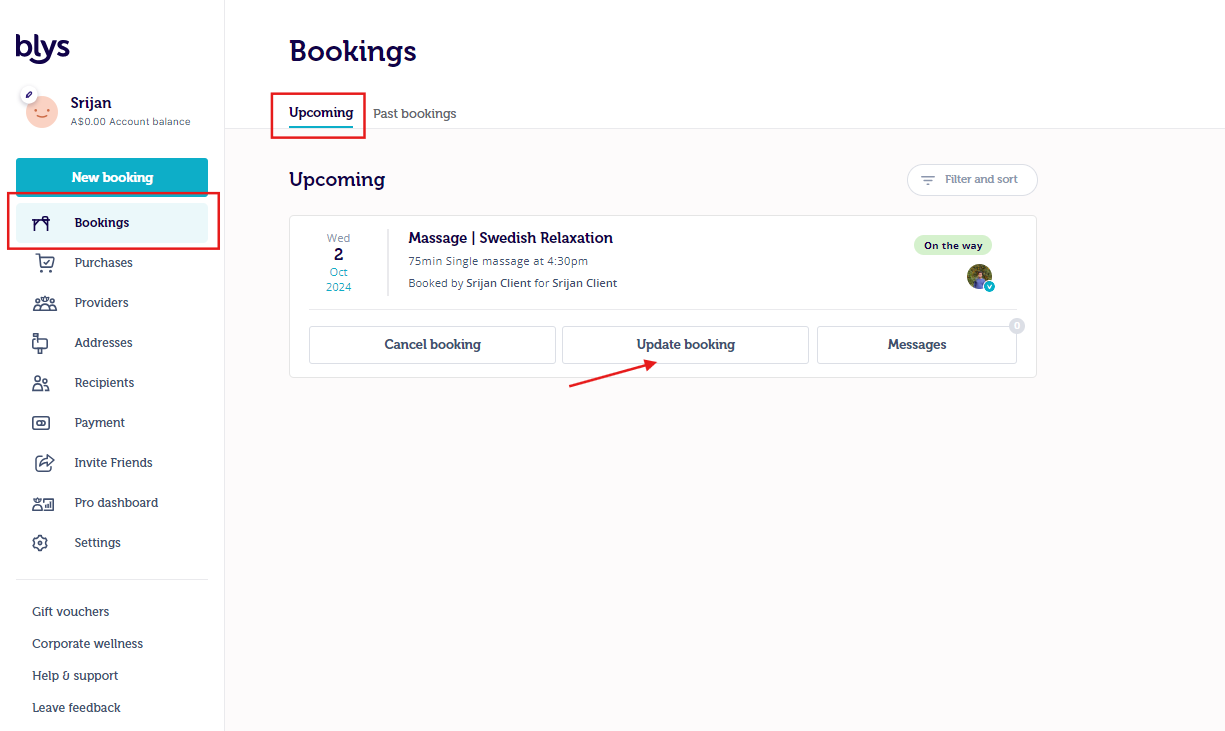
- Go to Bookings -> Upcoming -> Update booking
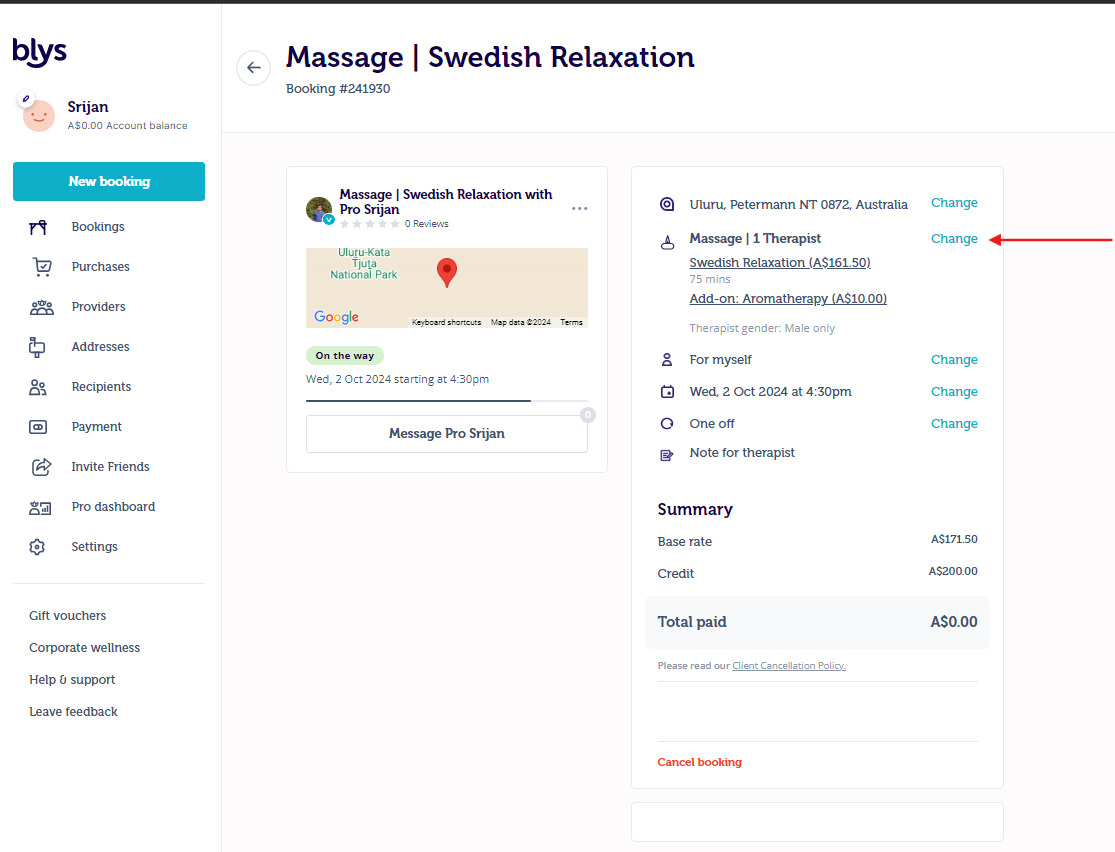
- Click on "Change"
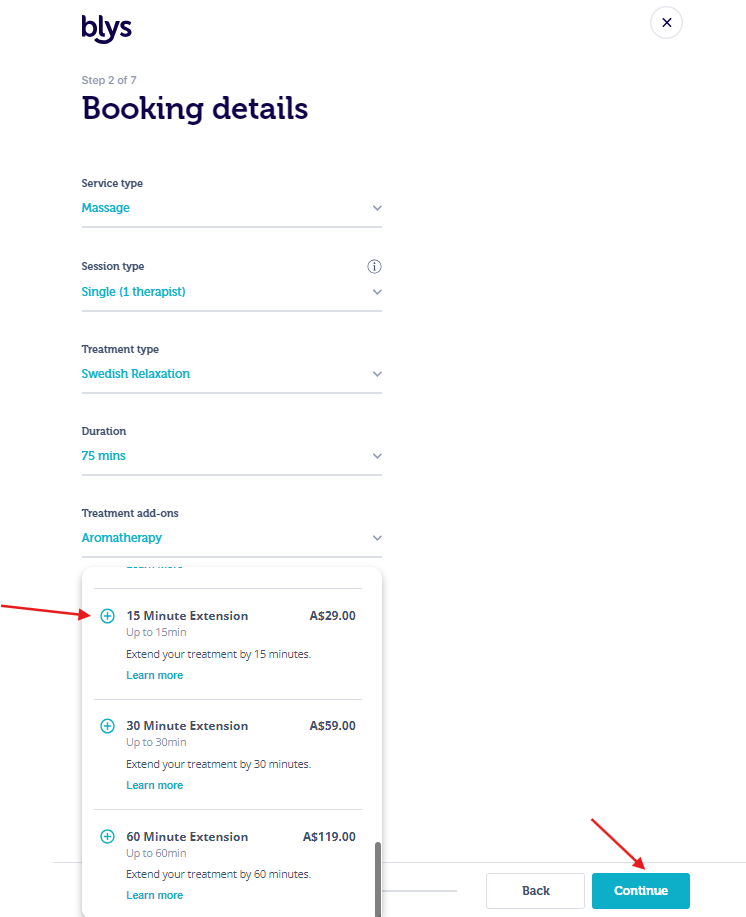
- Increase the "Duration" or add on the service as an extension, and click on "Continue"
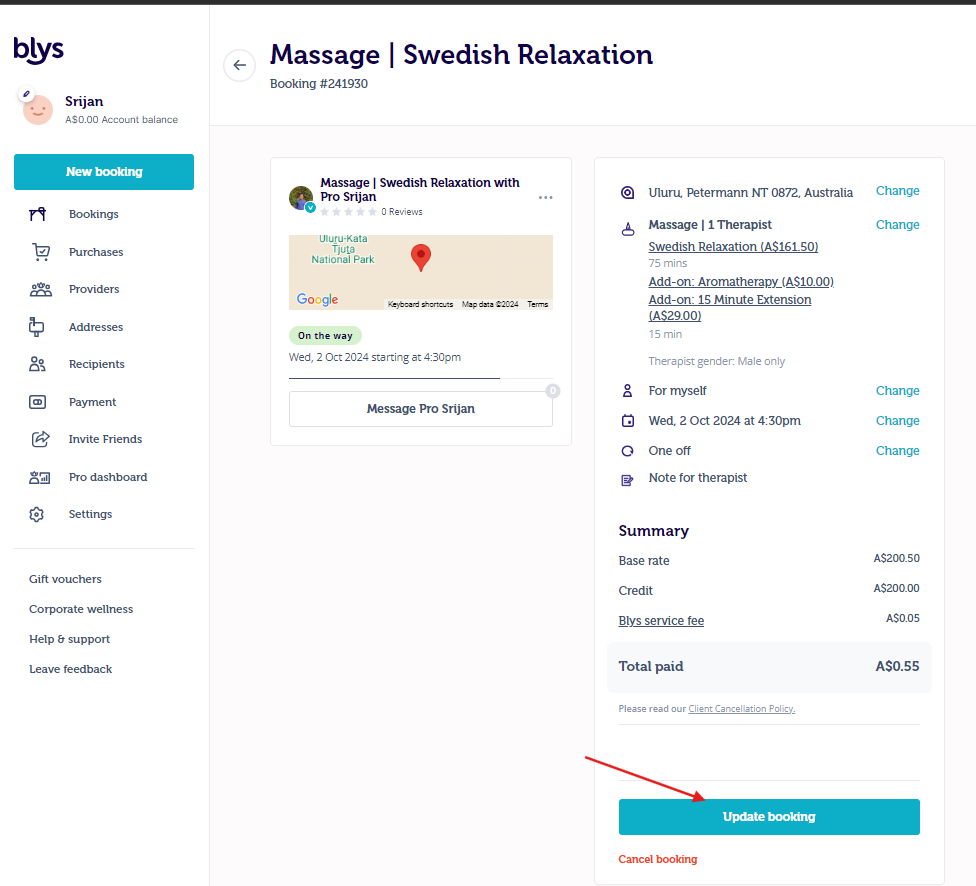
- Then, "Update booking" to send your update request to the provider
- Once the provider accepts the update request, your booking will reflect the updated details
- The difference will automatically be charged to your account, so you don't have to move a muscle.
Via App:
Please refer to this video tutorial for more clarity on How can I extend the session via an app?
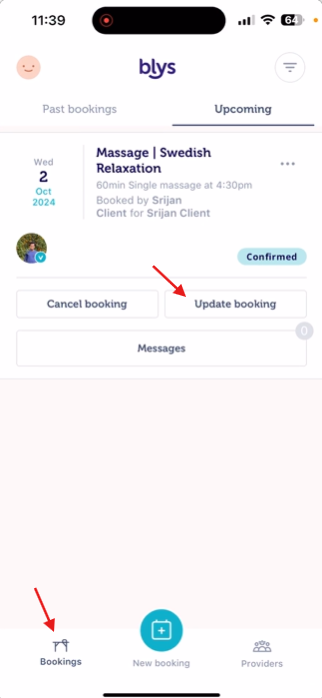
- Go to Bookings -> Upcoming -> Update booking
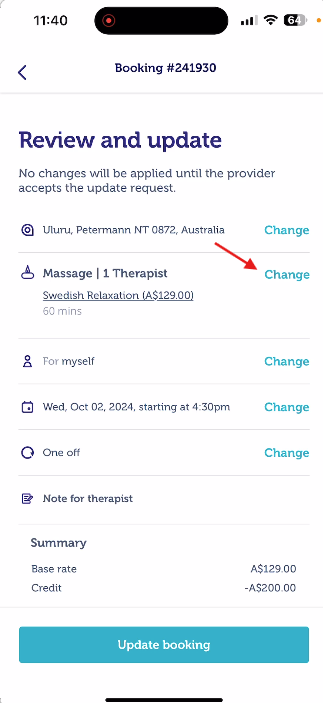
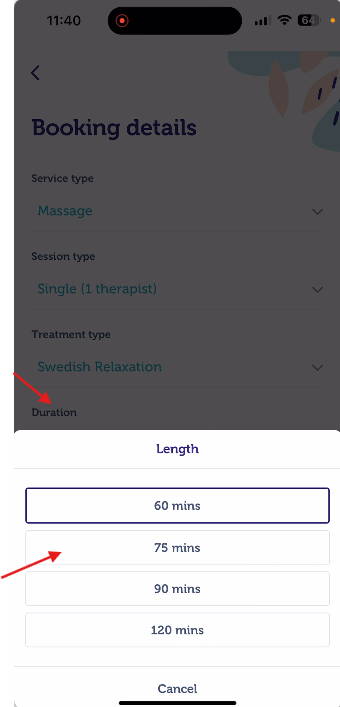
- Click on Change -> Duration -> "Length" and update the new length for the service.
 |  |  |
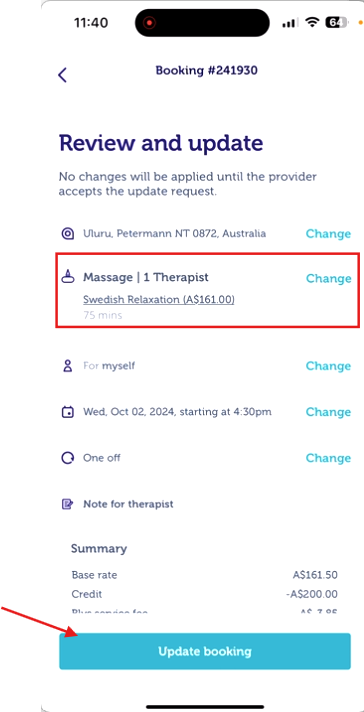
- Updated details will be reflected on the page. Once reflected press "Update booking" to send the updated details to the provider.
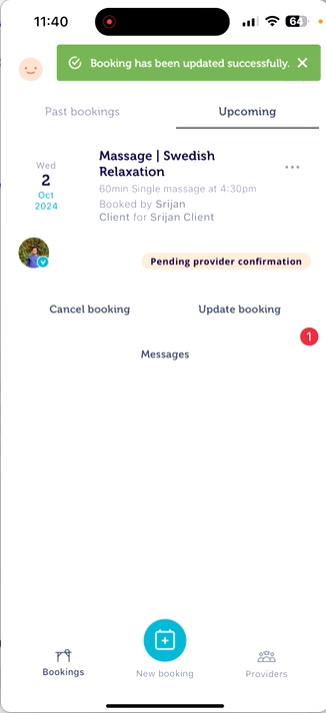
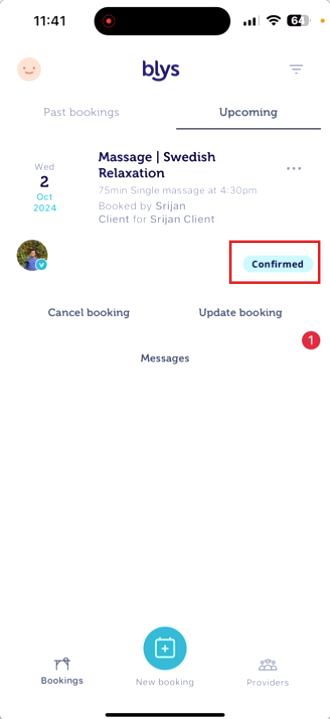
- You will receive a notification that it is successfully sent. The status of the booking will be "Pending provider confirmation" until the provider accepts/declines the update request
- You can see the booking status changed to "Confirmed" once the provider has accepted your update request.
 |  |  |
2. Accept an extension/update request sent by the provider
Via Web:
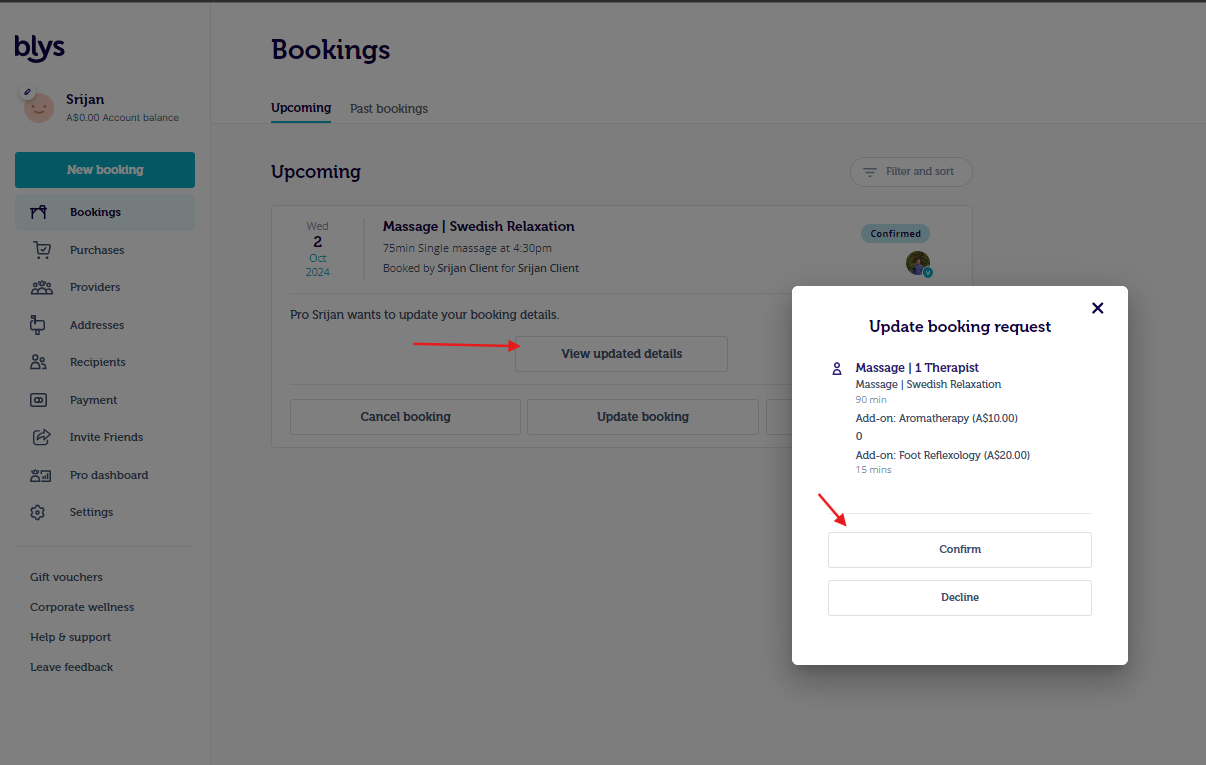
- When the provider sends an update request, you will be able to see it by clicking on "View updated details".
- You can then "Confirm" or "Decline" the update request.
- The difference will automatically be charged to your account, so you don't have to move a muscle.
Via App:
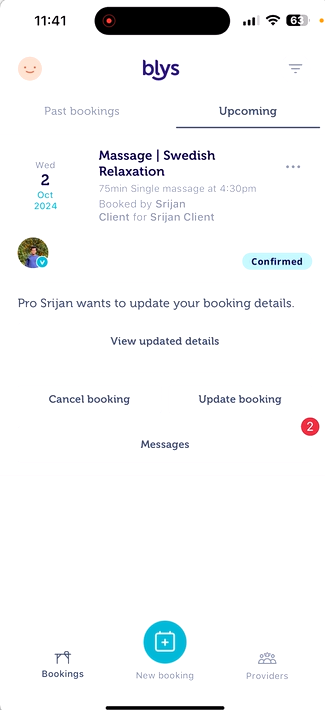
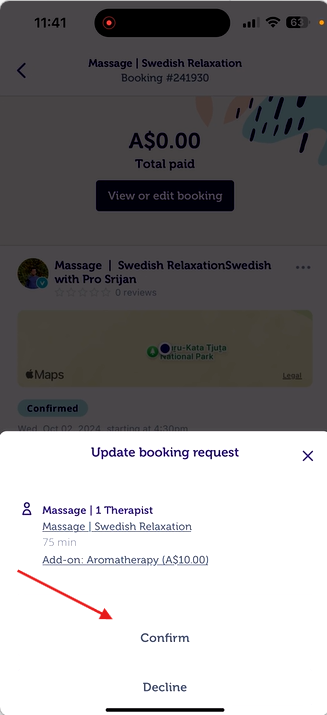
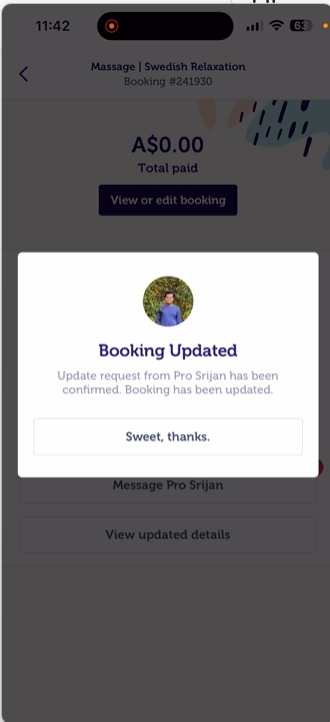
- When the provider sends an update request you will be able to see them by clicking on "View updated details".
- You can then "Confirm" or "Decline" the update request.
- The difference will automatically be charged to your account so you don't have to move a muscle.
 |  |  |