The Blys app (iOS and Android) lets you book in-home massage, beauty and wellness services, purchase Blys gift cards, track your provider, manage your account, and contact our team.
In this Article
- Download the Blys App
- Sign up
- Log in
- Book a service
- Track your booking
- Manage your booking
- Contact your provider
- Payment and invoices
- Account settings
Download the Blys App
iOS
- Go to the App Store and search "Blys".
- Download the app.
Android
- Go to Google Play and search "Blys".
- Download the app.
Or visit getblys.com/app
Sign Up
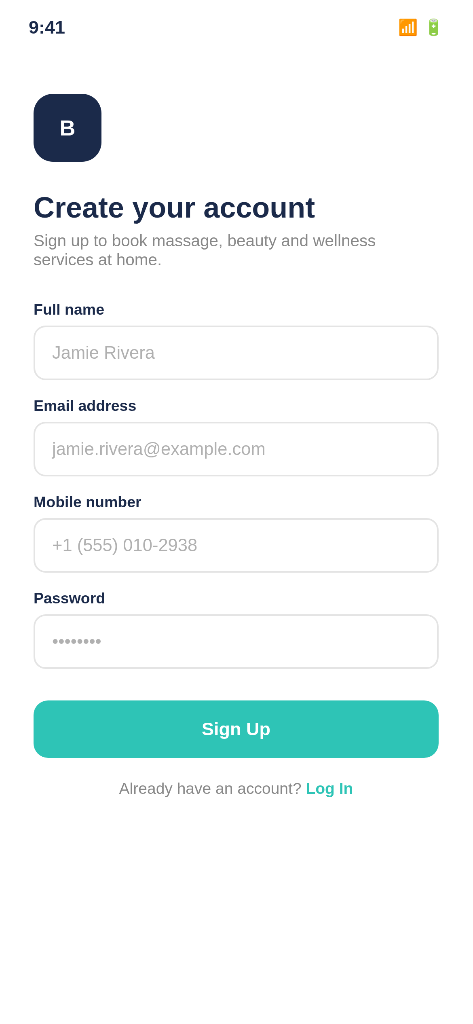
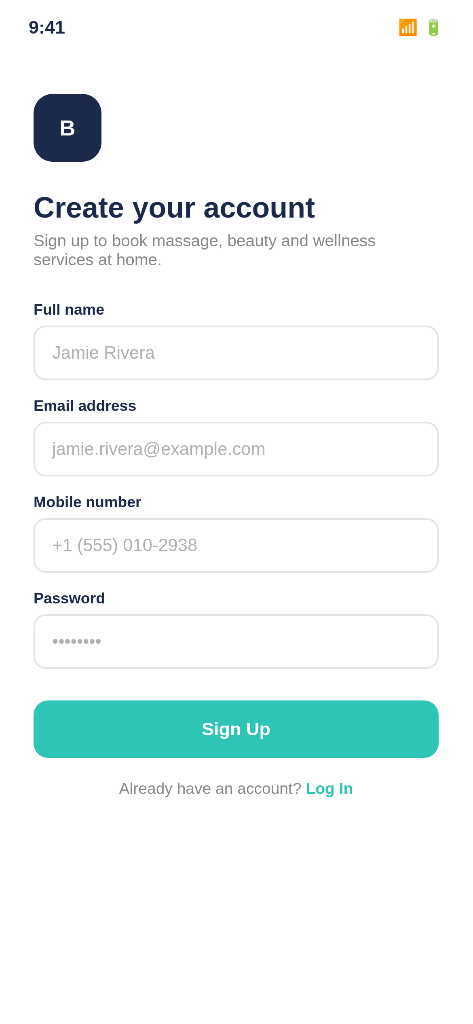
If you’re a new user, follow the steps below to sign up on Blys as a client:
- Sign up in the Blys app by entering your name, email and mobile number.
- Set your password.
Log In
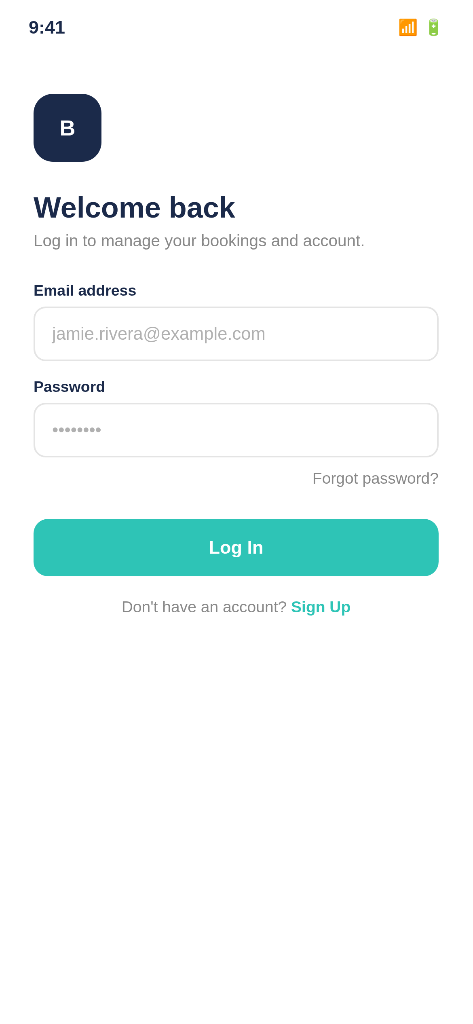
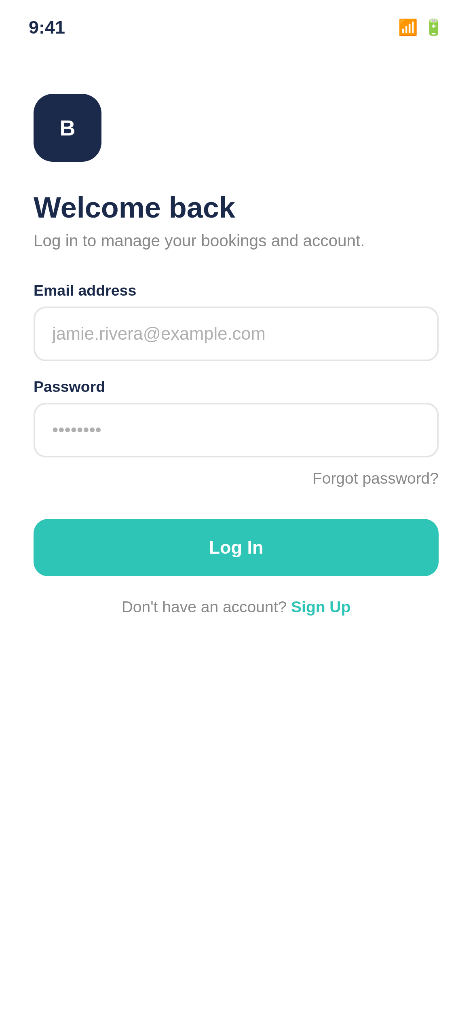
If you’re an existing user, and you have already created an account, log in to Blys by using your email and password.
Book a Service
You can book a service through the Blys app by following these steps:
- Tap New Booking from the home screen of the app.
- Select your booking location. If you have a pre-saved address, select the address.
- Select the service type, session type, duration, type of treatment, treatment add-ons if any, and therapist gender.
- Select the recipient for this service. If you’re booking for yourself, simply select your own name.
- Select your preferred date.
- Select your preferred time. You will be prompted to select the earliest start time and latest start time. Note that surcharges will be applied for peak hours. Find more details regarding peak hour surcharges here.
- You can also add a backup date and time.
- Set provider preferences. You can either select the first available provider for faster booking confirmation, rebook a previous provider, or browse top rated providers in your area.
- If you’ve previously booked with Blys, you can also choose to notify your favourite providers only. For this, you’ll need to toggle on the “Notify my favourites only” under “First available” option.
- Select your booking frequency, whether you’d like to go for a one-off booking or a repeat/recurrent booking.
- If you have any notes to your provider, add them to “Notes for therapist”.
- Review booking details and any surcharges shown. All the information will be visible upfront before you confirm. There are no hidden charges.
- Add a payment method.
- Tap on Confirm Booking.
|
|
|
|
|
|
|
|
|
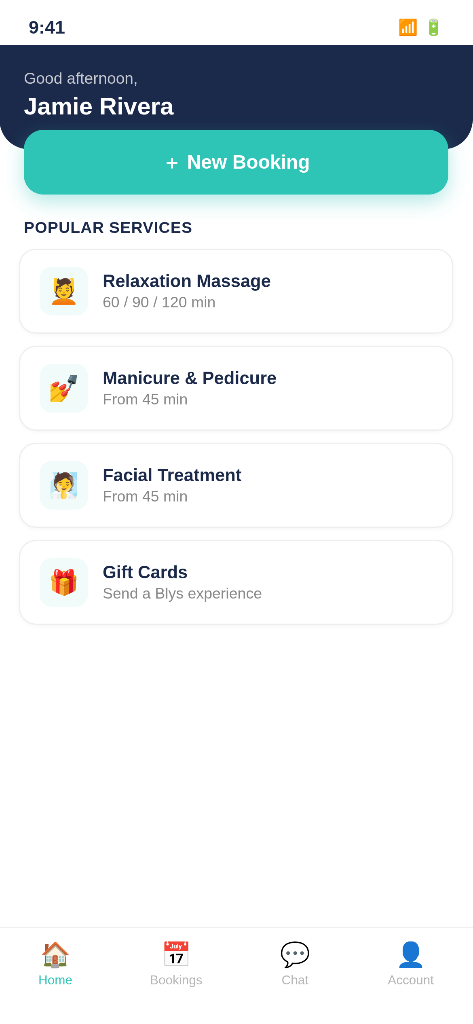
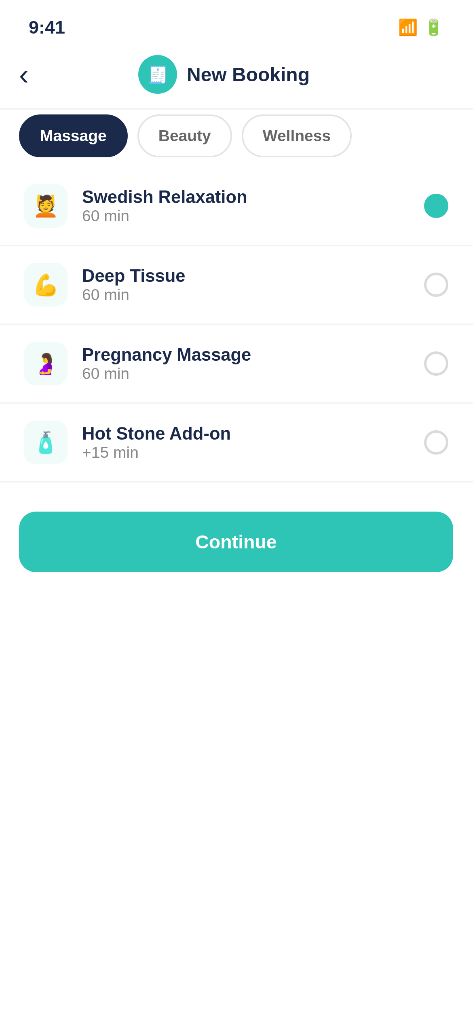
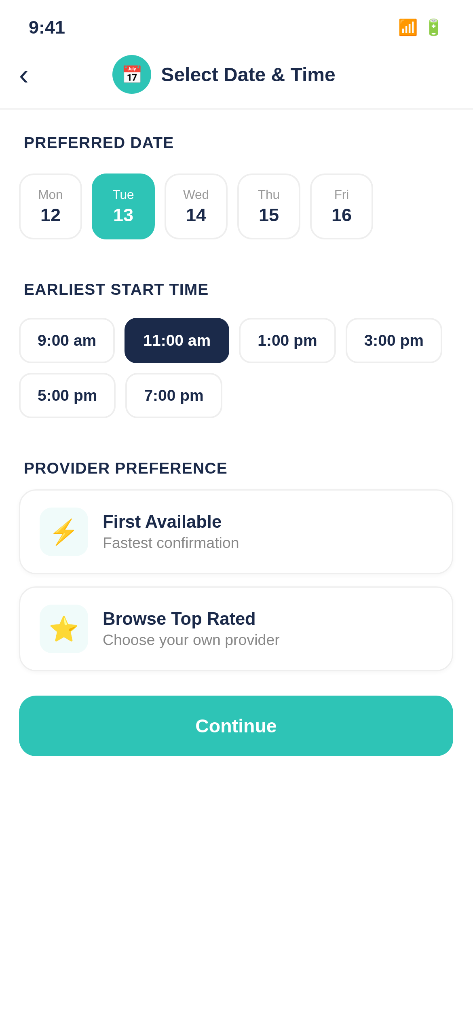
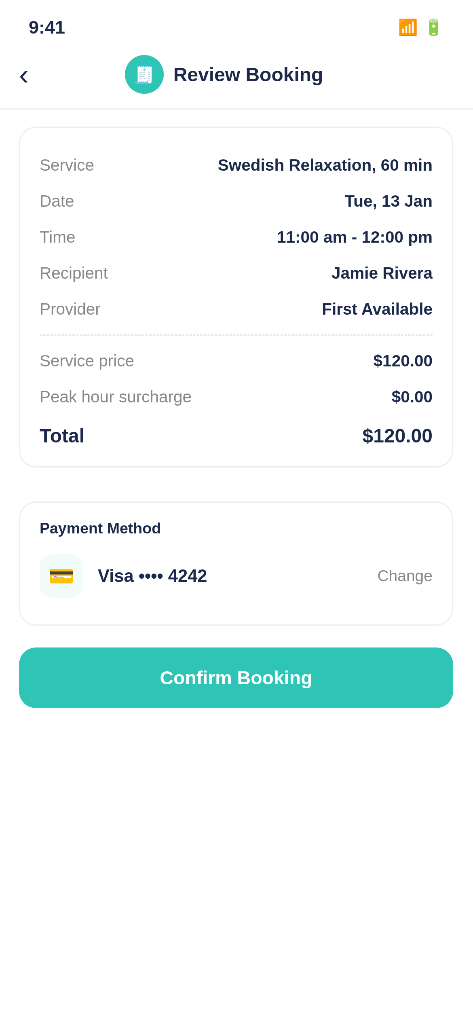
The booking will now be sent to providers, and it gets confirmed when one accepts.
Track your Booking
To track your booking,
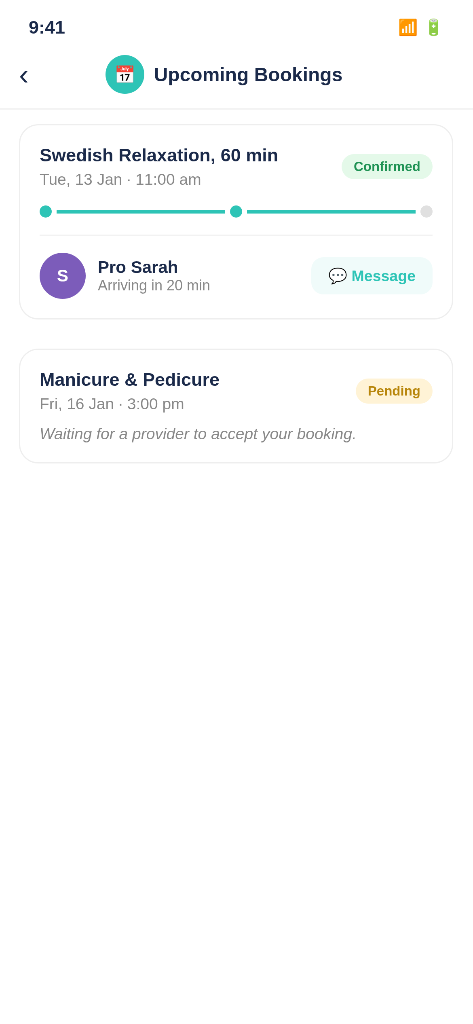
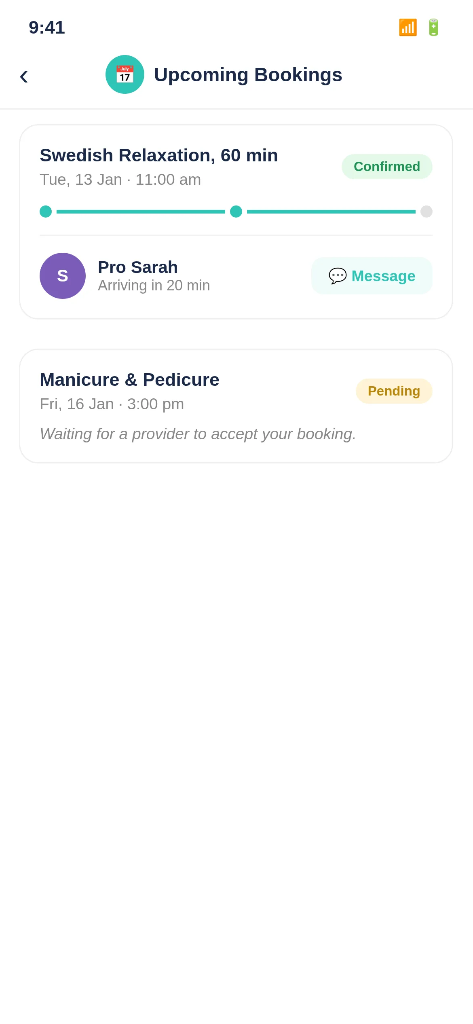
- Go to Bookings, and then navigate to Upcoming.
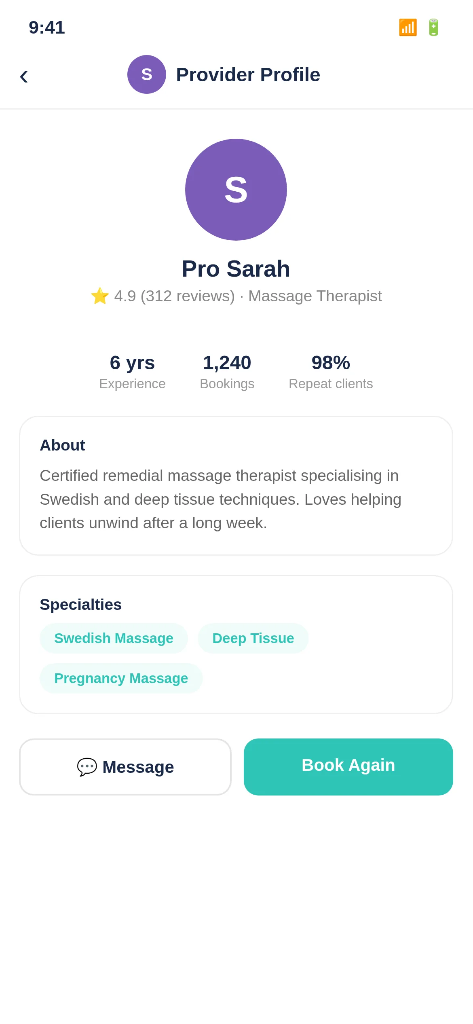
- You’ll be able to view whether your booking has been confirmed or still pending. If your booking has been confirmed, you can view your provider profile via the booking.
- If this is a direct booking or a confirmed booking, you’ll also be able to view the Message button (available immediately once the booking is confirmed, or before confirmation for direct bookings).
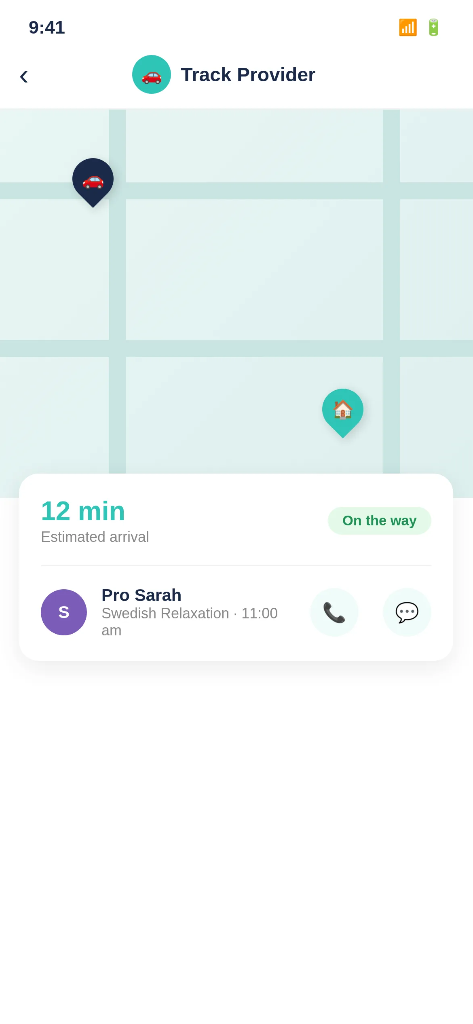
- On the day of booking, you’ll be able to track the status of your provider’s arrival.
|
|
|
Manage your Booking
You can modify, cancel, add notes, update recipient details, all from Upcoming Bookings section.
Update or modify your booking
Check out this article to learn how to update or modify your booking.
Cancel your booking
Check out this article to learn how to cancel your booking.
Update the recipient(s) for your booking
Check out this article to learn how to update recipients for your booking.
Contact your Provider
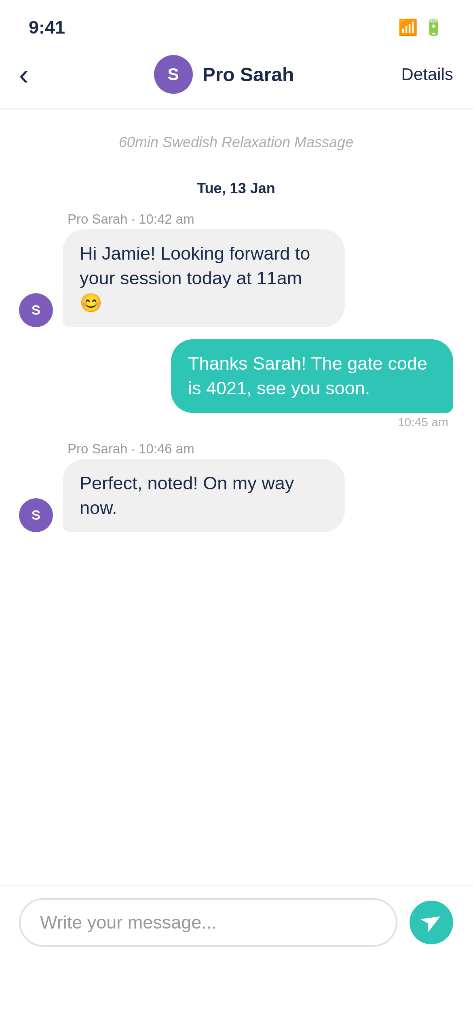
You’ll be able to chat with your provider via the Blys app. For a detailed guide, check out this article on how to message your provider before your appointment.
Payment and Invoices
Add/change payment method
To add or change your payment method, simply go to your Payment settings and tap on Payment Methods. You can add or change a payment method as per your need.
Check out this article for a more detailed guide.
Enable receipt emails
You will be able to get payment receipts and tax invoices through your registered email.
Check out this article to find out how you can get receipts in your email.
Account Settings
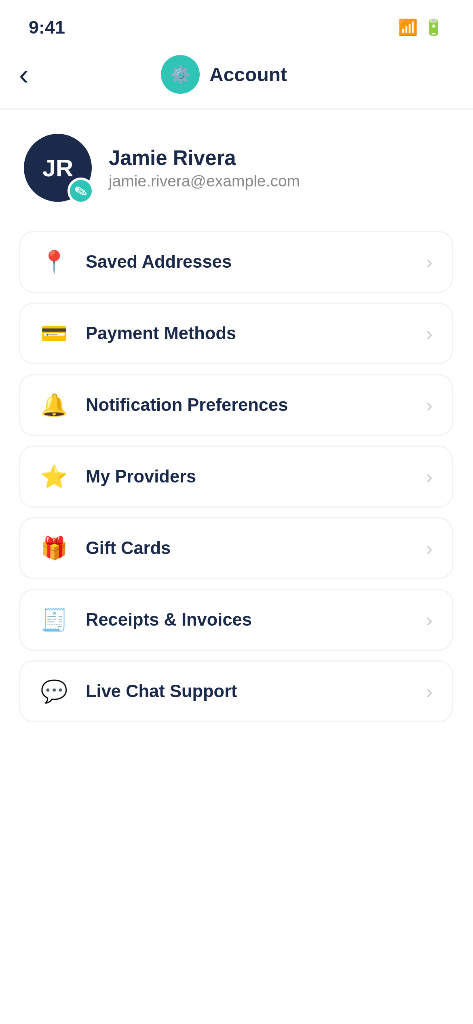
You will be able to change your account settings and profile any time you’d like to.
- Tap on your profile photo, and tap on the pen icon beside your photo.
- You’ll be able to edit personal details, business information, and treatment notes (client notes, and therapist notes).
- You will also be able to edit and manage your saved addresses, notification preferences, list of providers, and gift card purchases through the menu on your left-hand side of the app.
Need help? Tap on Live Chat button in the app or email hello@getblys.com.