TABLE OF CONTENTS
- Tipping before Booking is Confirmed
- Tipping after Booking is Confirmed
- Tipping after Booking is Completed
Tipping before Booking is Confirmed
If you want to tip your service provider before your booking is confirmed, here's how you can do that:
Via Website
- Click on New booking.
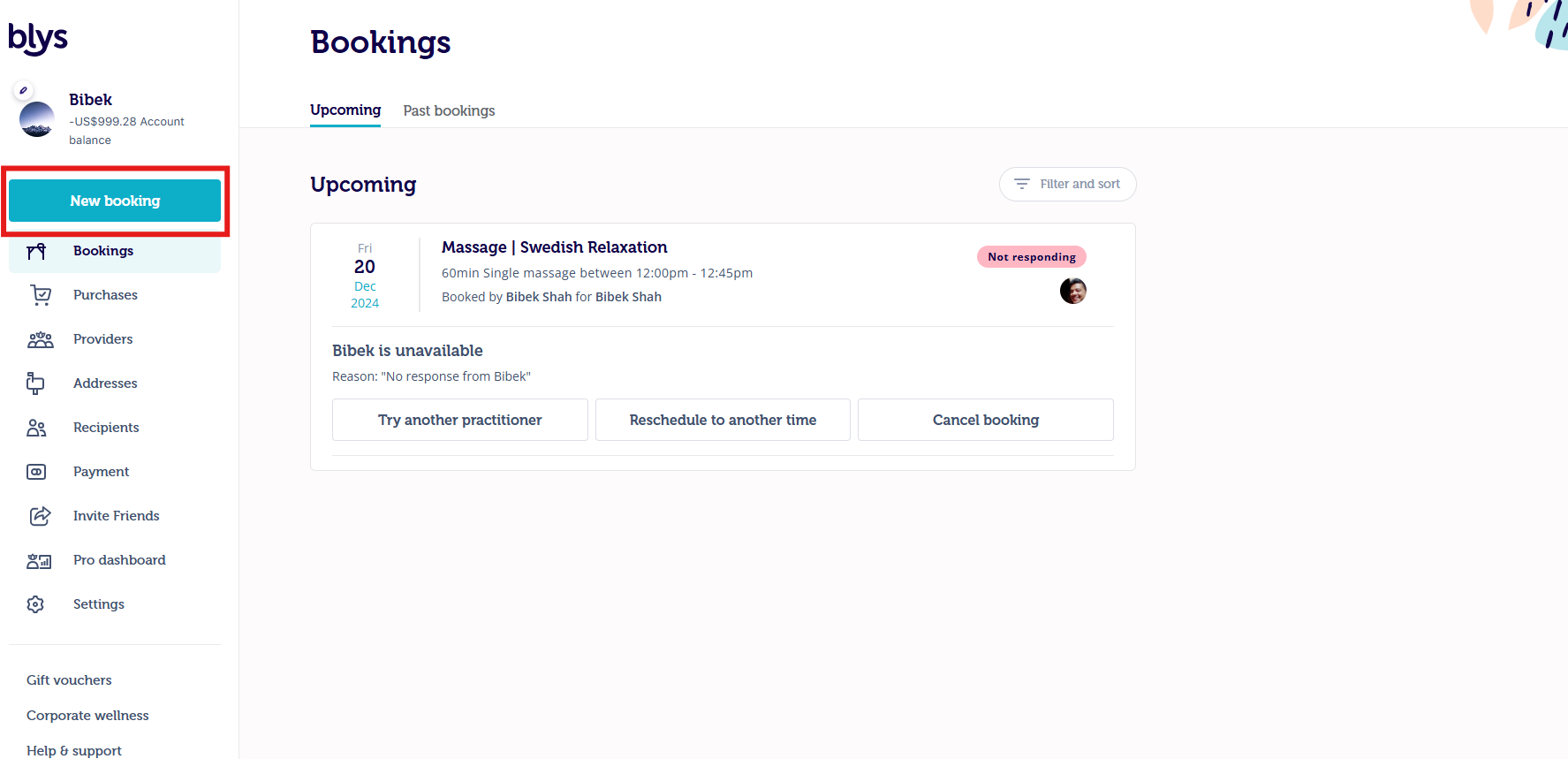
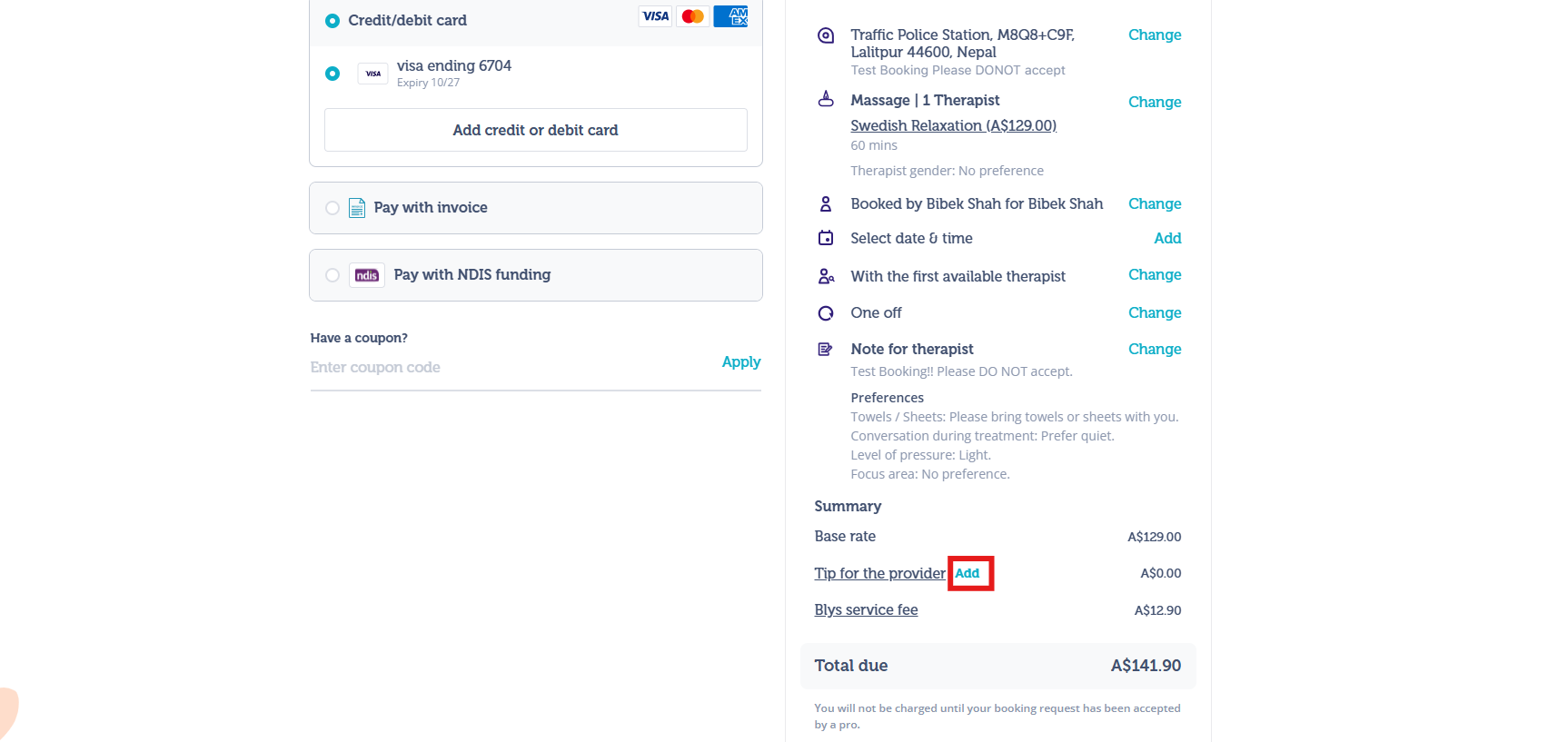
Once you've filled in your details and completed all the steps:
- Navigate towards Add, next to Tip for the provider.
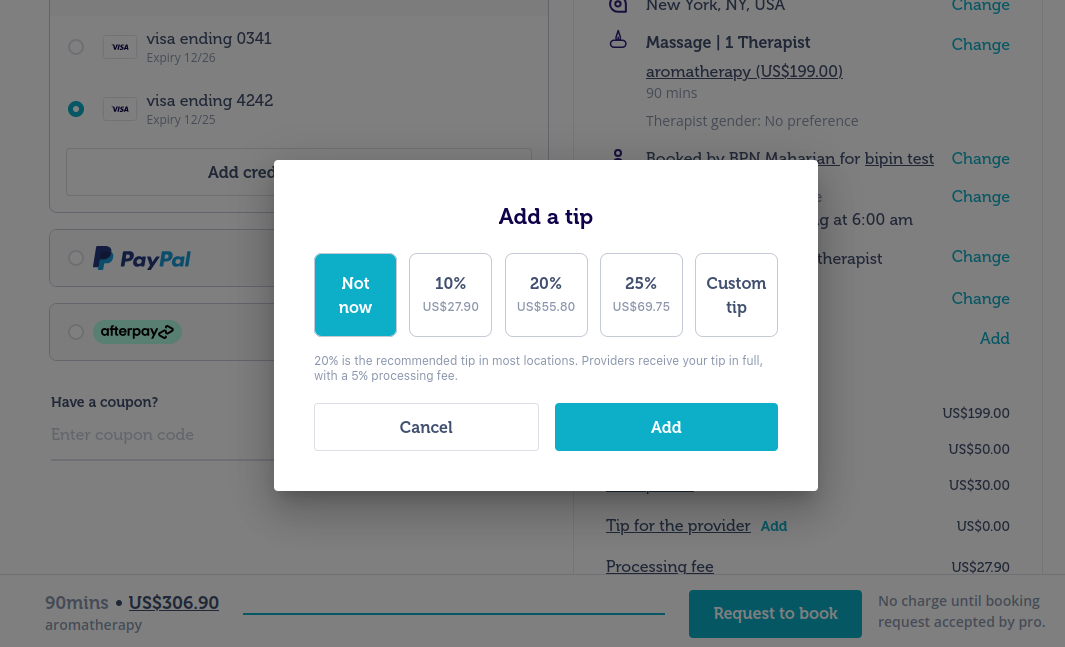
- Select your desired tip amount, or add a custom tip. Providers receive your tip in full with a 3% processing fee for AU, NZ and UK, and 5% processing fee for US.
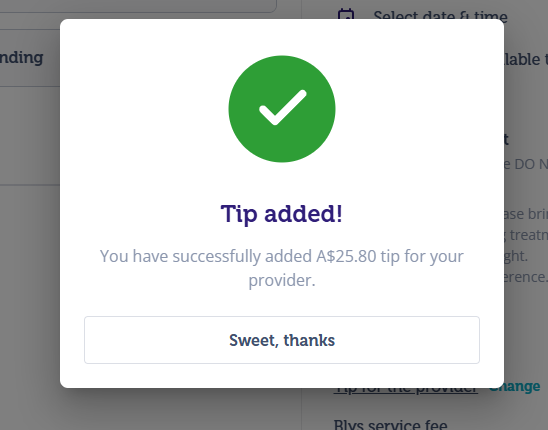
- Confirm the tip amount.
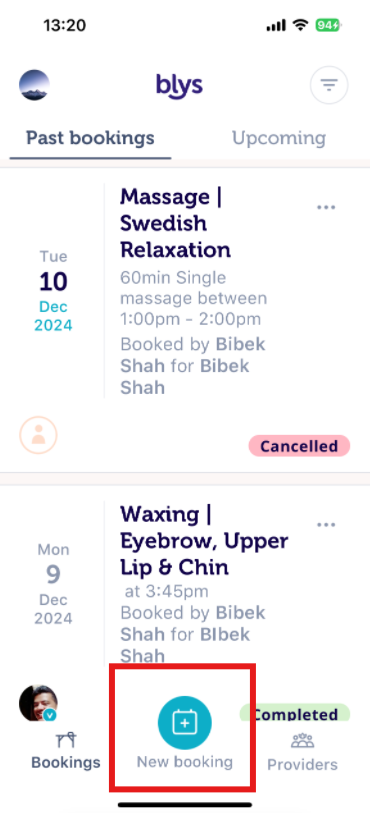
Via Mobile App
- Click on New booking.
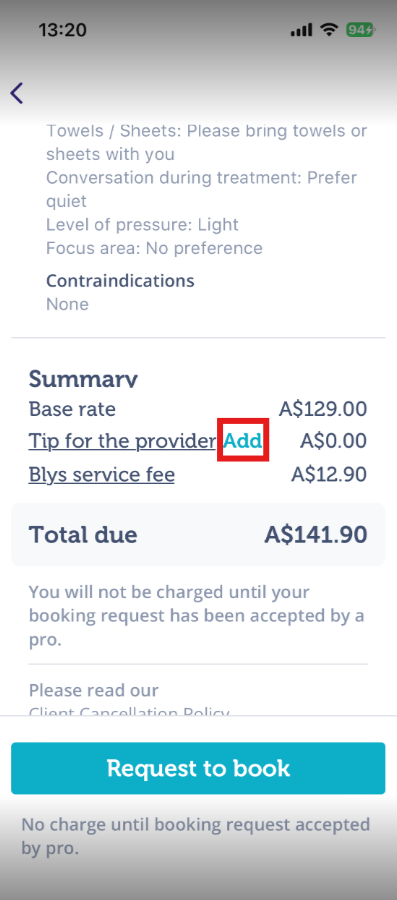
- Once you've filled in your details and completed all the steps:
- Navigate towards Add, next to Tip for the provider.
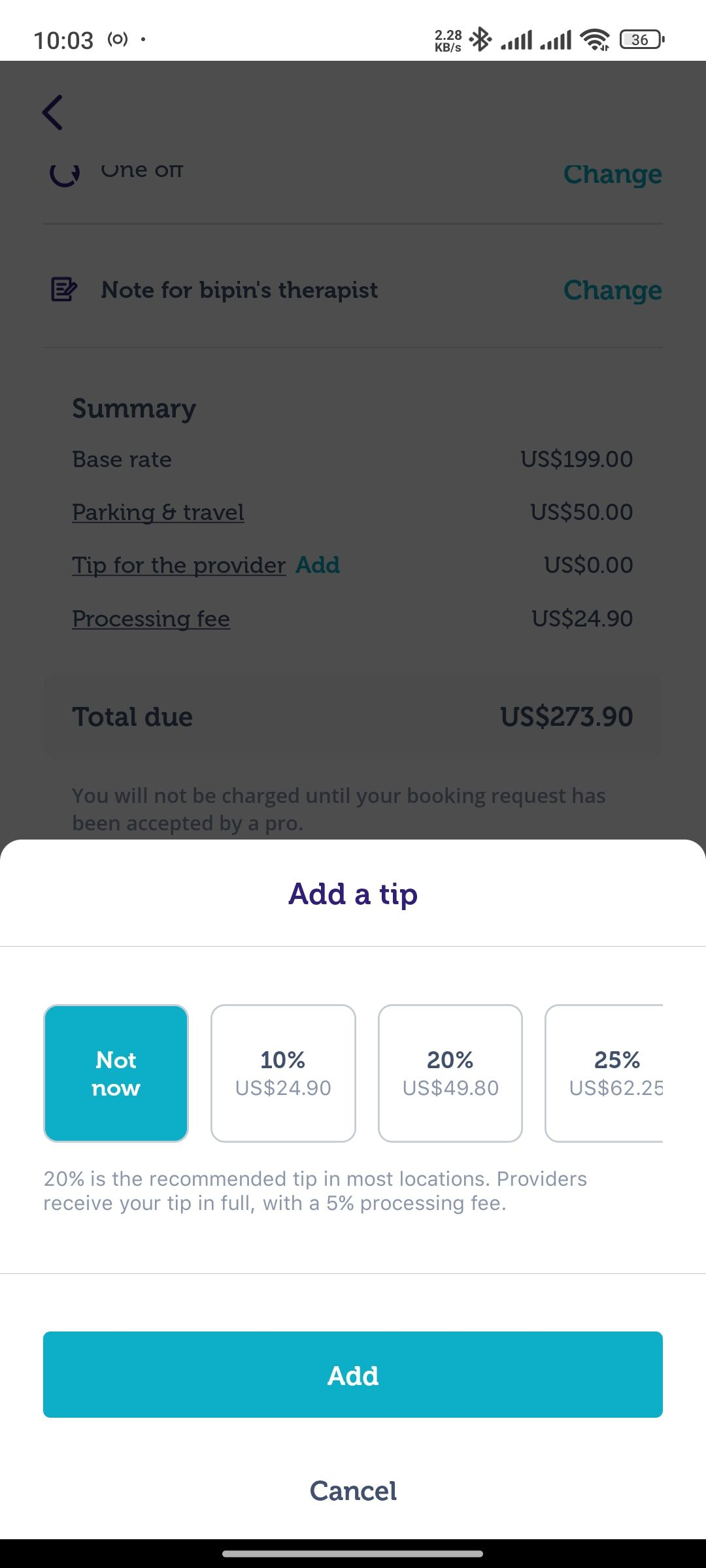
- Select your desired tip amount, or add a custom tip. Providers receive your tip in full with a 3% processing fee for AU, NZ and UK, and 5% processing fee for US.
- Navigate towards Add, next to Tip for the provider.
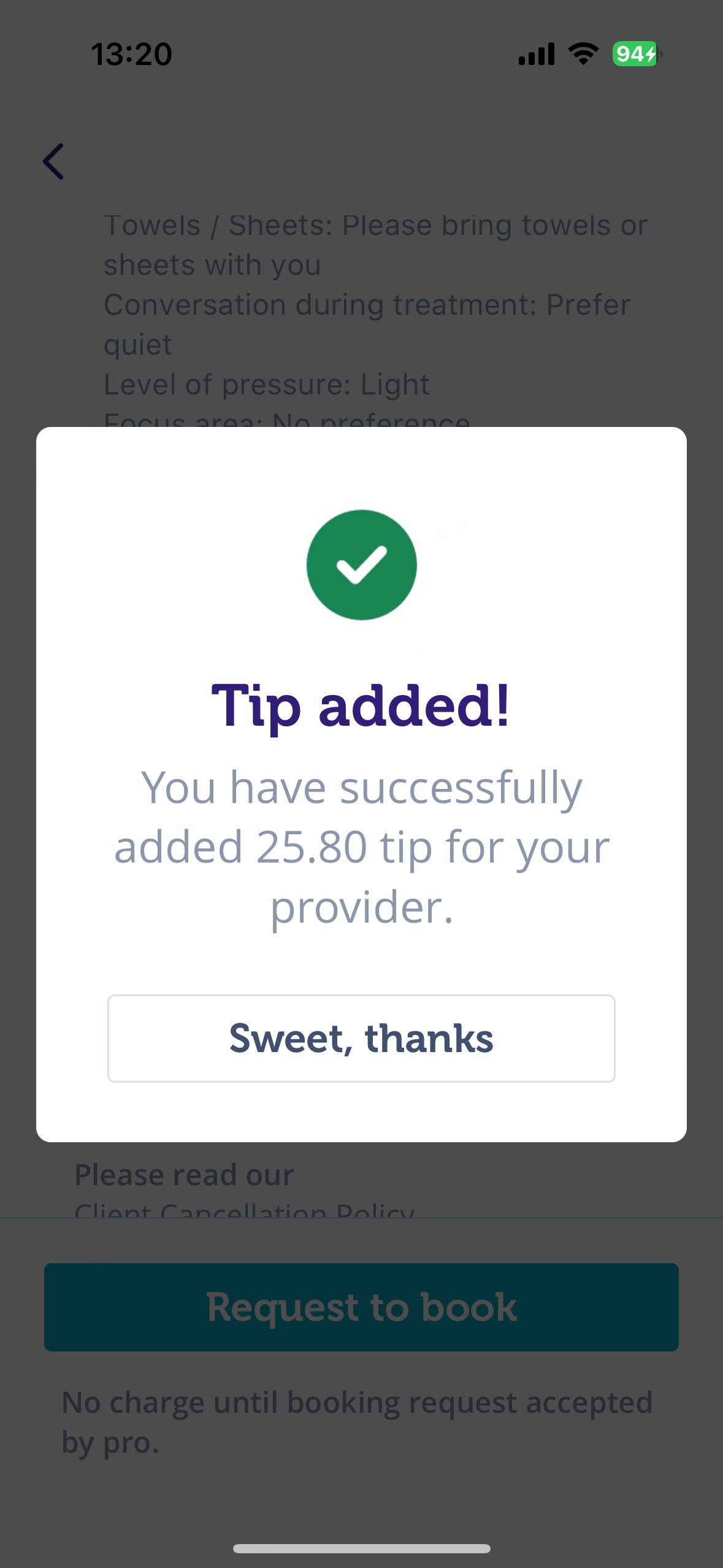
- Confirm the tip amount.
 |  |  |  |
Tipping after Booking is Confirmed
Right after your booking is confirmed, you can leave a tip for your service provider.
Here's how:
Via Website
- Go to Bookings.
- Click on Upcoming bookings.
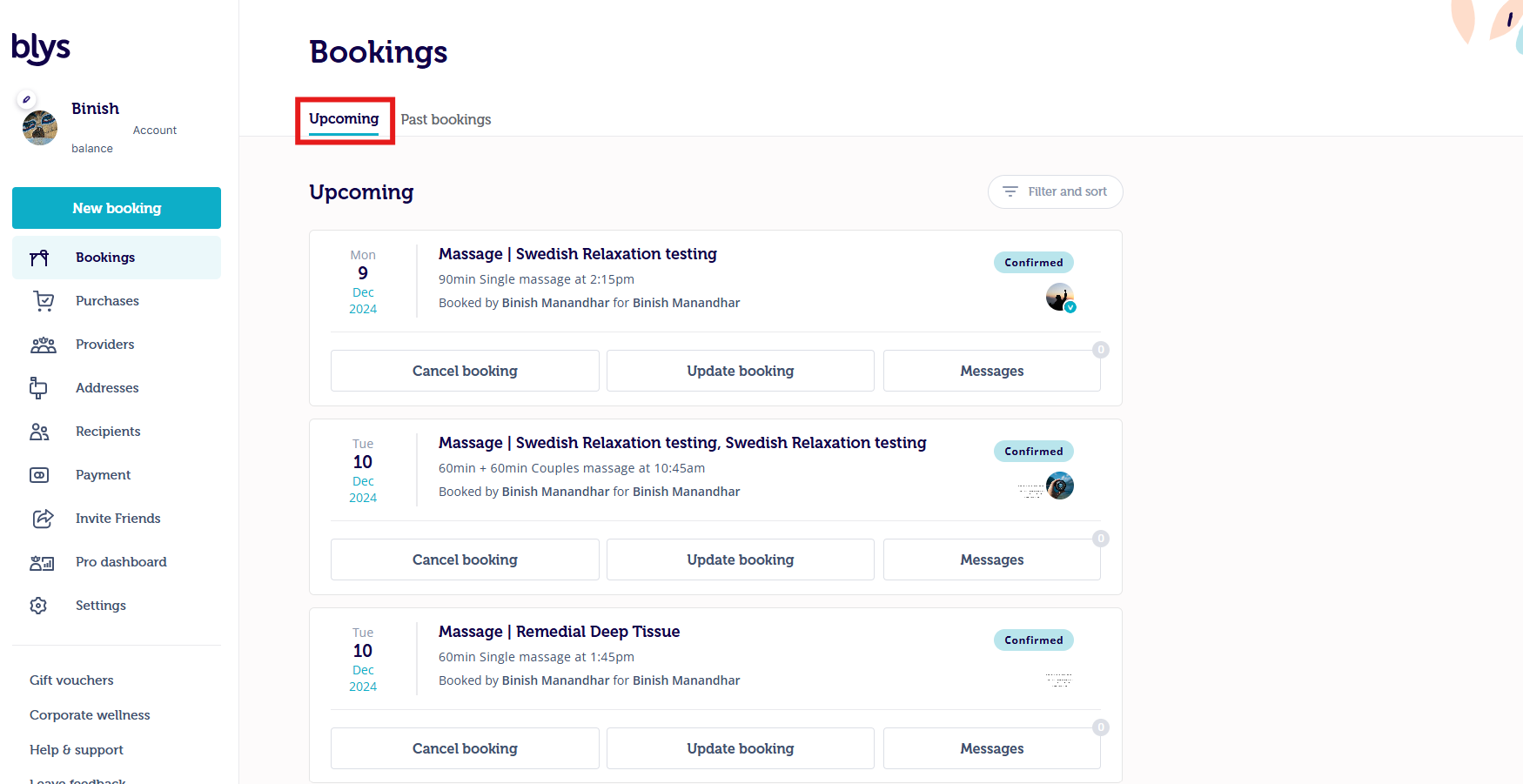
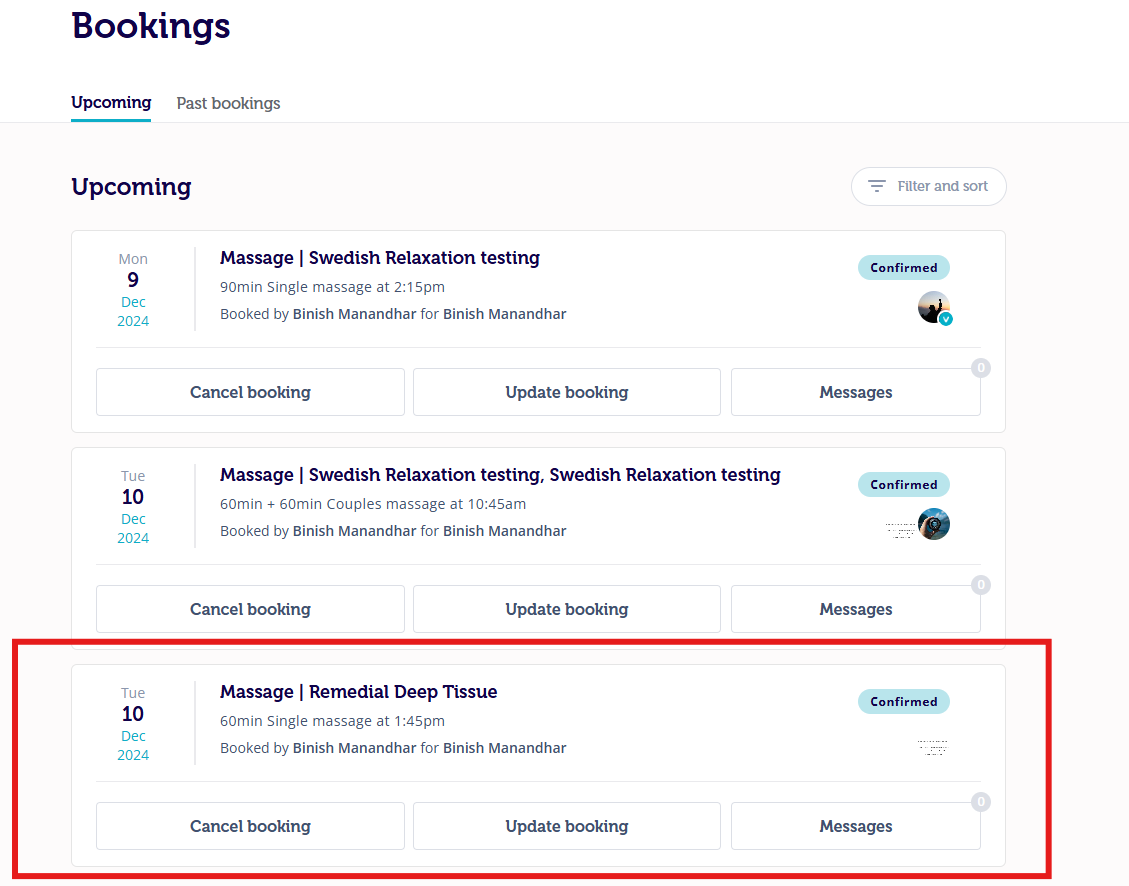
- Select the booking you want to add a tip to.
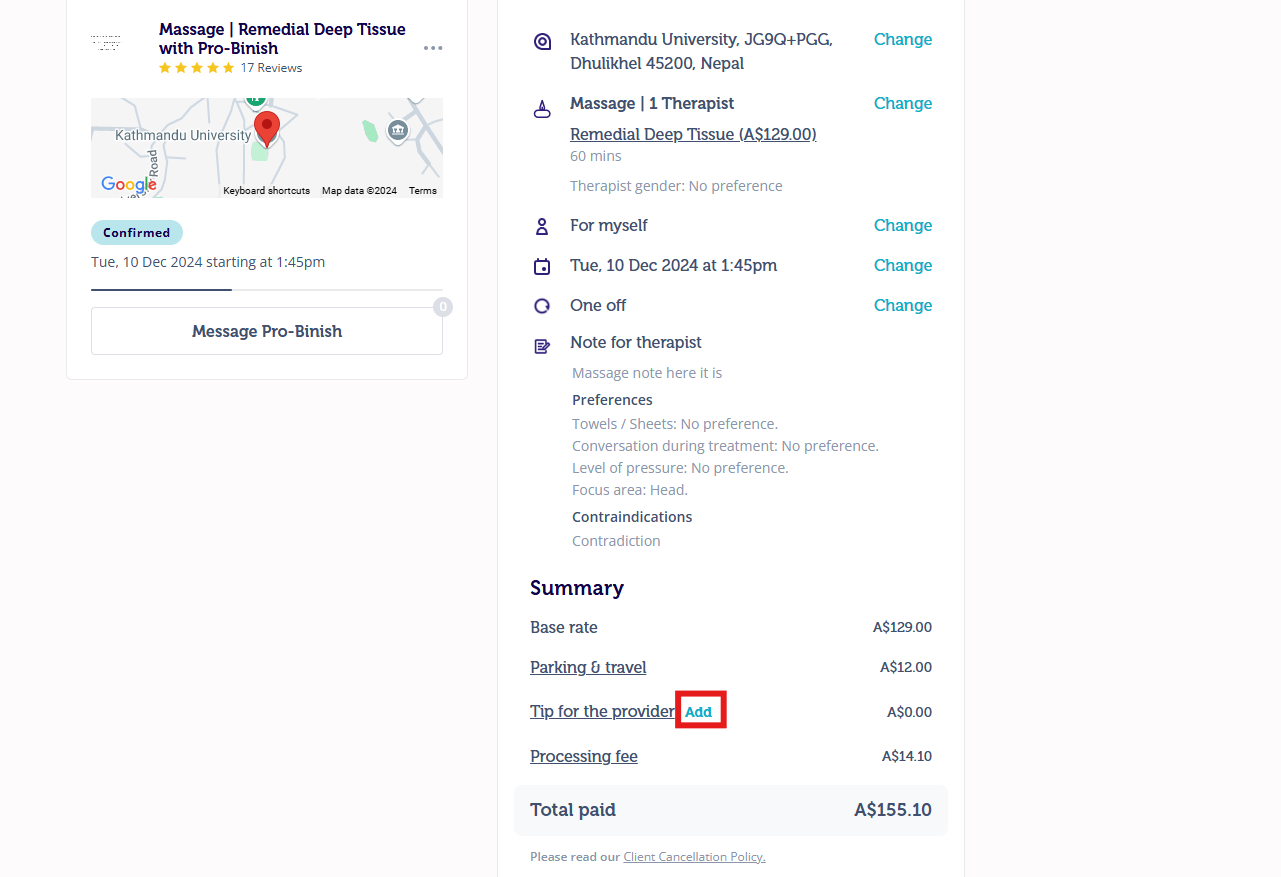
- Navigate towards Add, next to Tip for the provider.
- Select your desired tip amount, or add a custom tip. Providers receive your tip in full with a 3% processing fee for AU, NZ and UK, and 5% processing fee for US.
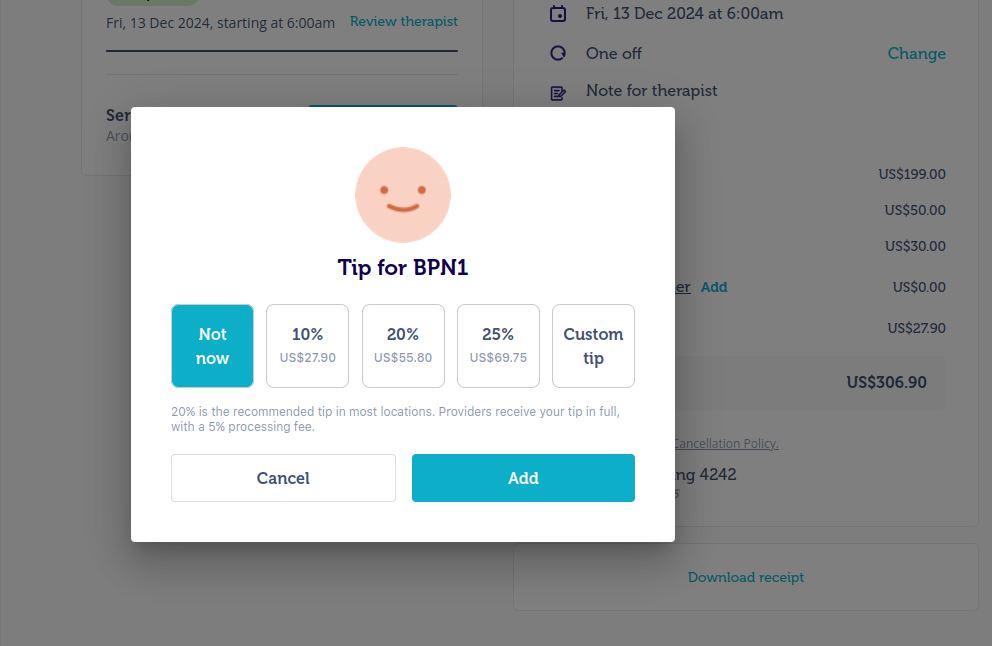
- Confirm the tip amount
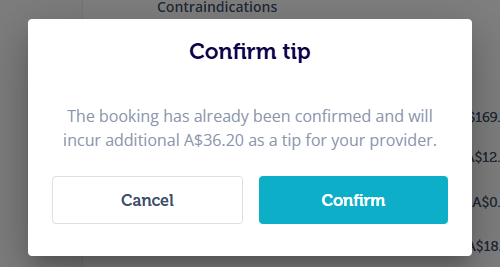
Via Mobile App
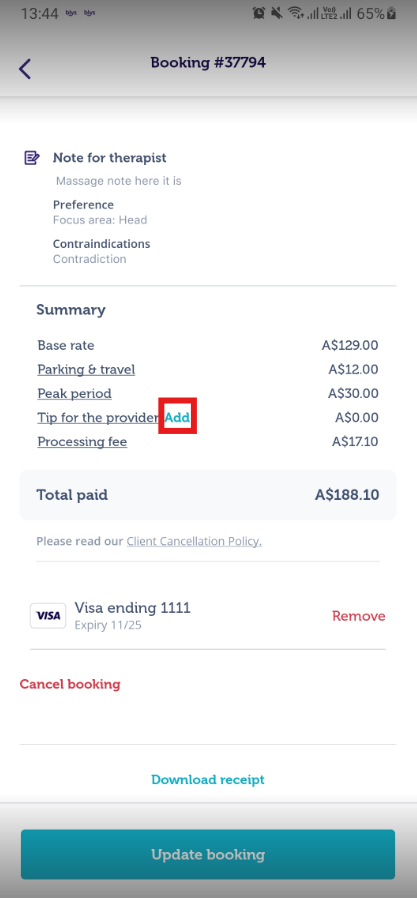
After selecting the booking you want to add a tip to:
- Navigate towards Add, next to Tip for the provider.
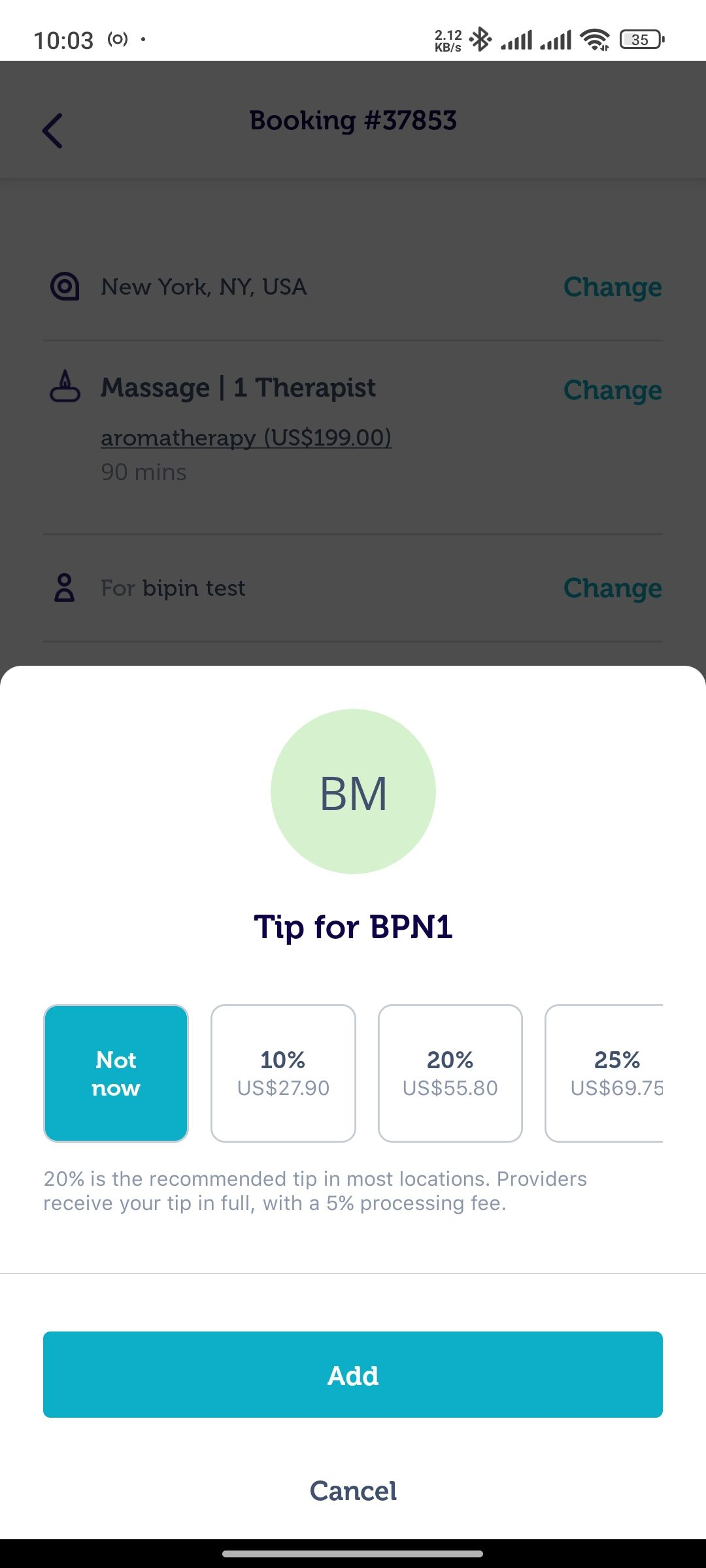
- Select your desired tip amount, or add a custom tip.
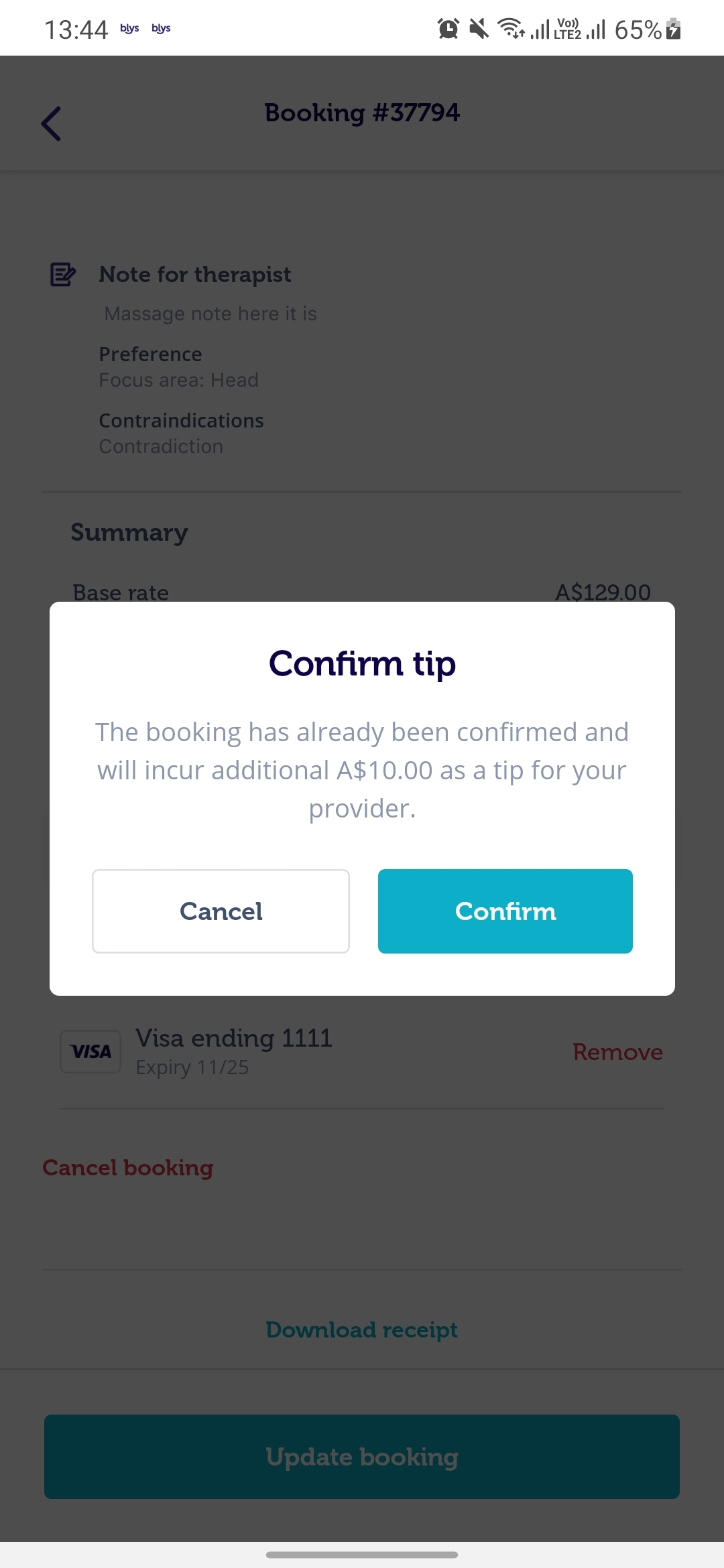
- Confirm the tip amount
 |  |  | 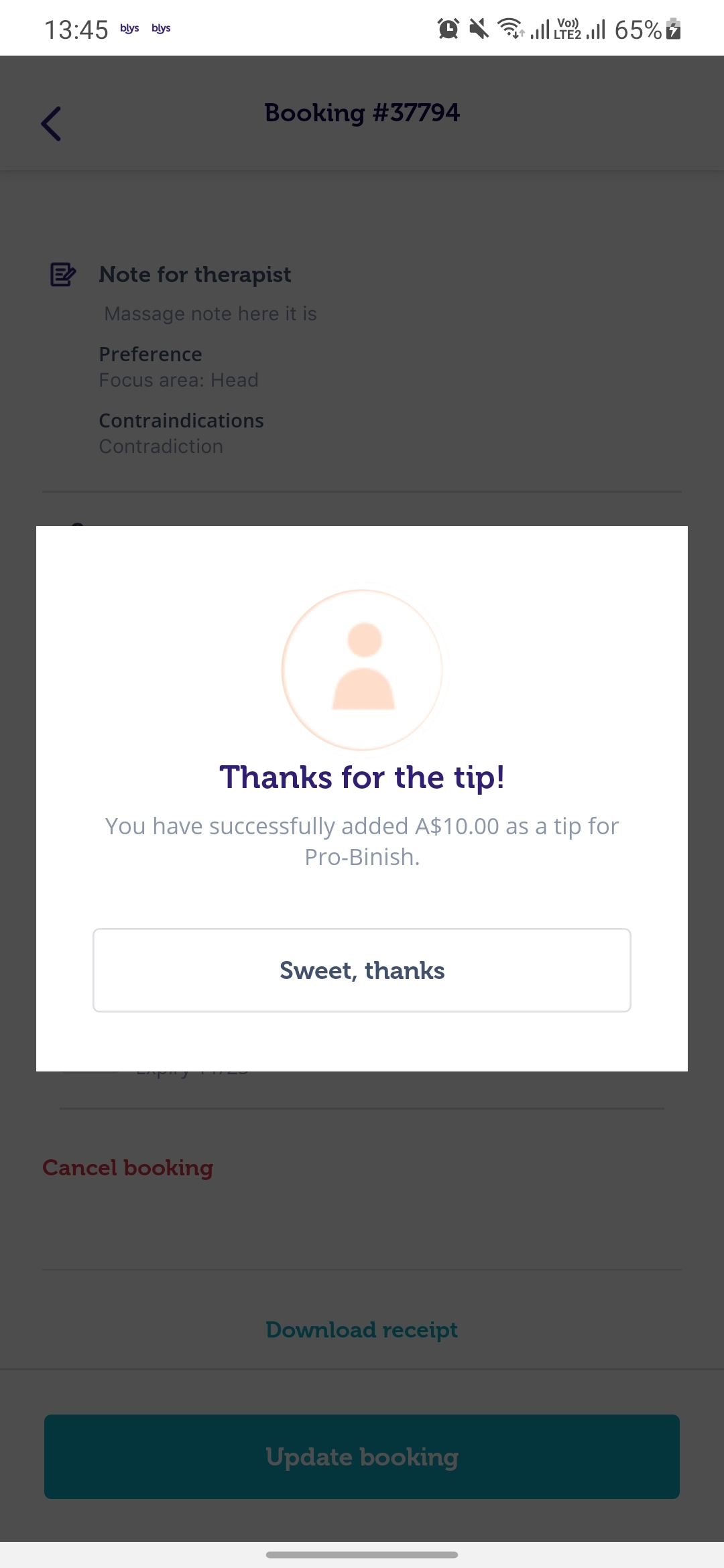 |
For bookings with more than one pro:
Via Website
- Go to Bookings.
- Click on Upcoming bookings.
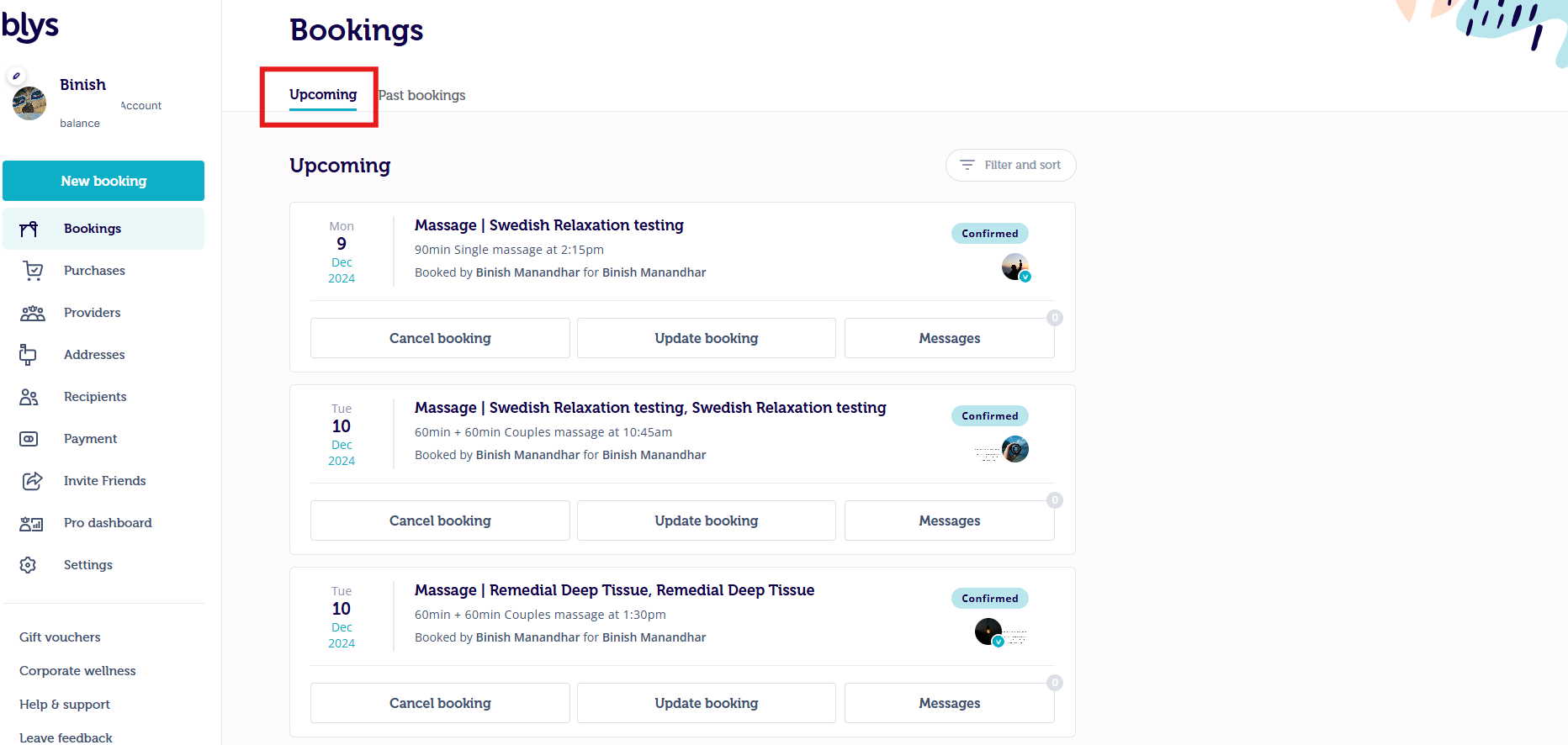
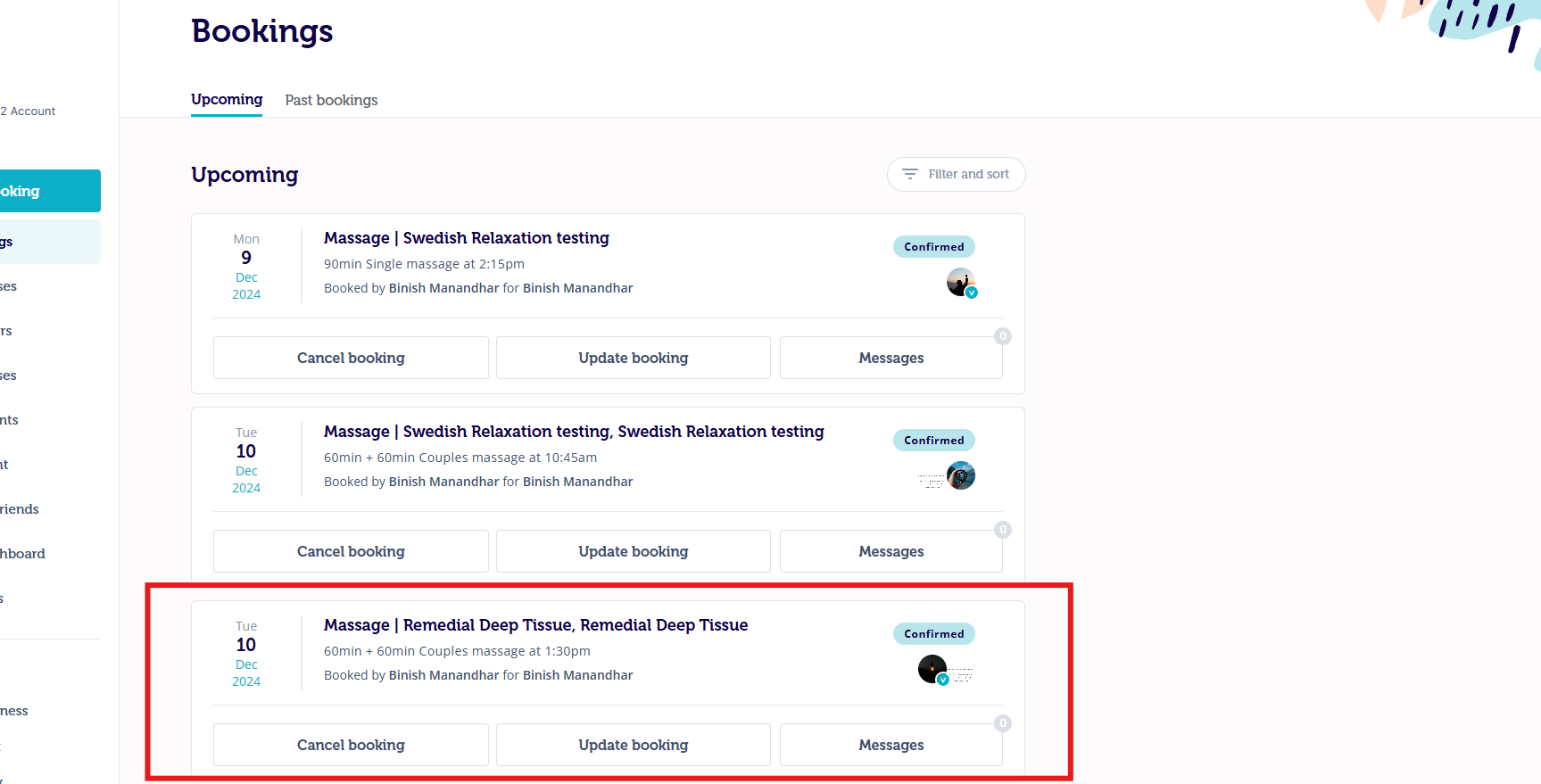
- Select the booking you want to add a tip to.
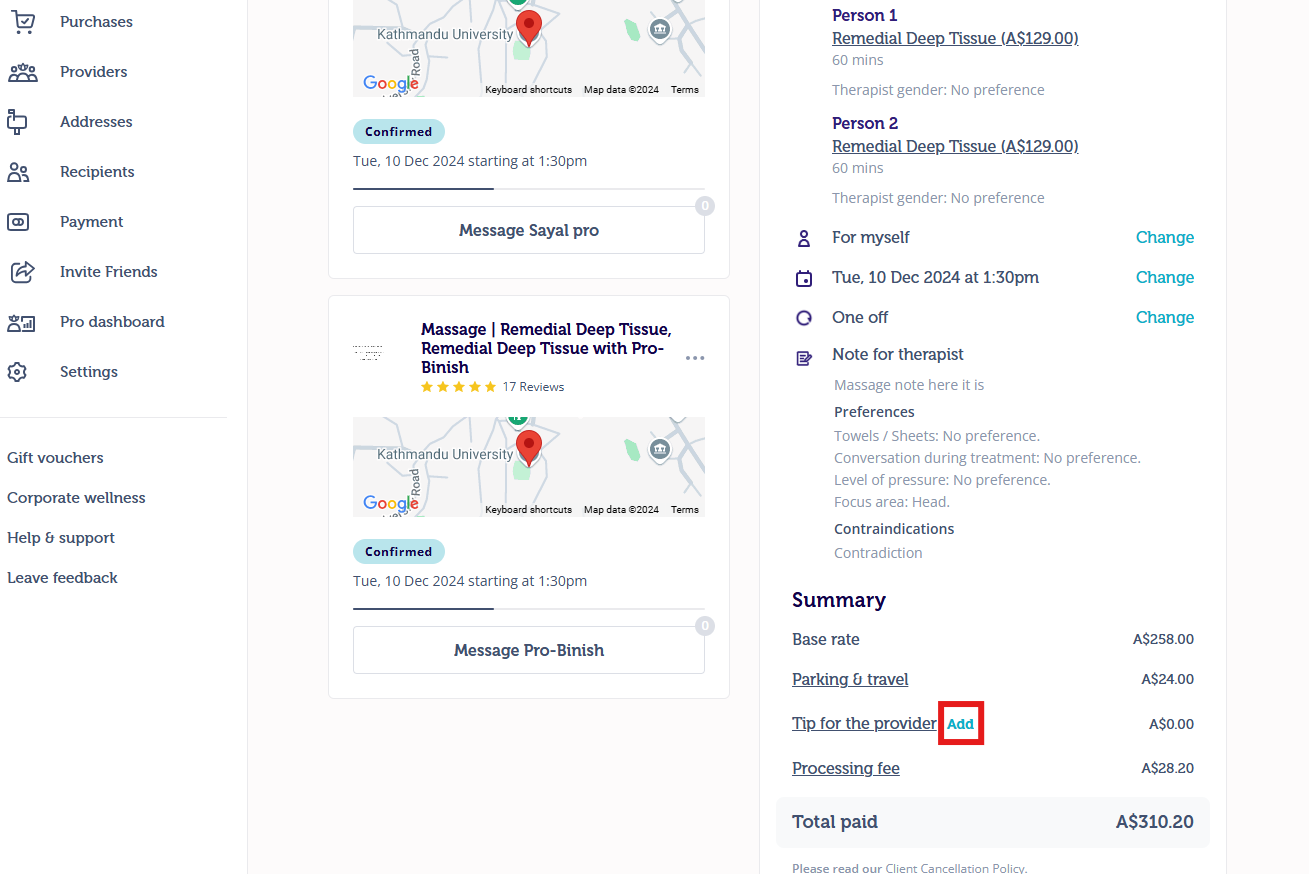
- Navigate towards Add, next to Tip for the provider.
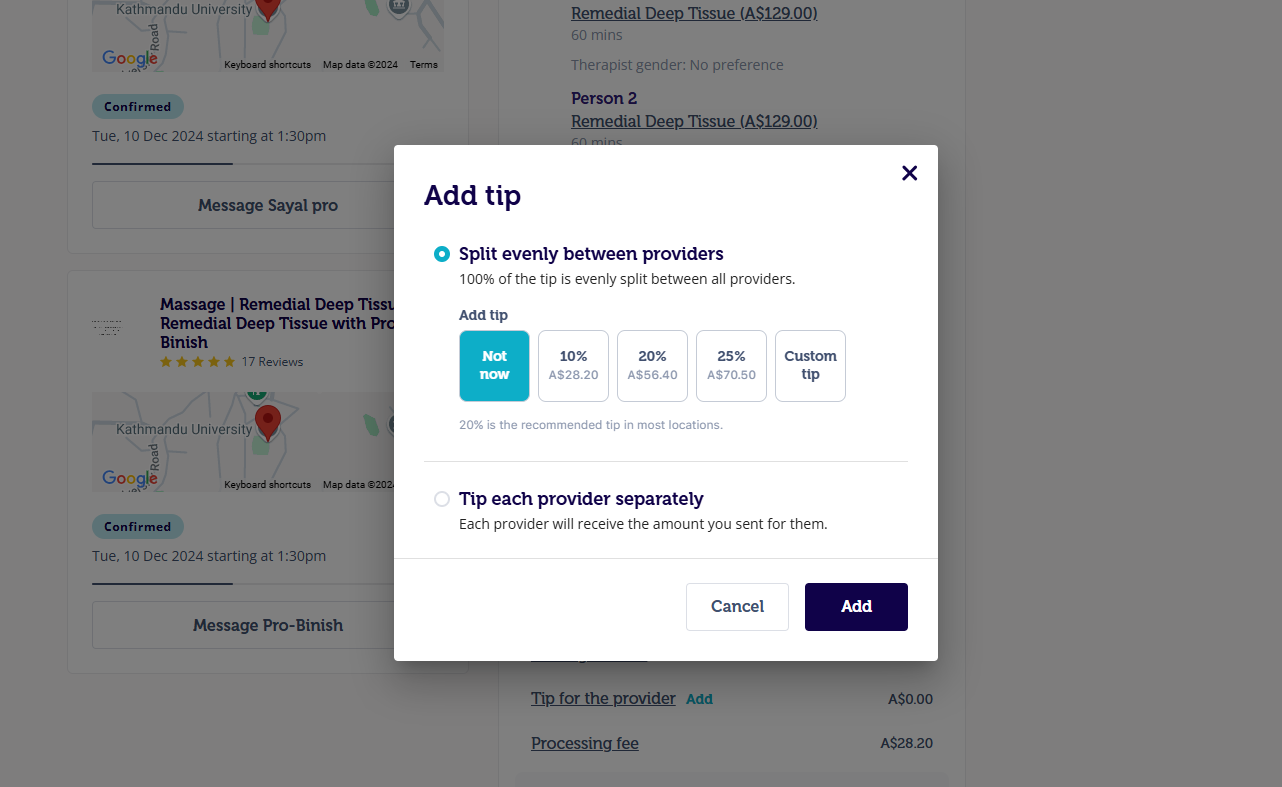
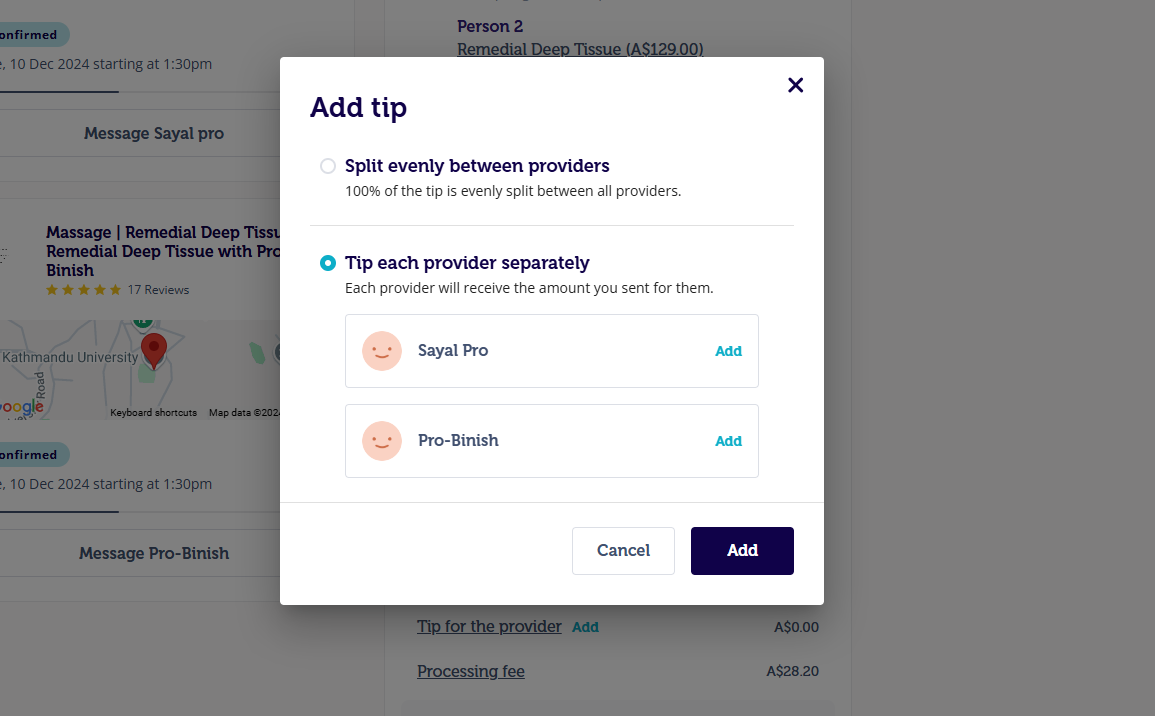
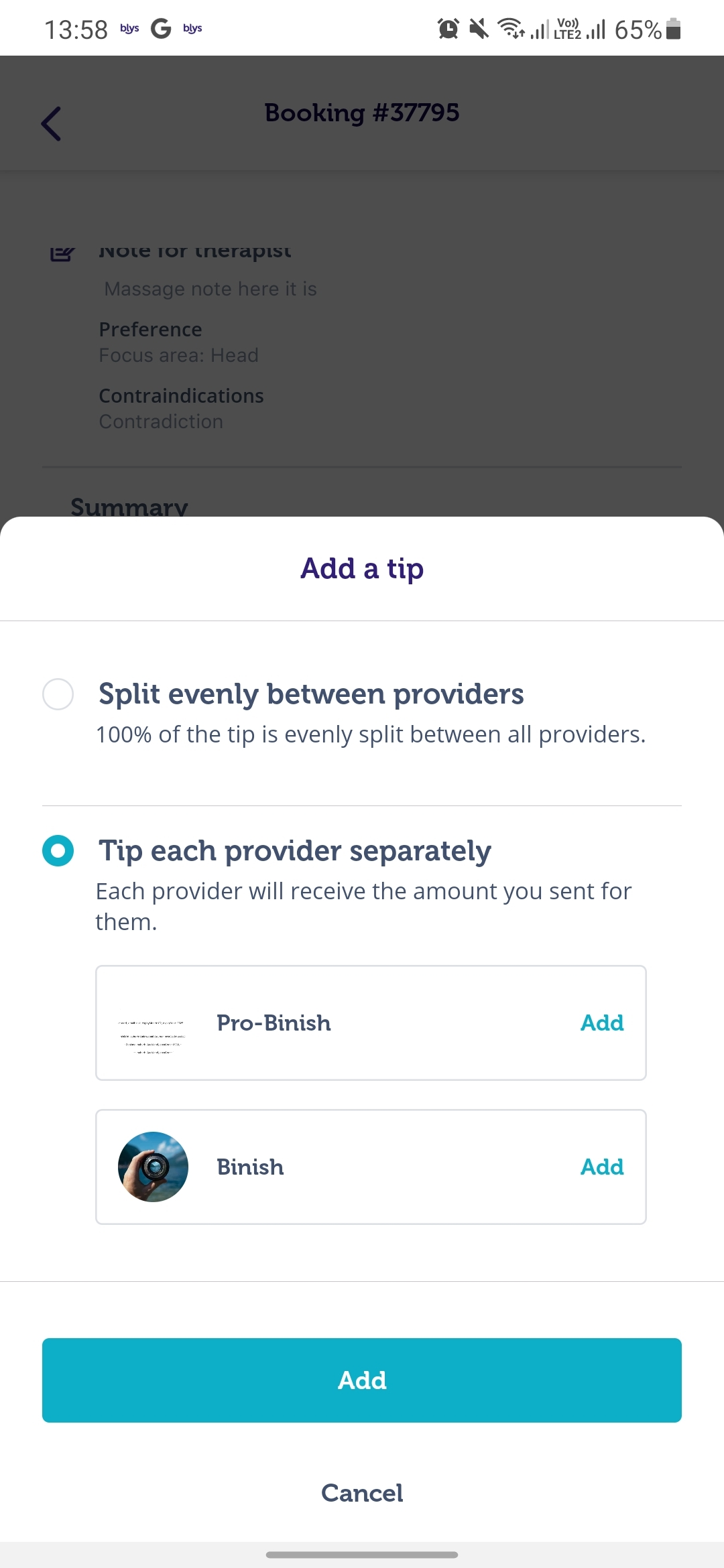
Now you have the choice to:
- Split the tip evenly between the two providers.
- Individually tip each provider.
Via Mobile
After selecting the booking you want to add a tip to.
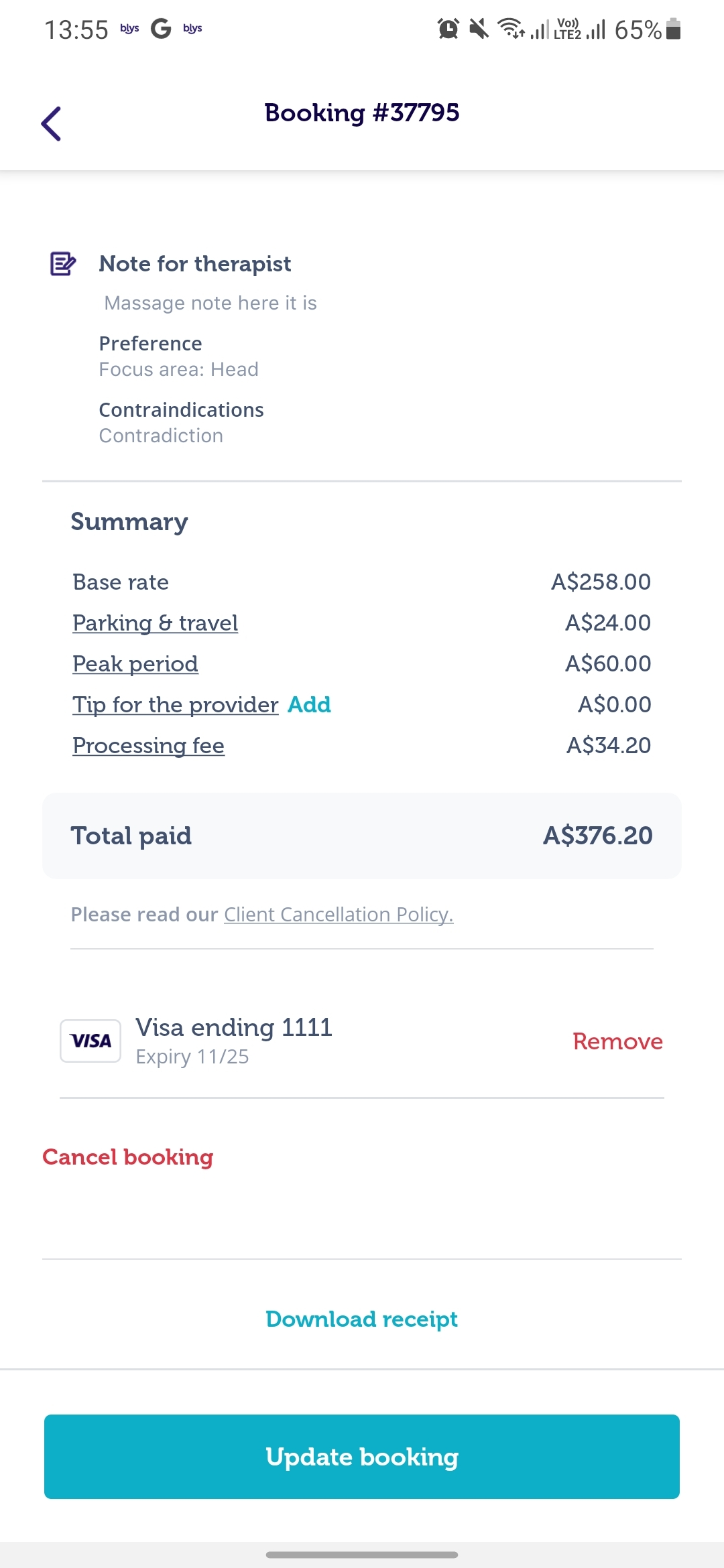
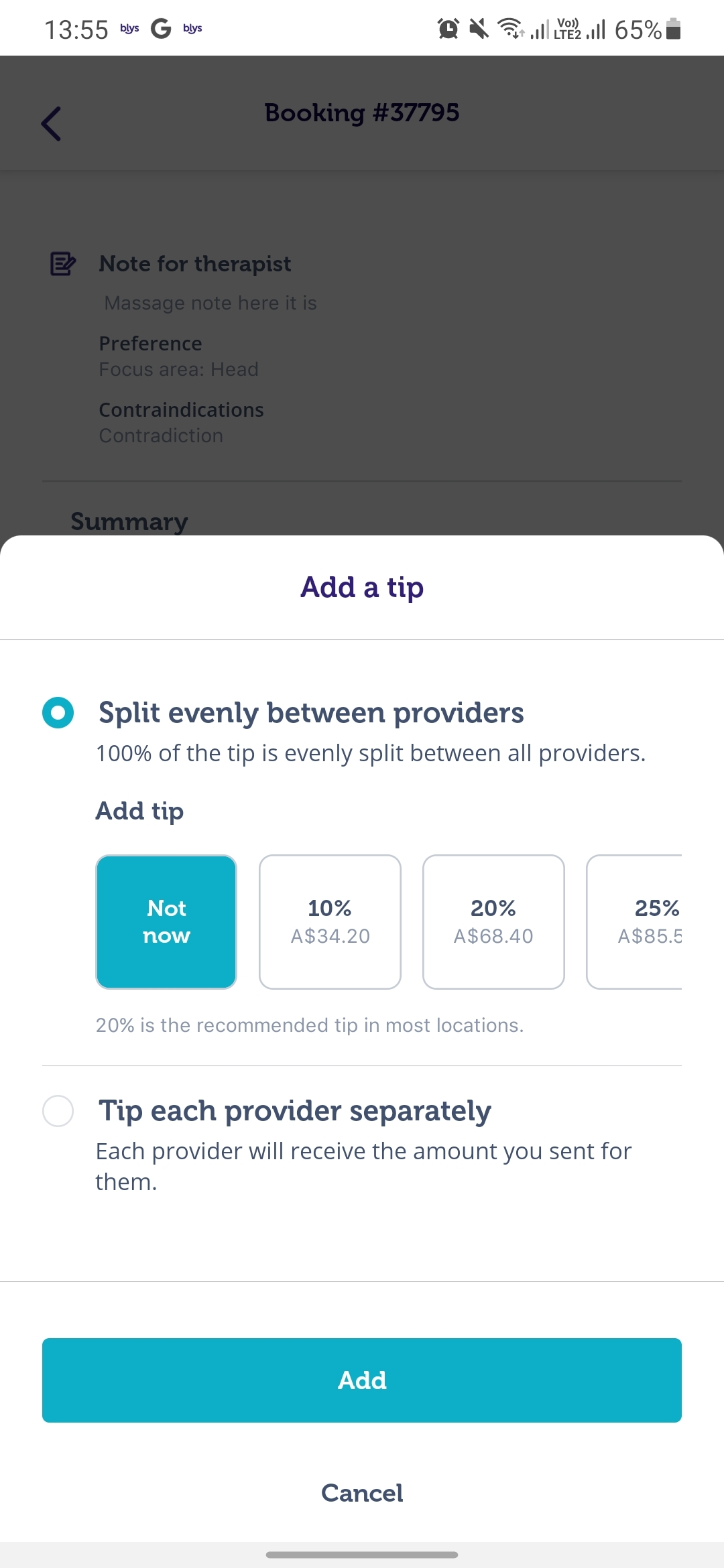
- Navigate towards Add, next to Tip for the provider.
Now you have the choice to:
- Split the tip evenly between the two providers.
- Individually tip each provider.
 |  |  |
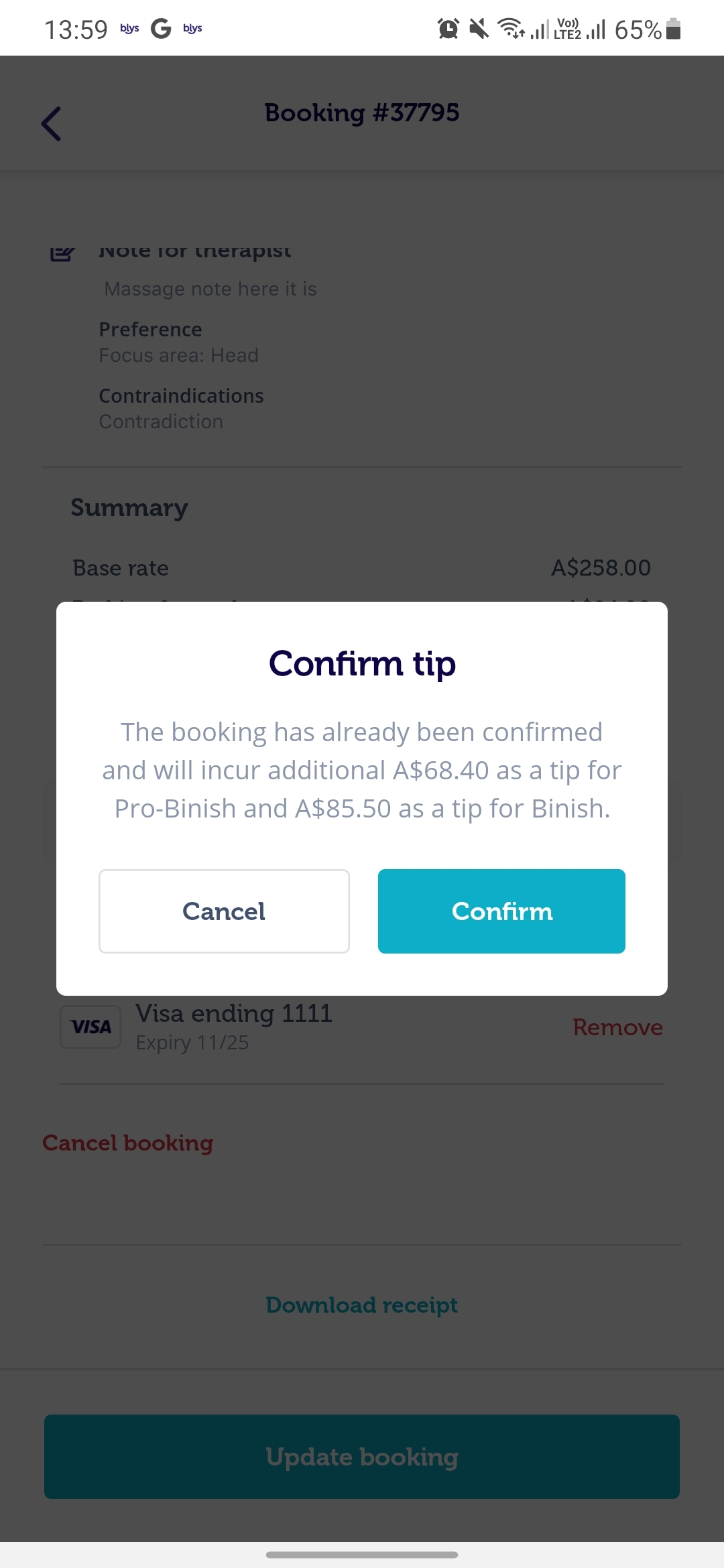
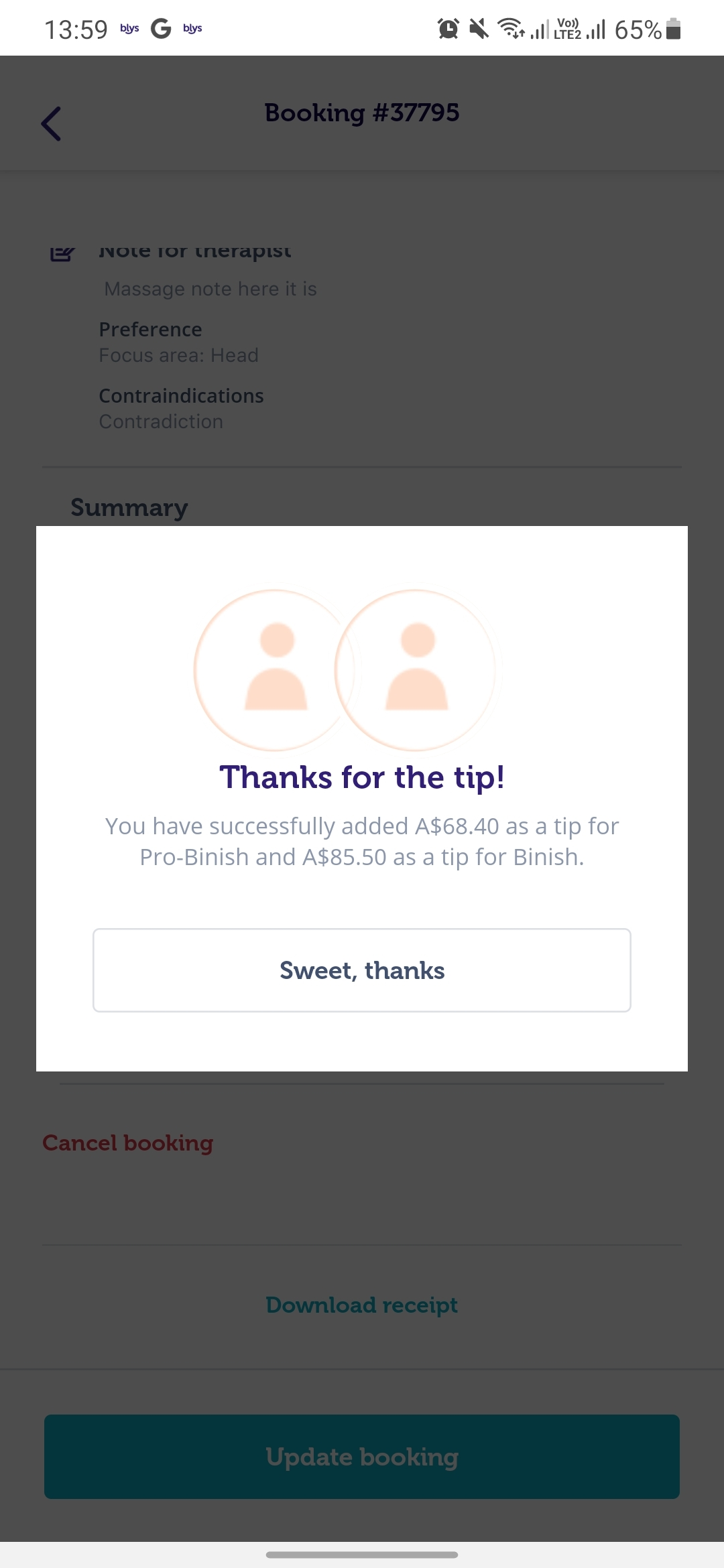
- Confirm the tip amount
 |  |
Tipping after Booking is Completed
Via Website
- Go to Bookings.
- Click on Past bookings.
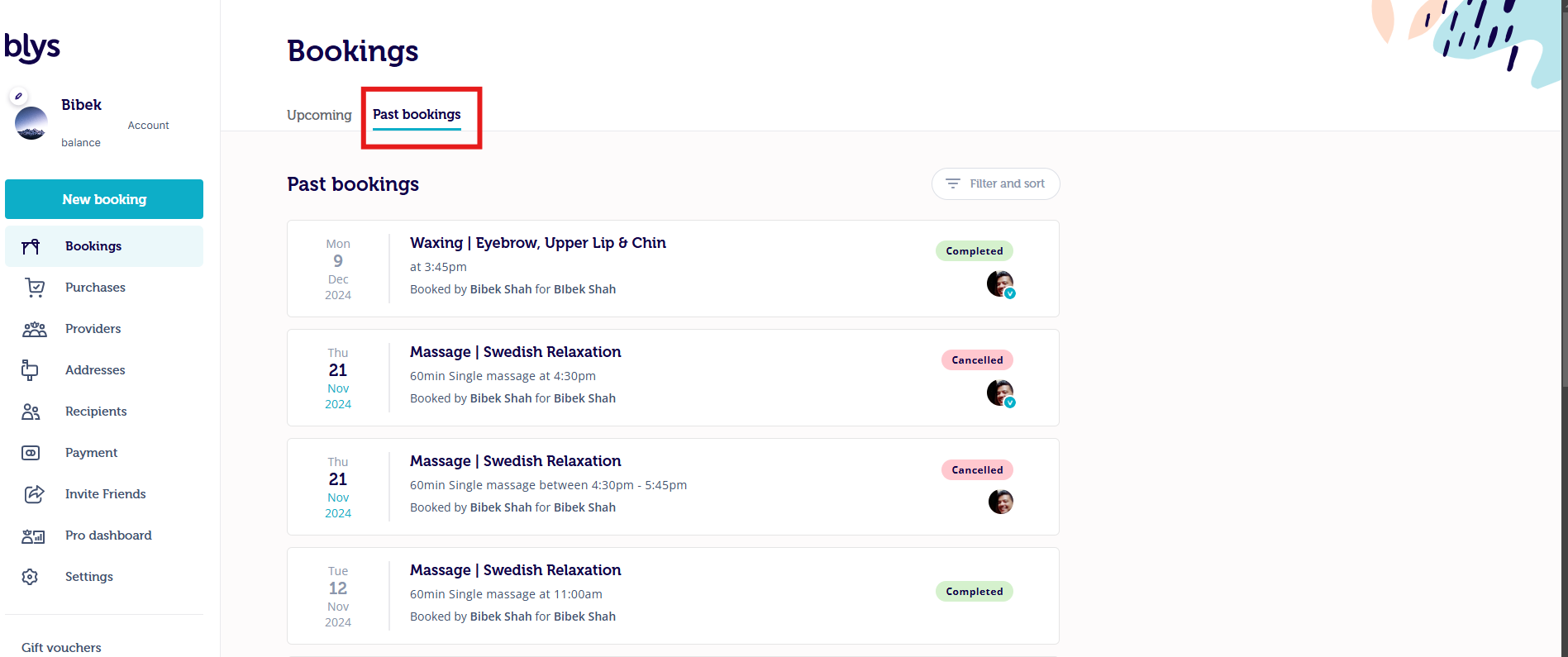
- Select the booking you want to add a tip to.

- Navigate towards Add, next to Tip for the provider.

- Select your desired tip amount, or add a custom tip.
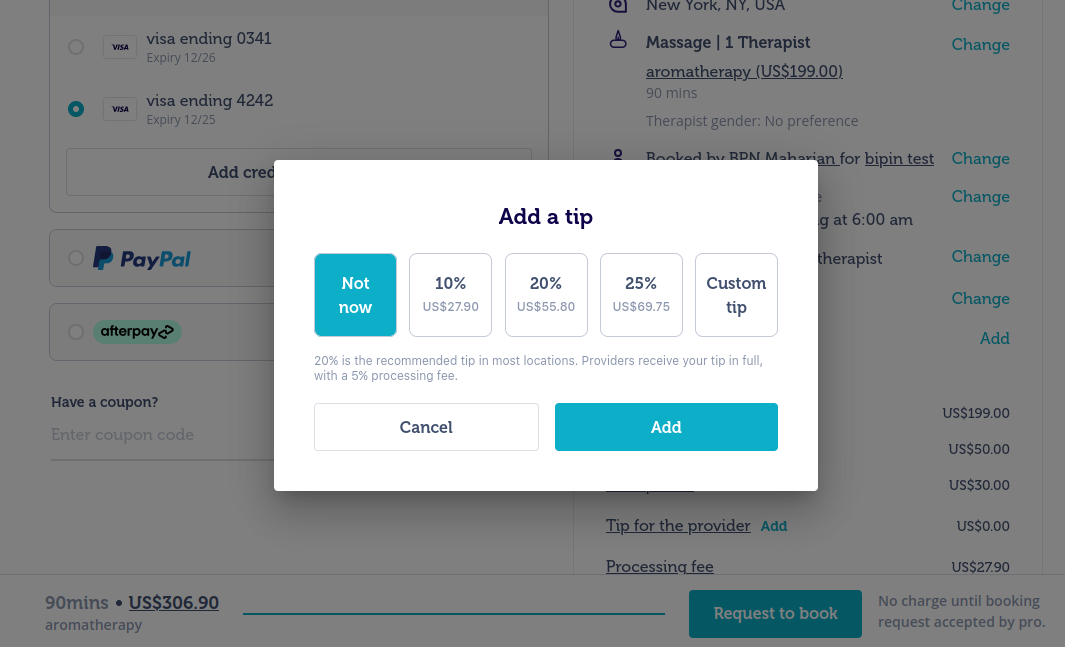
- Confirm the tip amount
For Bookings with more than one pro:
- Go to Bookings.
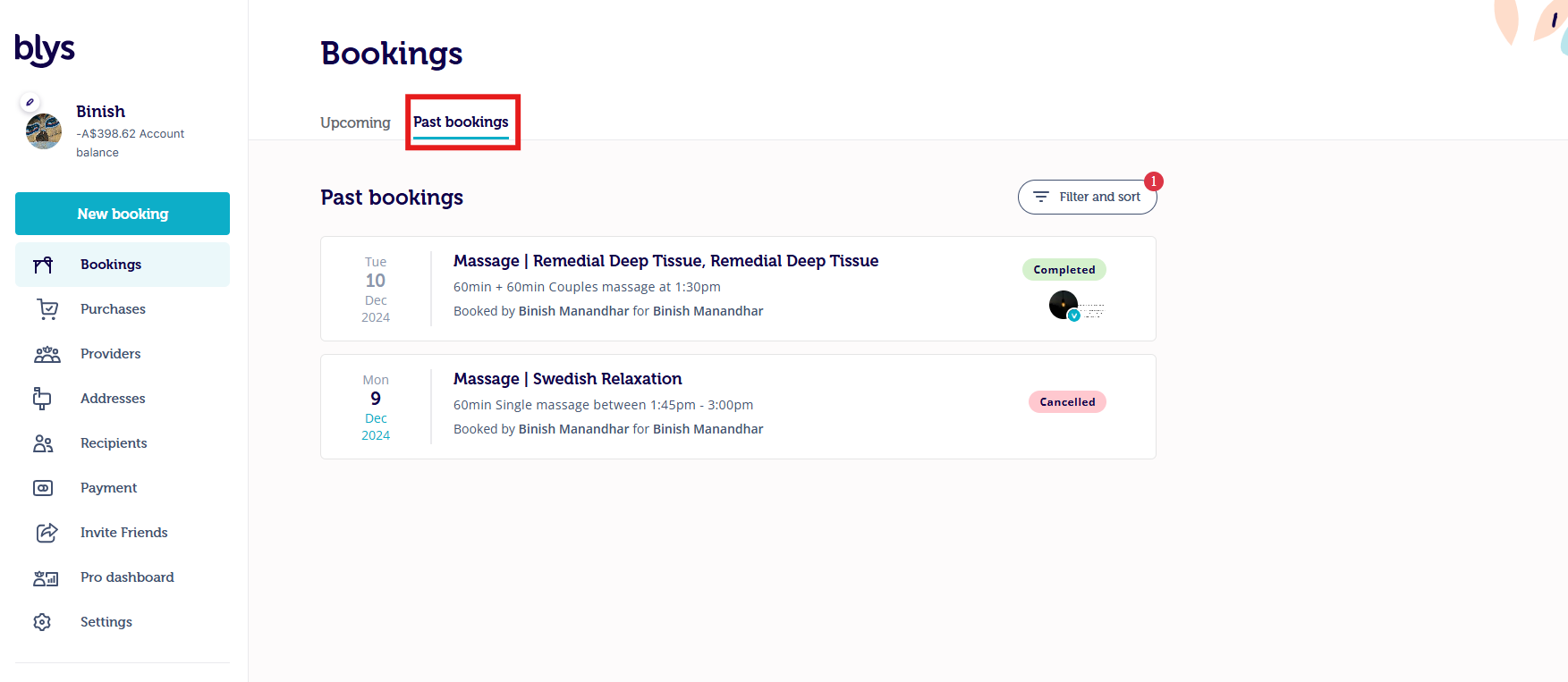
- Click on Past bookings.
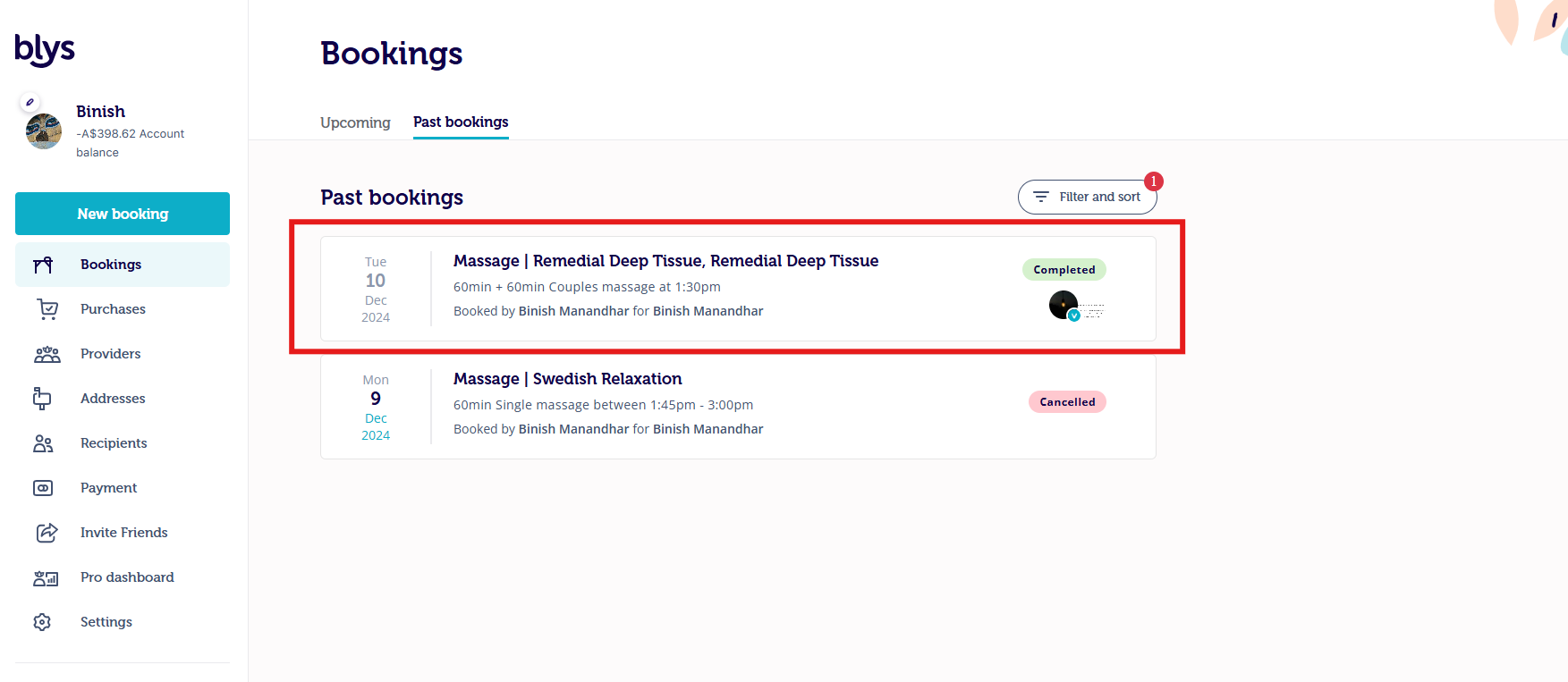
- Select the booking you want to add a tip to.
- Navigate towards Add, next to Tip for the provider.
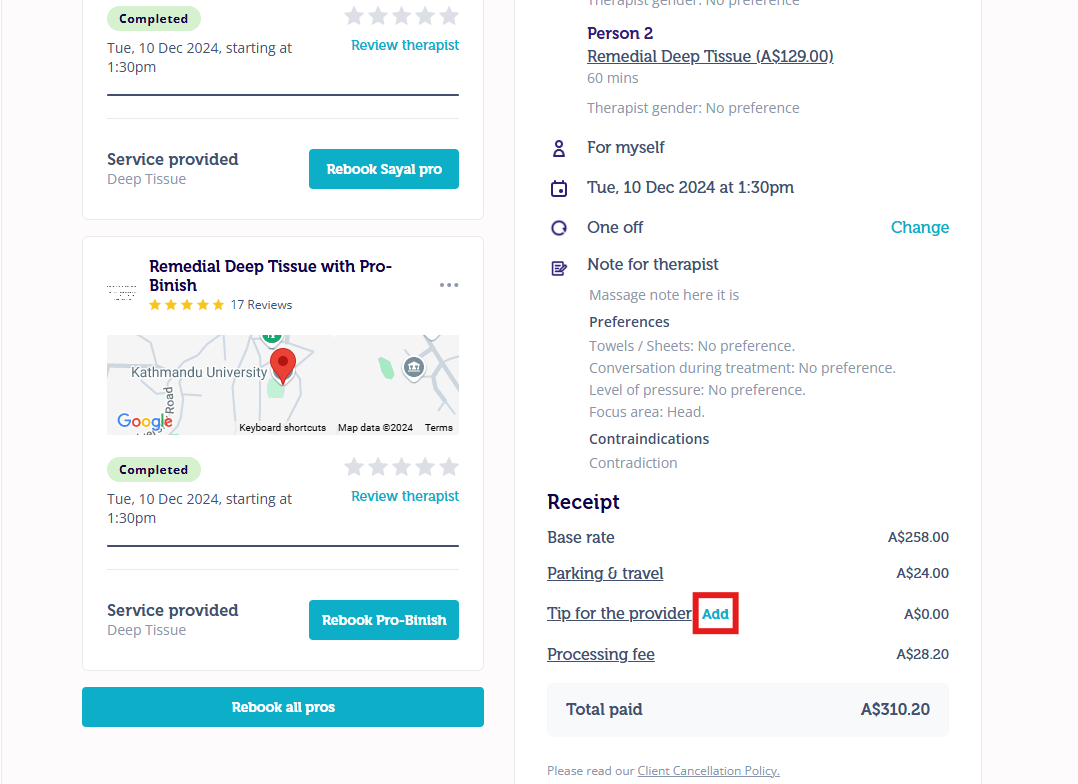
Now you have the choice to:
- Split the tip evenly between the two providers.
- Individually tip each provider.
- Confirm the tip amount
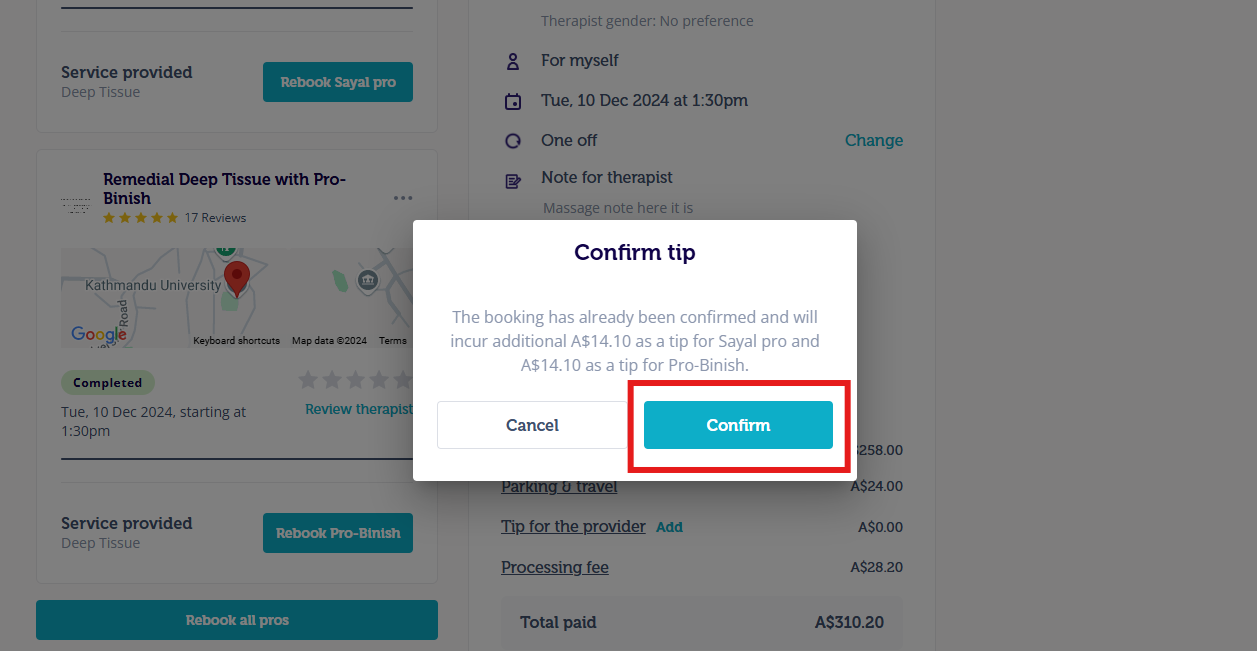
Note: Once the booking is completed, the tipping option is only open for 24 hours from the completion time.
Via Mobile App
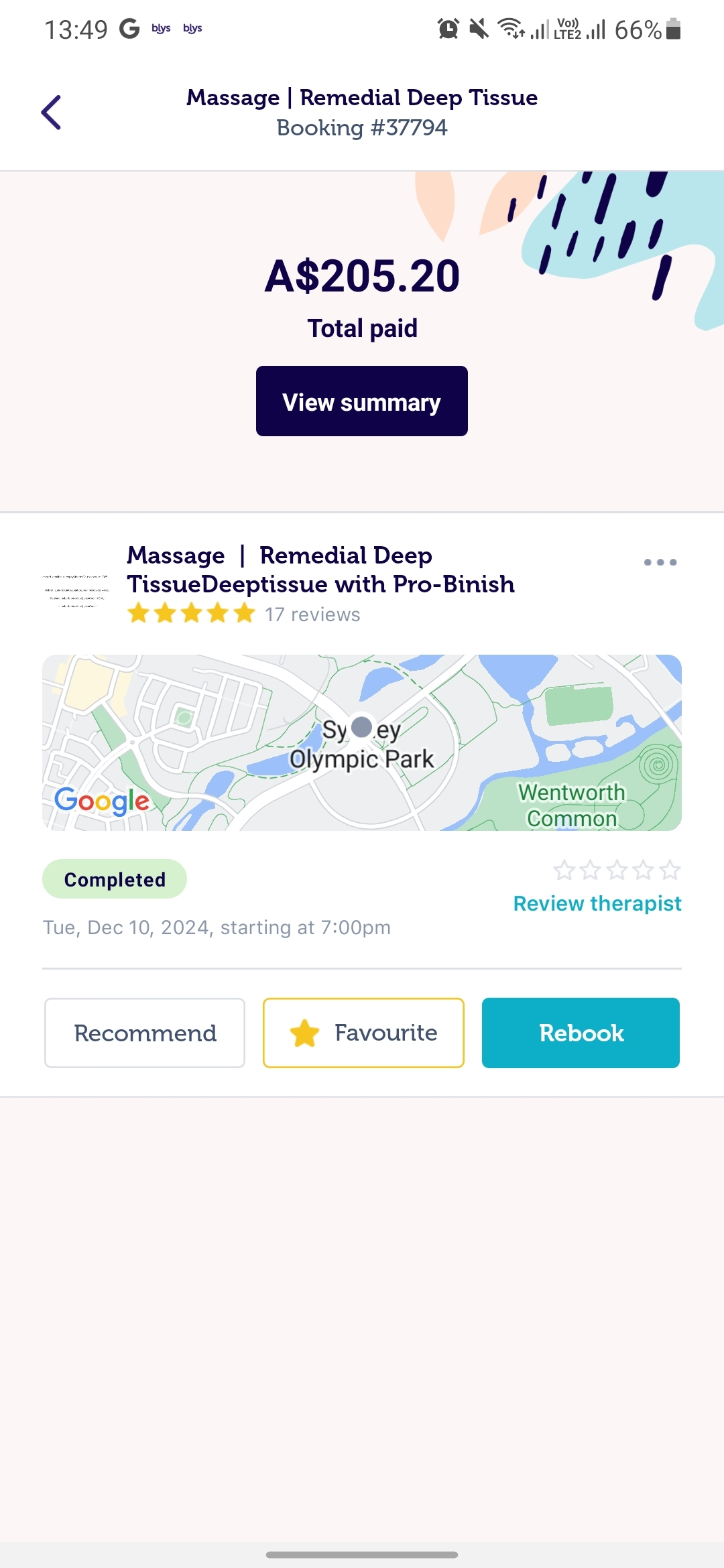
For bookings with one pro
- Select the booking you want to add a tip to.
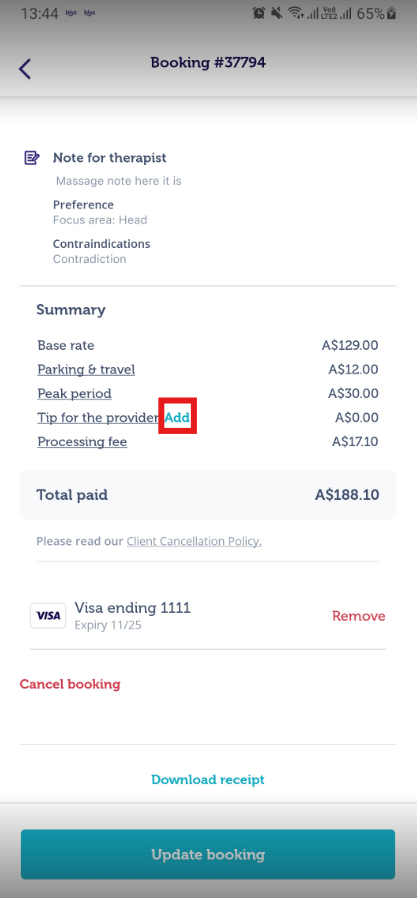
- Navigate towards Add, next to Tip for the provider.
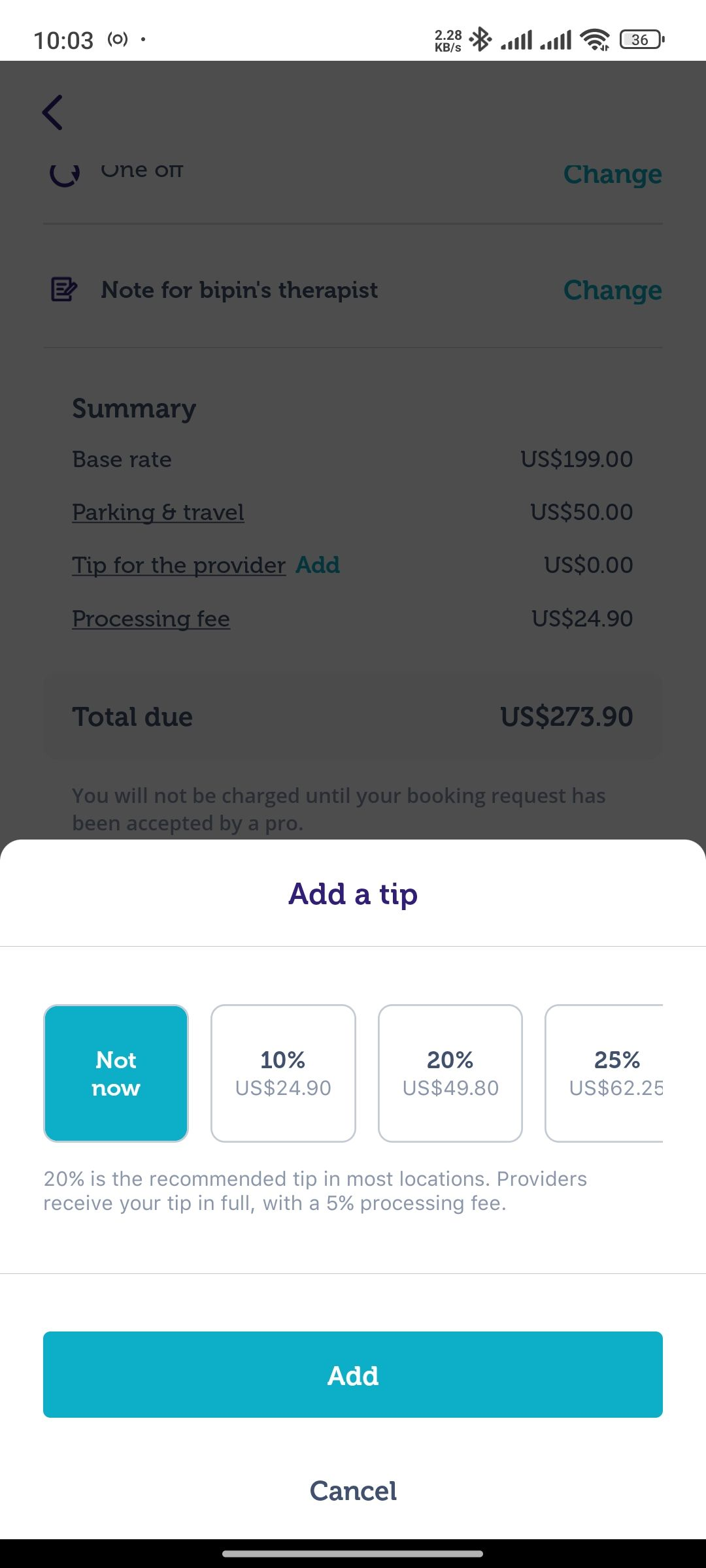
- Select your desired tip amount, or add a custom tip.
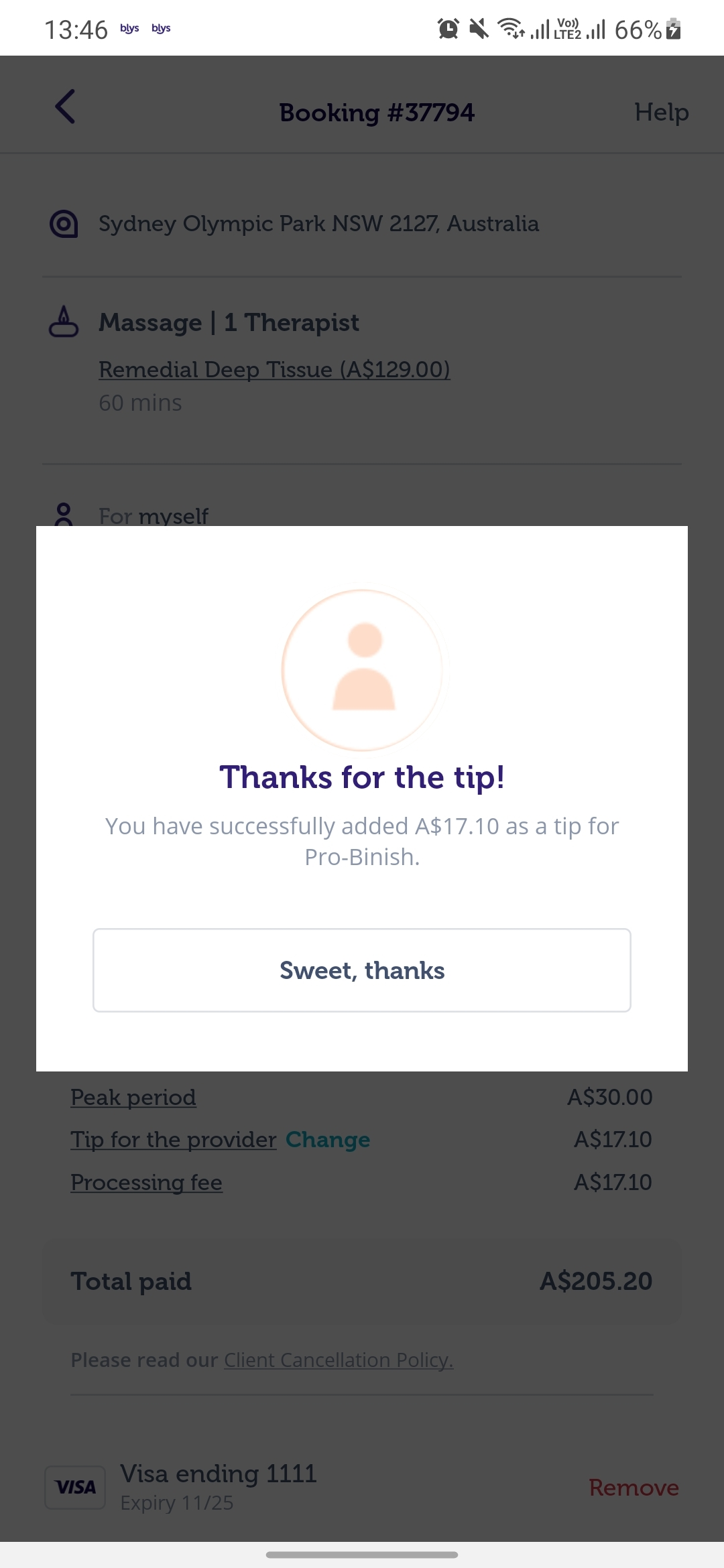
- Confirm the tip amount.
 |  |  |  |
For bookings with more than one pro
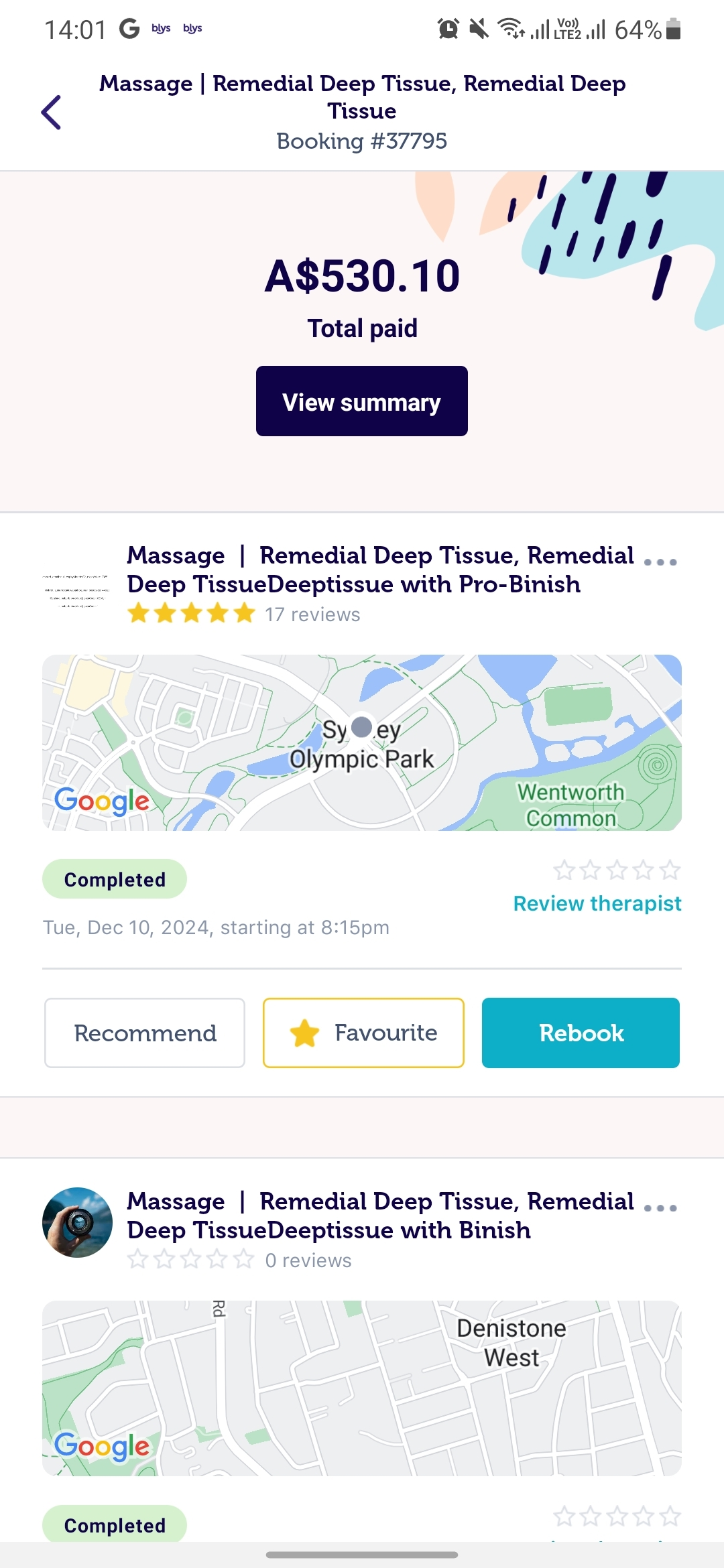
- Select the booking you want to add a tip to.
- Navigate towards Add, next to Tip for the provider.
 | 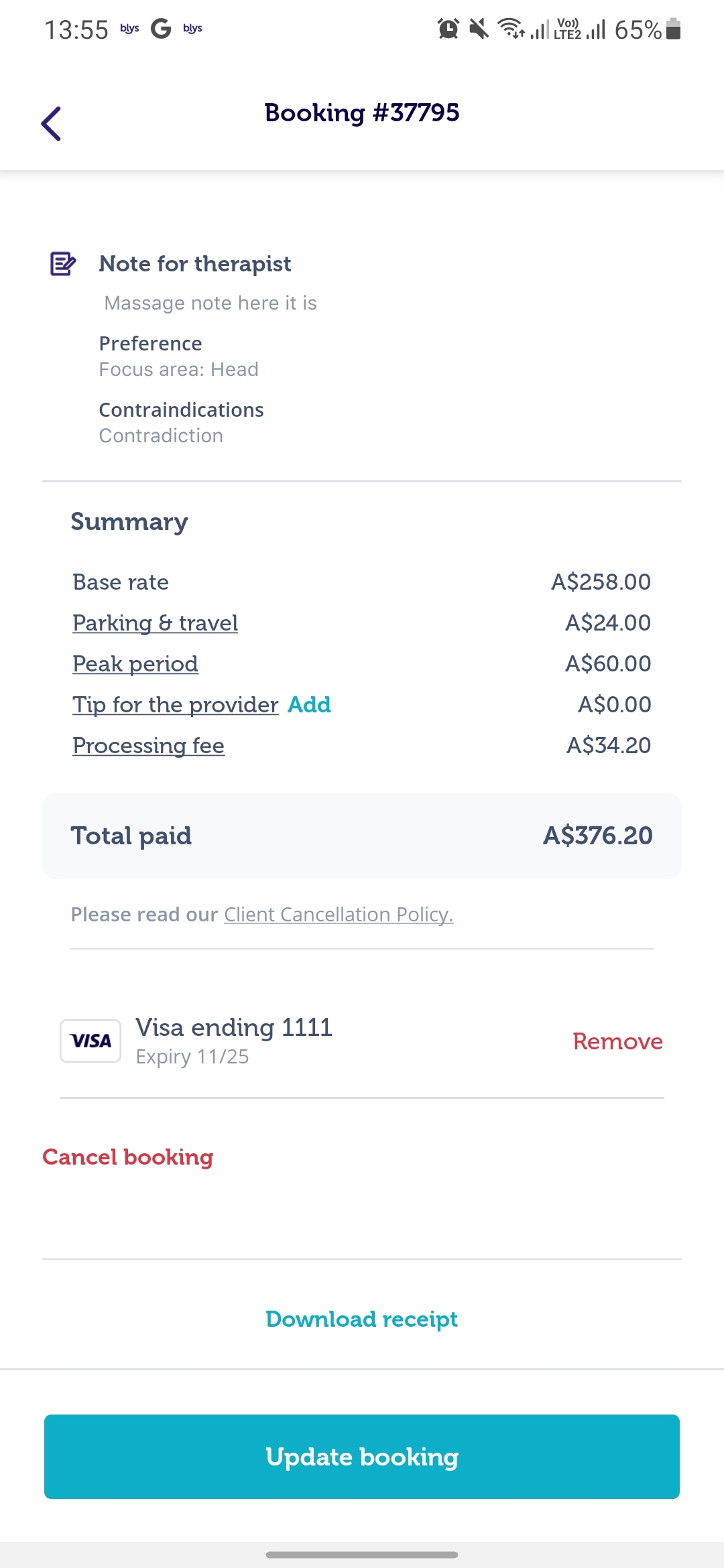 |
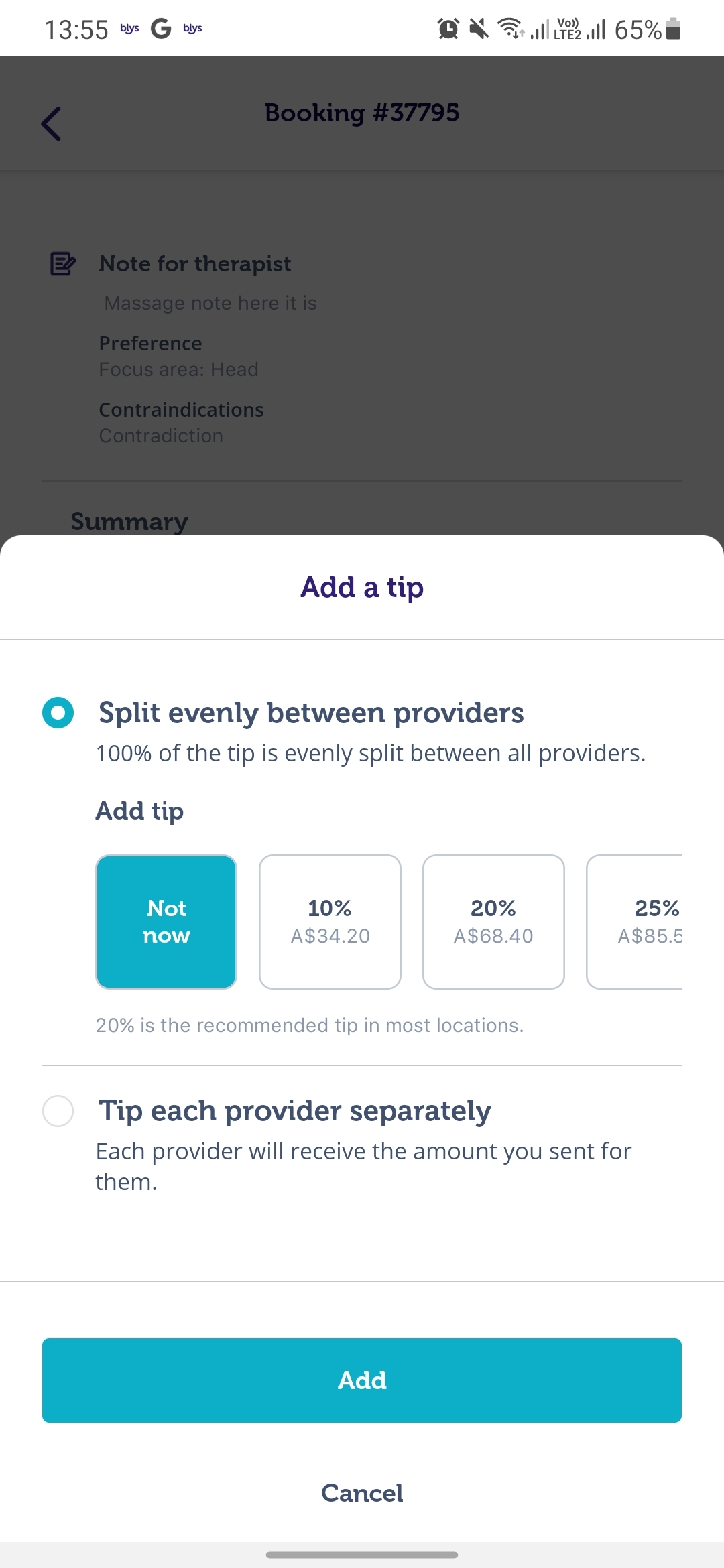
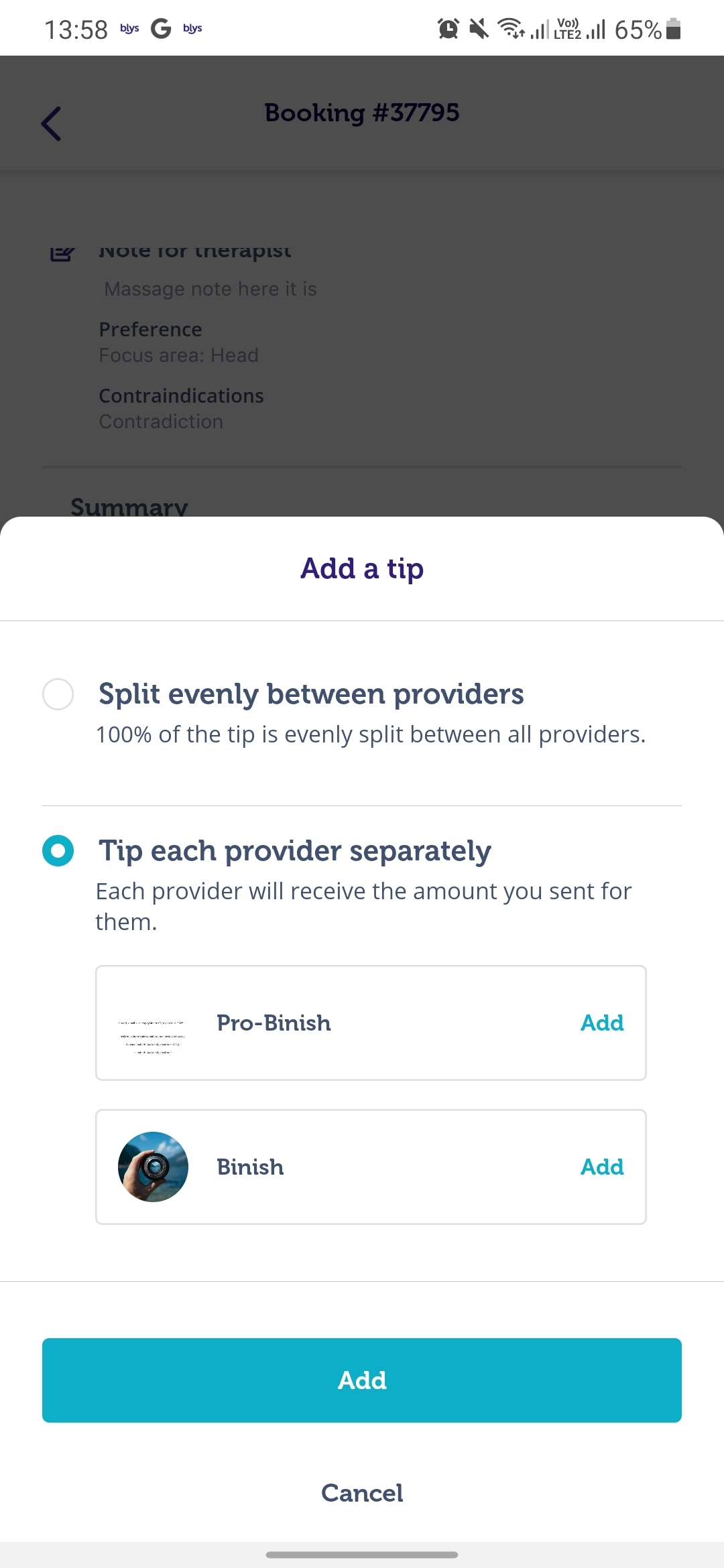
Now you have the choice to:
- Split the tip evenly between the two providers.
- Individually tip each provider.
 |  |
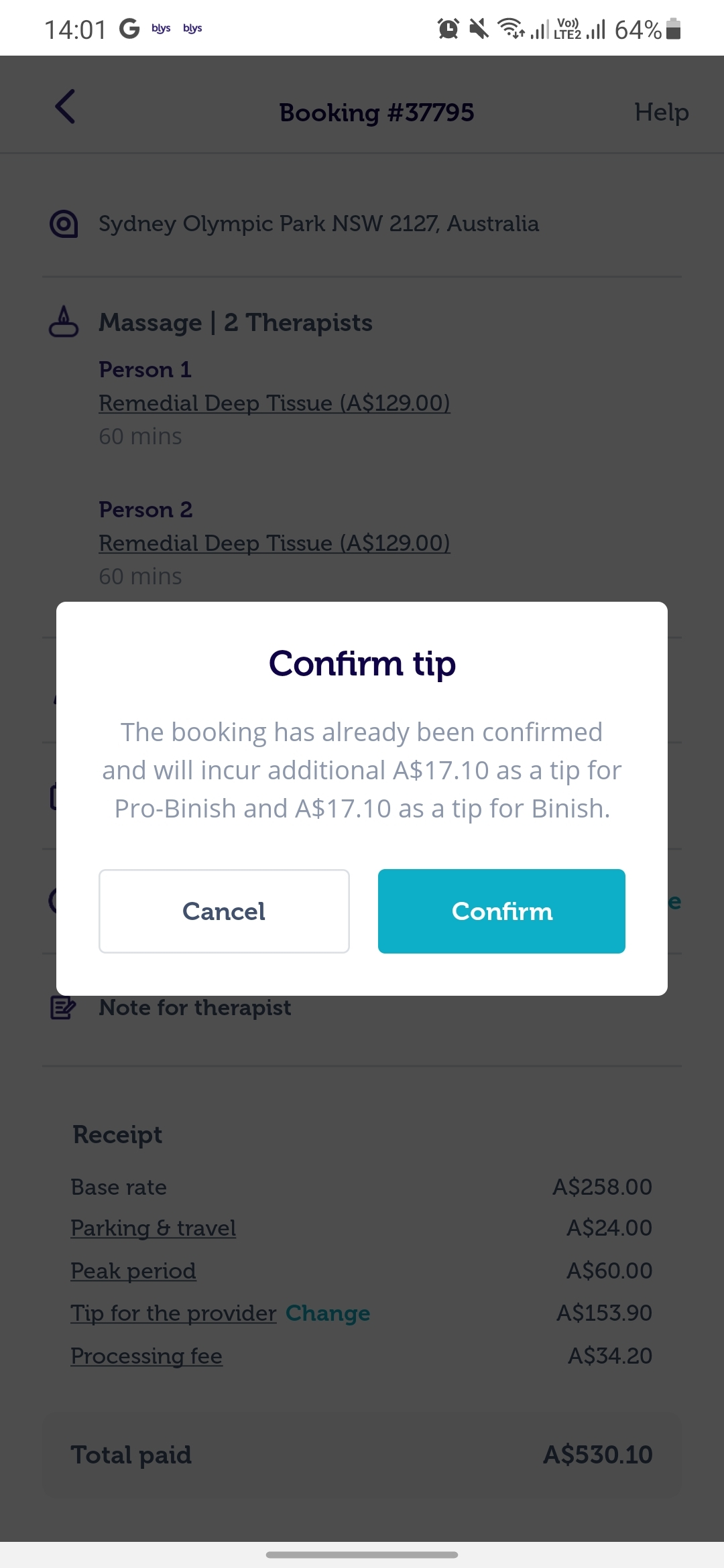
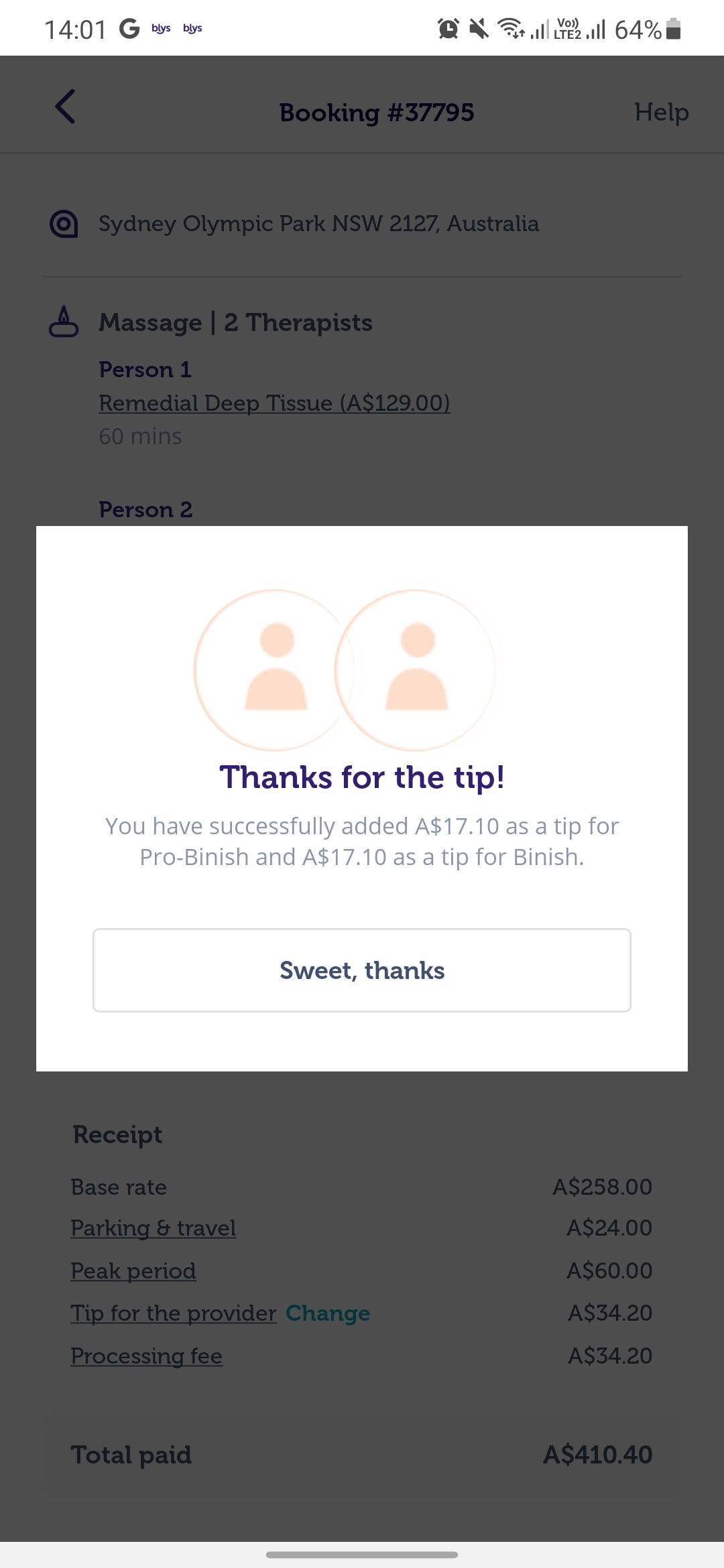
- Confirm the tip amount.
 |  |
Note: Once the booking is completed, the tipping option is only open for 24 hours from the completion time.