TABLE OF CONTENTS
- Downloading the App
- Signing Up / Logging In
- Setting your services / modalities
- Accepting Booking Requests
- Navigation
- Contacting the Client
- Completing the Job
- Direct Booking Requests
- Job History and Earnings
- Ratings and Reviews
- Updating your details
- Rate and Review Clients
- Blocking Individual Clients
- Unblocking Individual Clients
- Contacting Blys
- Deleting your profile
Downloading the App
The Blys Pro App can be downloaded from the links below.
Signing Up / Logging In
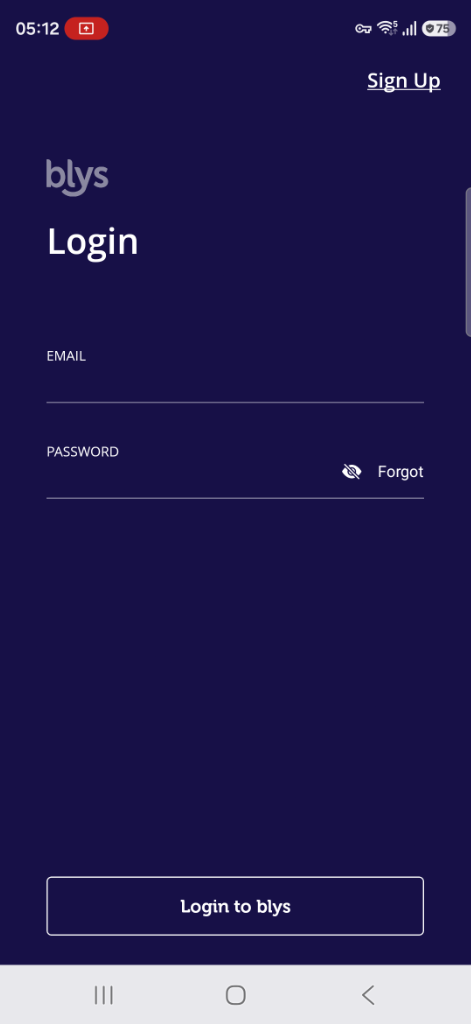
If your account has already been approved by Blys, you can simply log in to the Blys Pro app.
- If you’re having issues logging in to the Blys Pro app, simply ‘Reset Password' in the app.
- If you’re having issues with your email, simply ‘Sign up’ from scratch in the app and we’ll set you up.
Our Provider Support Team is on-call to help you onboard the Blys pro app.
|
|
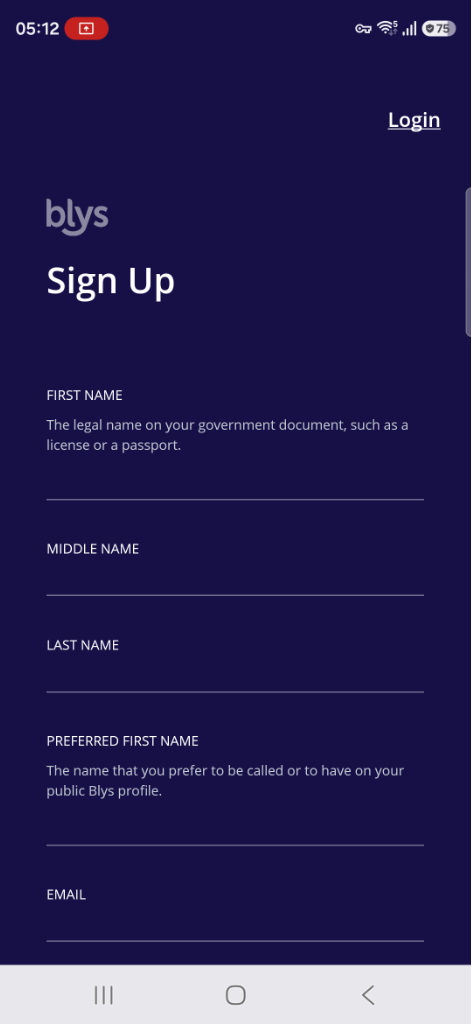
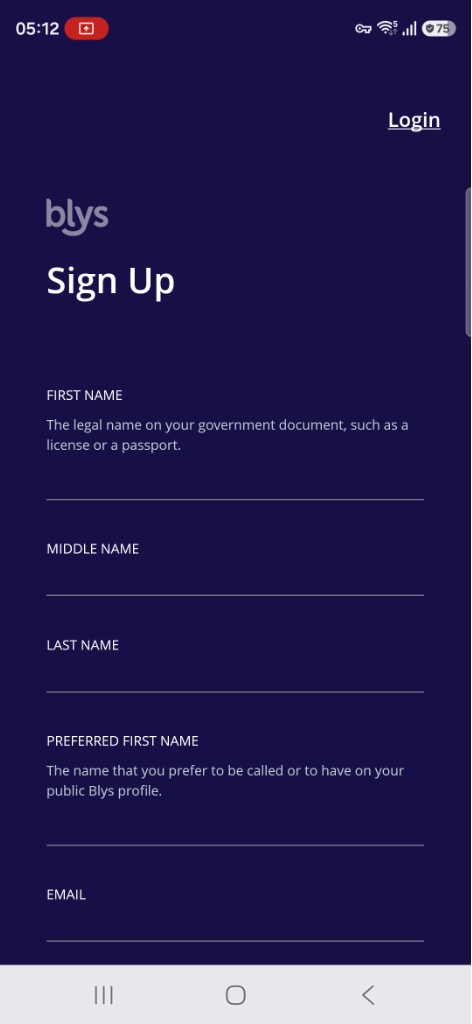
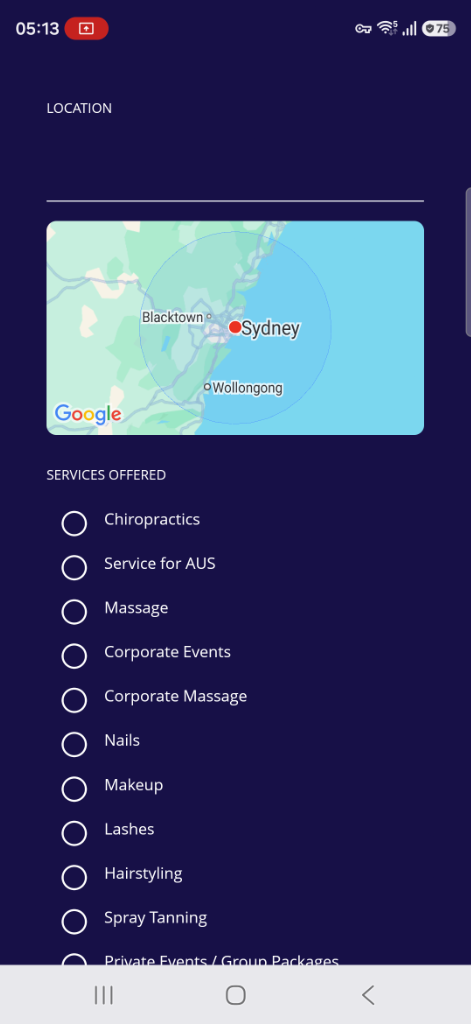
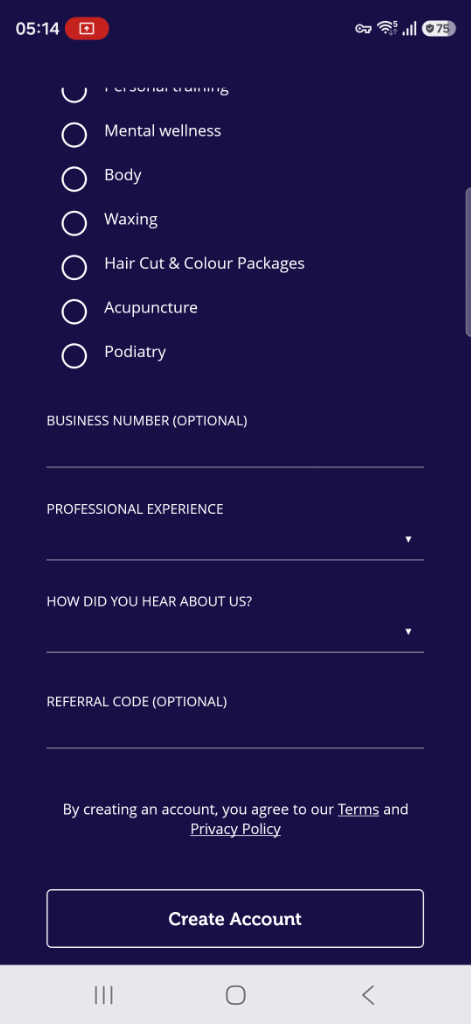
Otherwise, if you’re not on Blys yet as a provider, you can sign up in the app by filling out the signup form, and someone from our Provider Support Team will get in touch with you to follow up on your account.
|
|
|
App Notifications
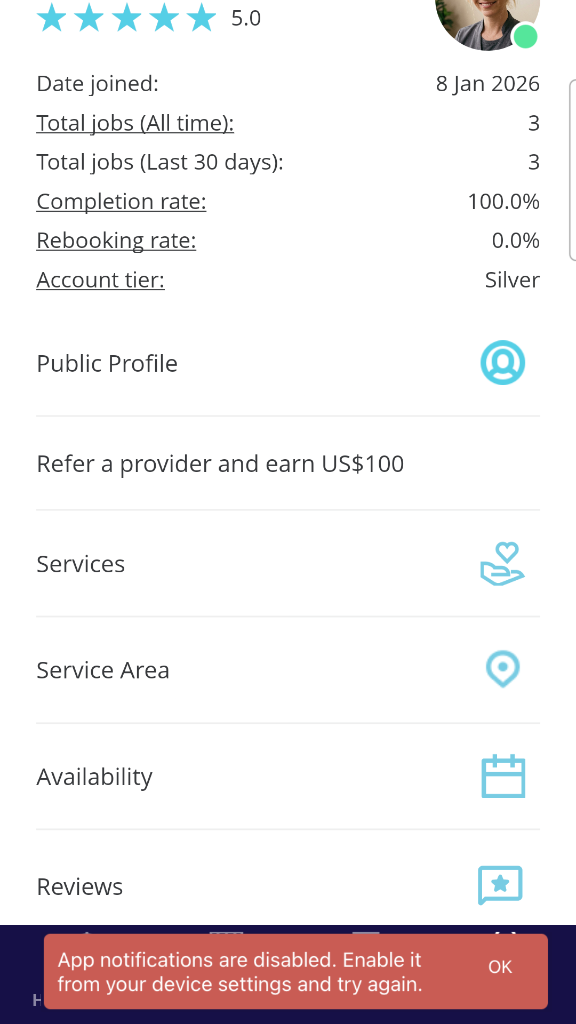
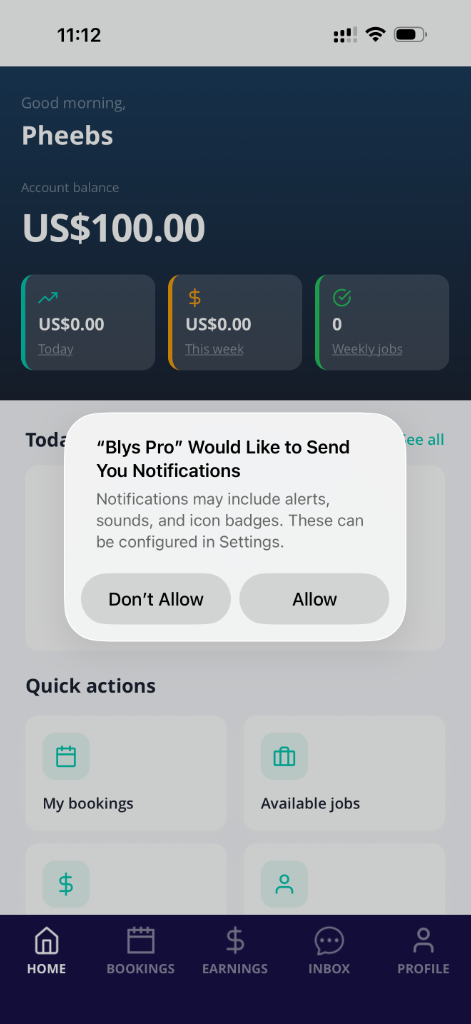
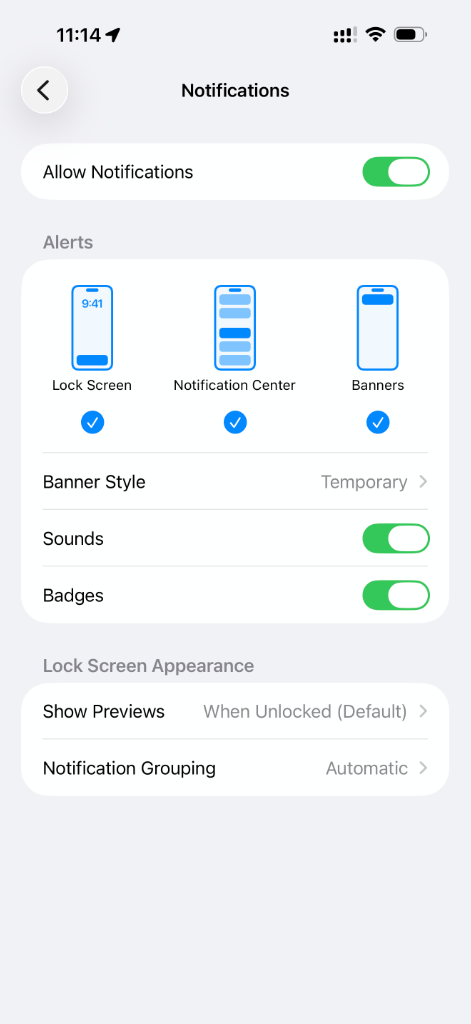
When you log in, make sure to tap ‘Allow’ to give the app permission it needs to be able to send you booking requests and notifications. You won't be able to get new booking alerts unless you give your app these permissions.
|
|
|
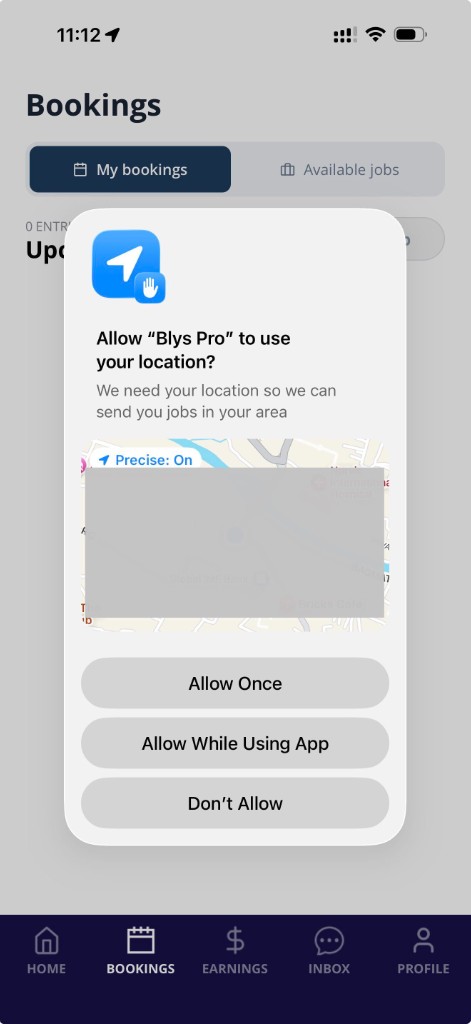
Make sure you select "Always Allow" for your app to know your location accurately:
Email and SMS Notifications
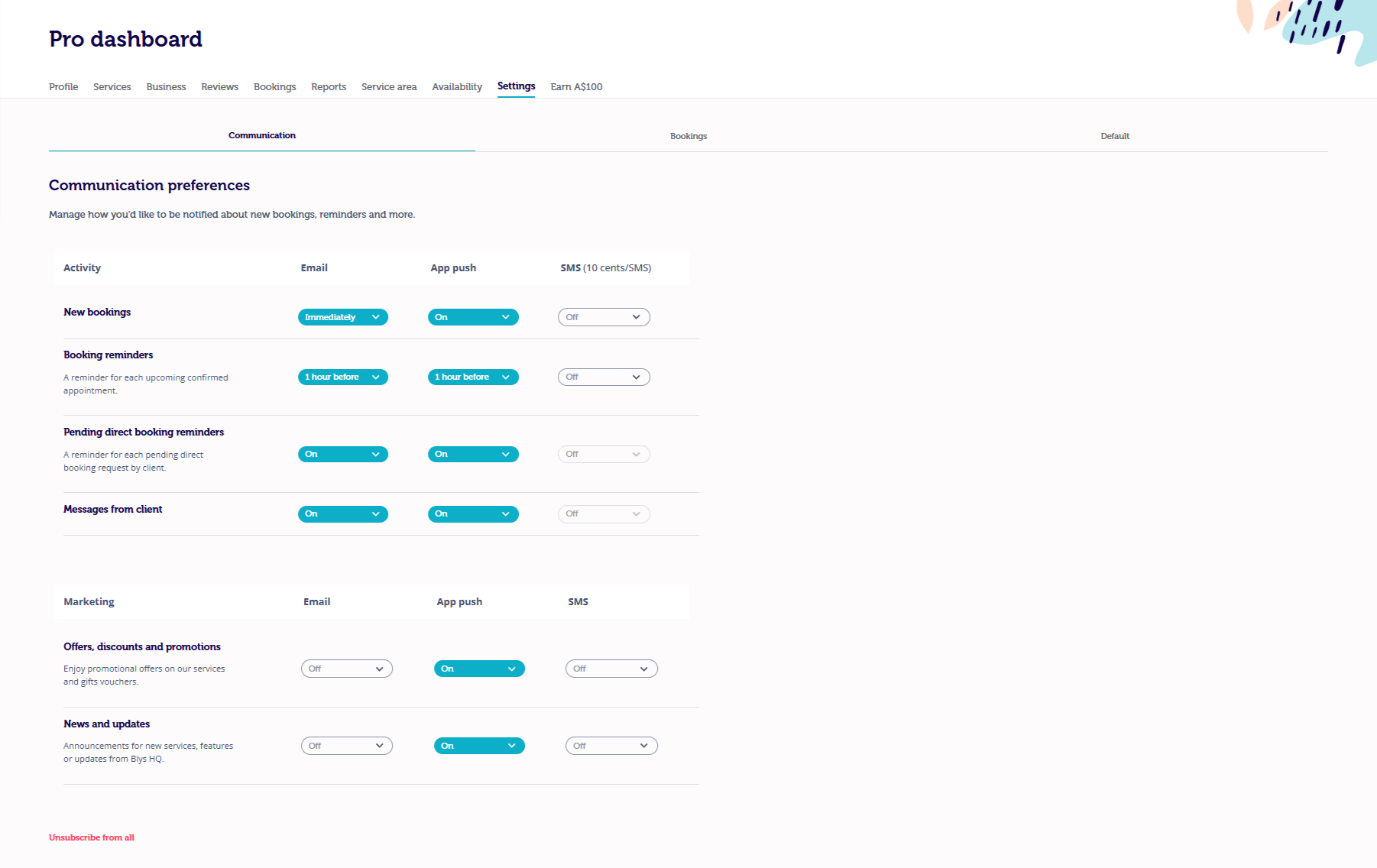
Via the Pro Dashboard
- Log in to your account from the website.
- Go to Pro Dashboard and then Settings.
- Toggle the Email, App Push, or SMS button should you wish to be notified via email, push, or SMS.
Via the Blys Pro App
- Log in to your account from the Blys Pro App.
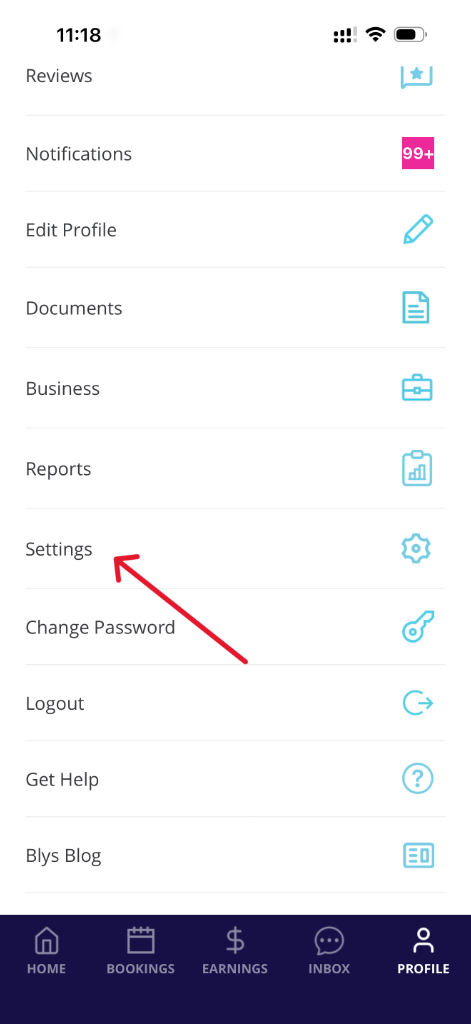
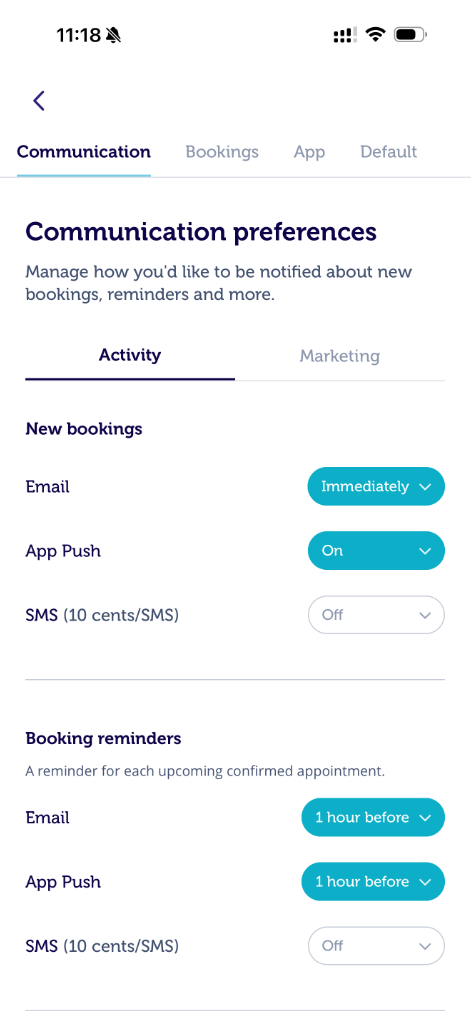
- Go to Profile and then Settings.
- Toggle the Email, Push, or SMS button should you wish to be notified via email, push, or SMS.
|
|
WhatsApp Job Alerts (Germany, France, Sweden and Norway)
In Germany, France, Sweden and Norway, providers with a verified mobile number who have opted in may also receive new job alerts via WhatsApp, in addition to push notifications and email.
WhatsApp job alerts include the service, suburb, date, time and payout amount, along with a link to view and accept the job in the Blys Pro app.
If you no longer want to receive WhatsApp job alerts, reply STOP to the message and you will be opted out.
Setting your services / modalities
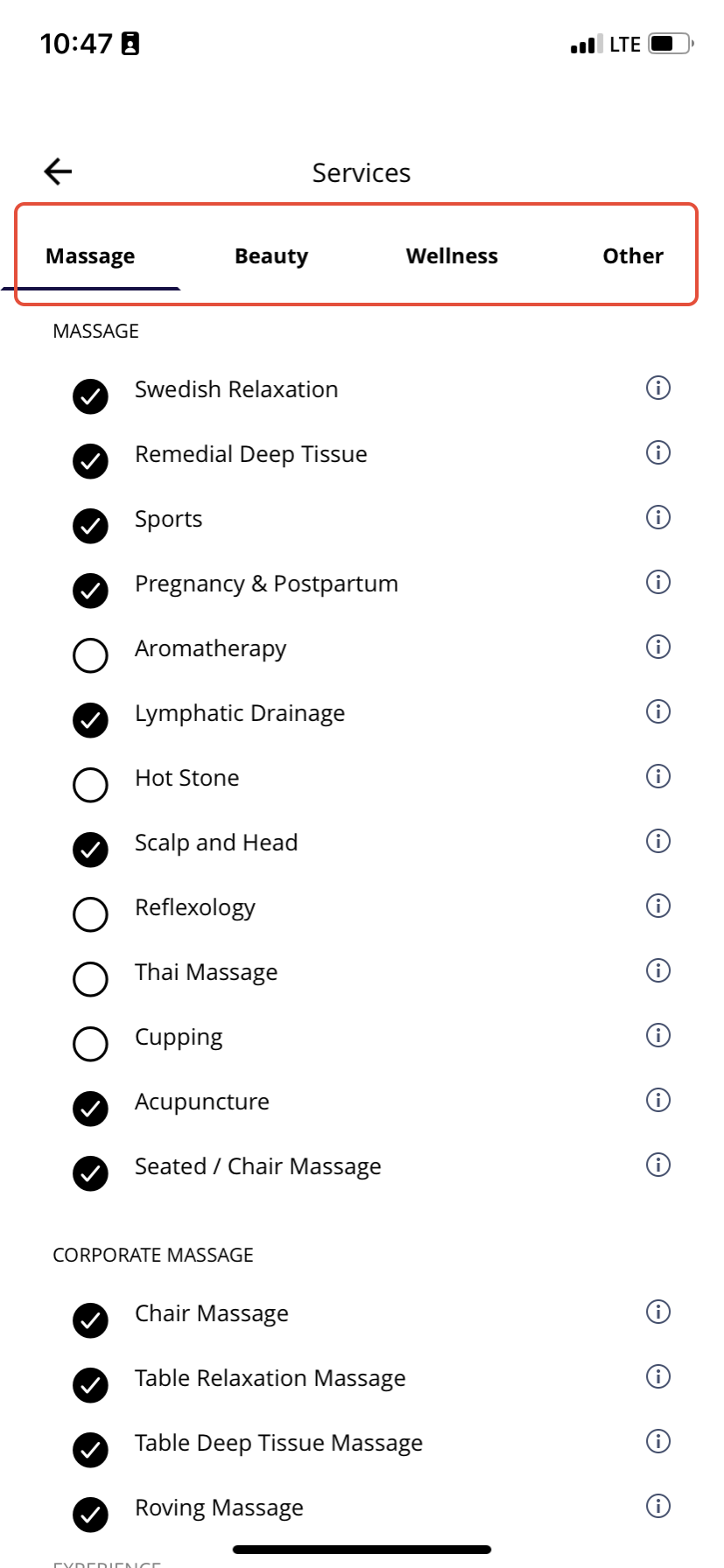
Set the services/ modalities you’re qualified for in your app, so you receive relevant and personalised job alerts.
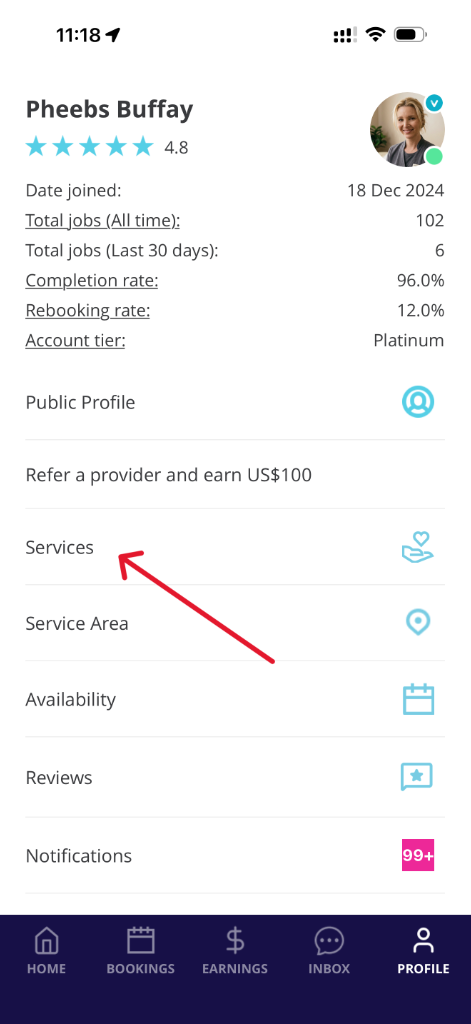
- Go to Account and tap on Services.
- Toggle on the services you are qualified to deliver and get booking alerts for, and save the changes.
|
|
Accepting Booking Requests
Via App
- Open the Blys Pro App, and tap on Bookings.
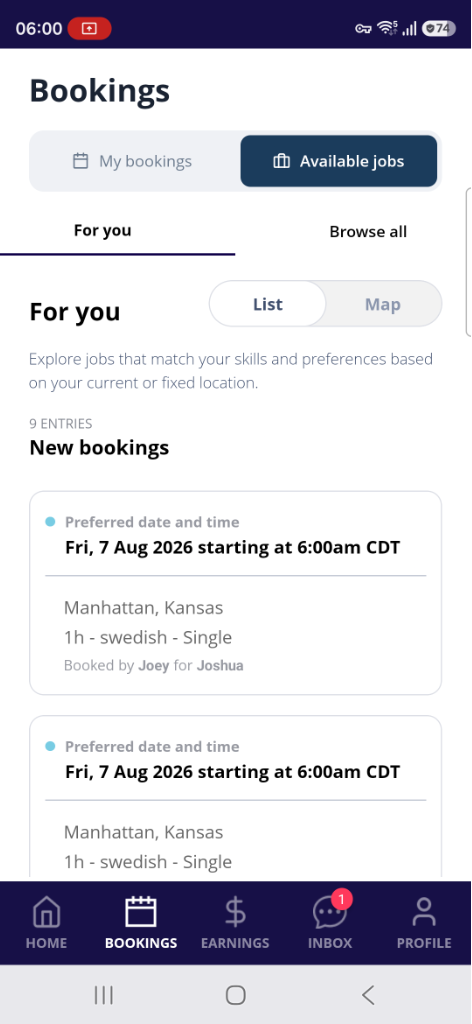
- Check out the available job details, and tap ‘Accept’ if the job fits your schedule.
|
|
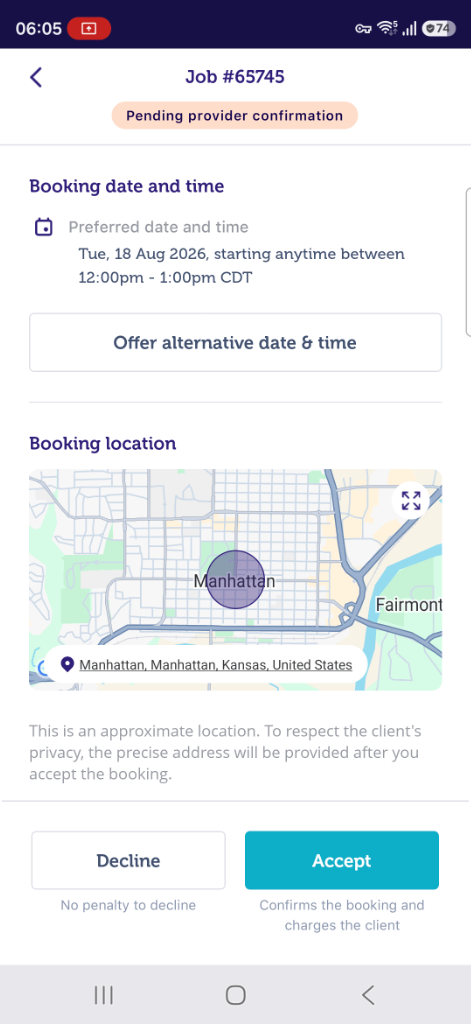
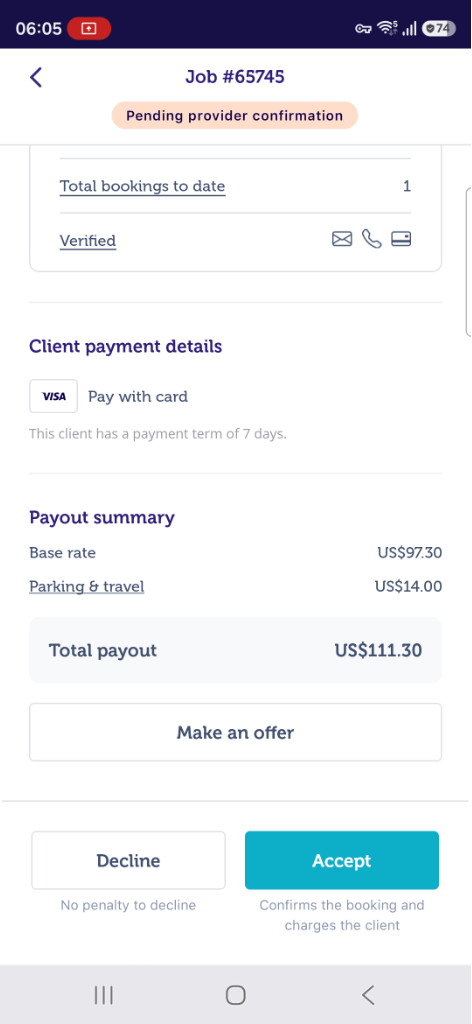
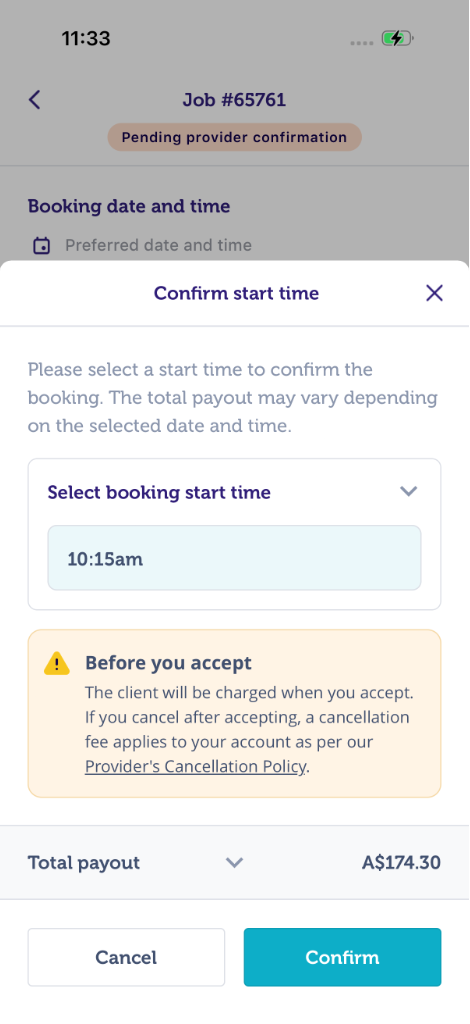
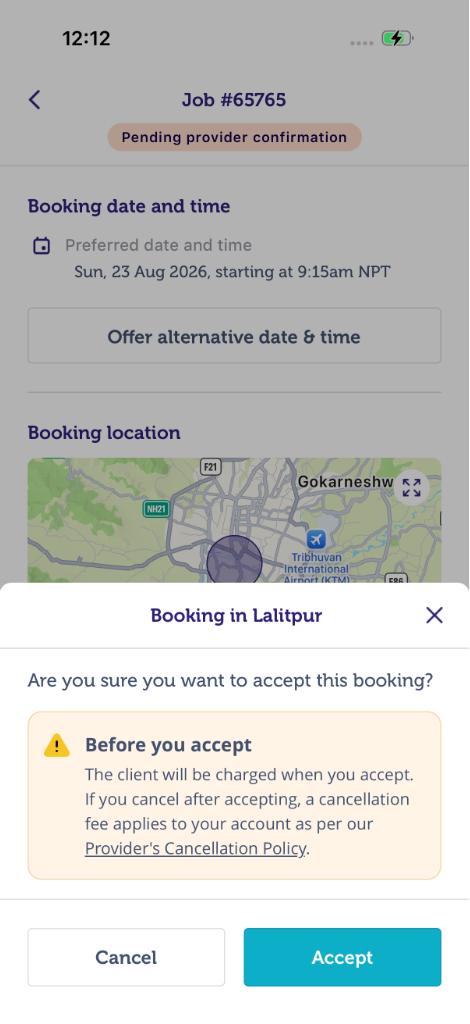
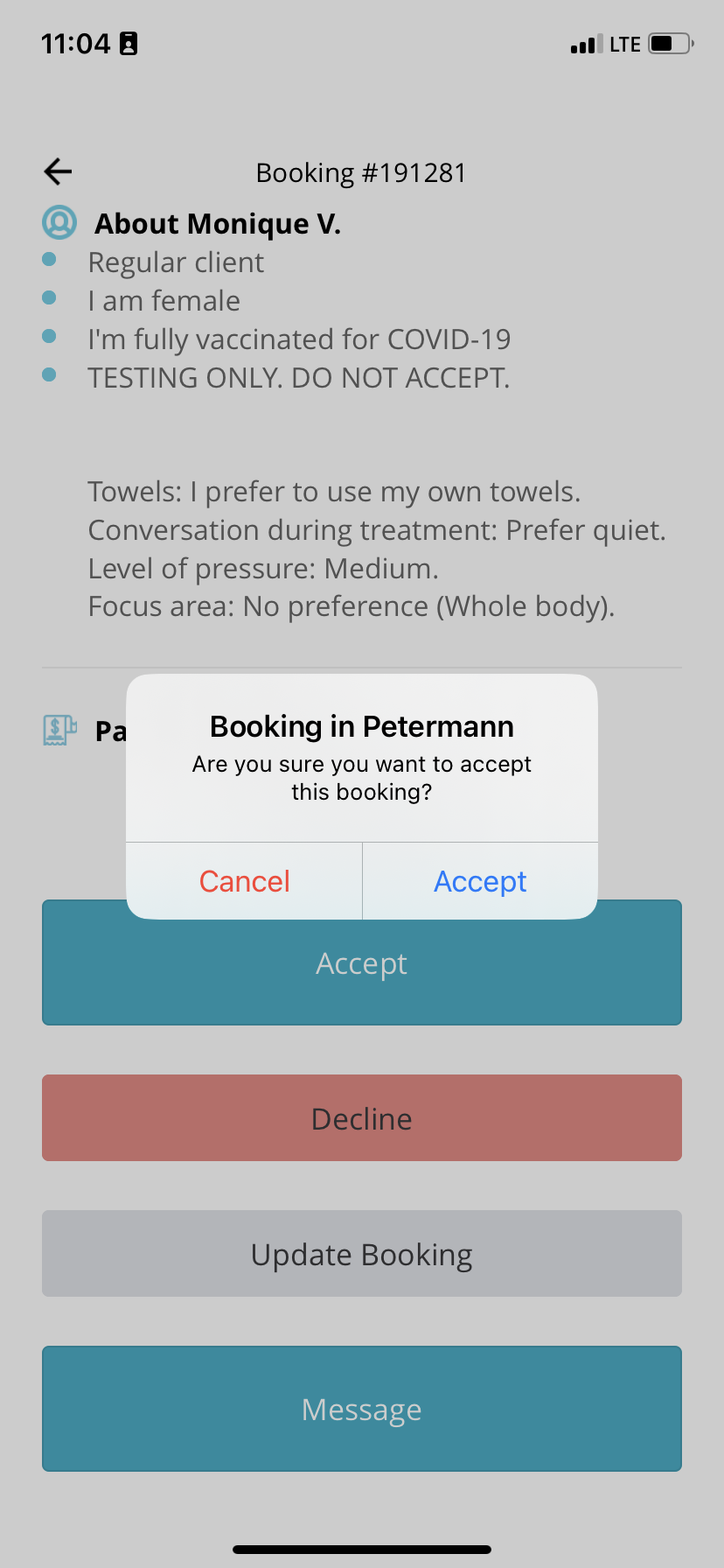
- Before you accept a booking, you’ll see a short confirmation screen. This reminds you that:
- The client will be charged once you accept the booking.
- If you cancel after accepting, a cancellation fee may apply to your account. See our Provider Cancellation (Abandonment) Policy for details.
- If you’d like to accept the booking, tap on Accept, or tap on Cancel to go back without accepting.
- If this is your first job on Blys, you’ll also see a one-time House Rules reminder before your acceptance is completed. It covers a few simple rules that keep every job safe and professional (for example, protecting client privacy and using in-app payments only). Tap “I understand” to continue. You won’t see this again after your first job.
|
|
|
|
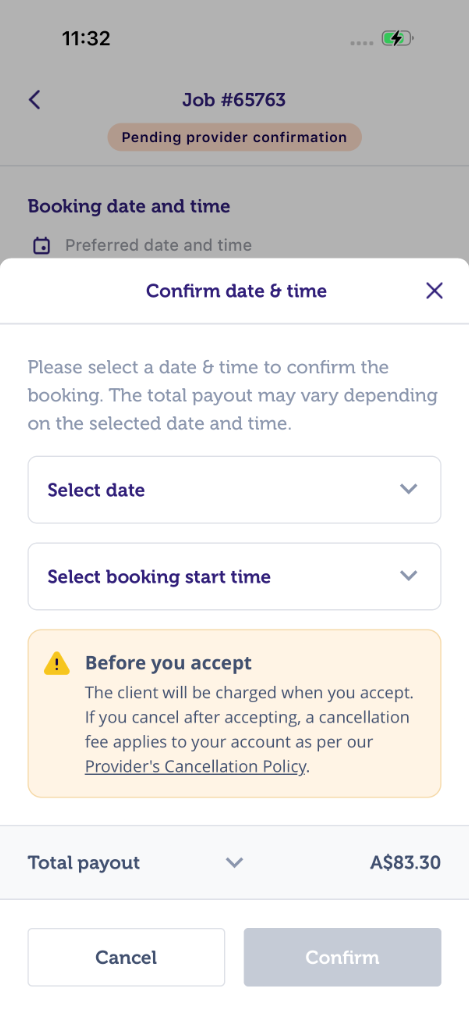
- Once you tap ‘Accept’, your booking will be confirmed.
- If in case the booking has a selection of earliest start time and latest start time, the app will prompt you to confirm your time of arrival, along with a short confirmation screen reminding you that the client will be charged once you accept the booking, and if you cancel after accepting, a cancellation fee may apply to your account according to the Provider Cancellation (Abandonment) Policy before you accept the booking.
|
|
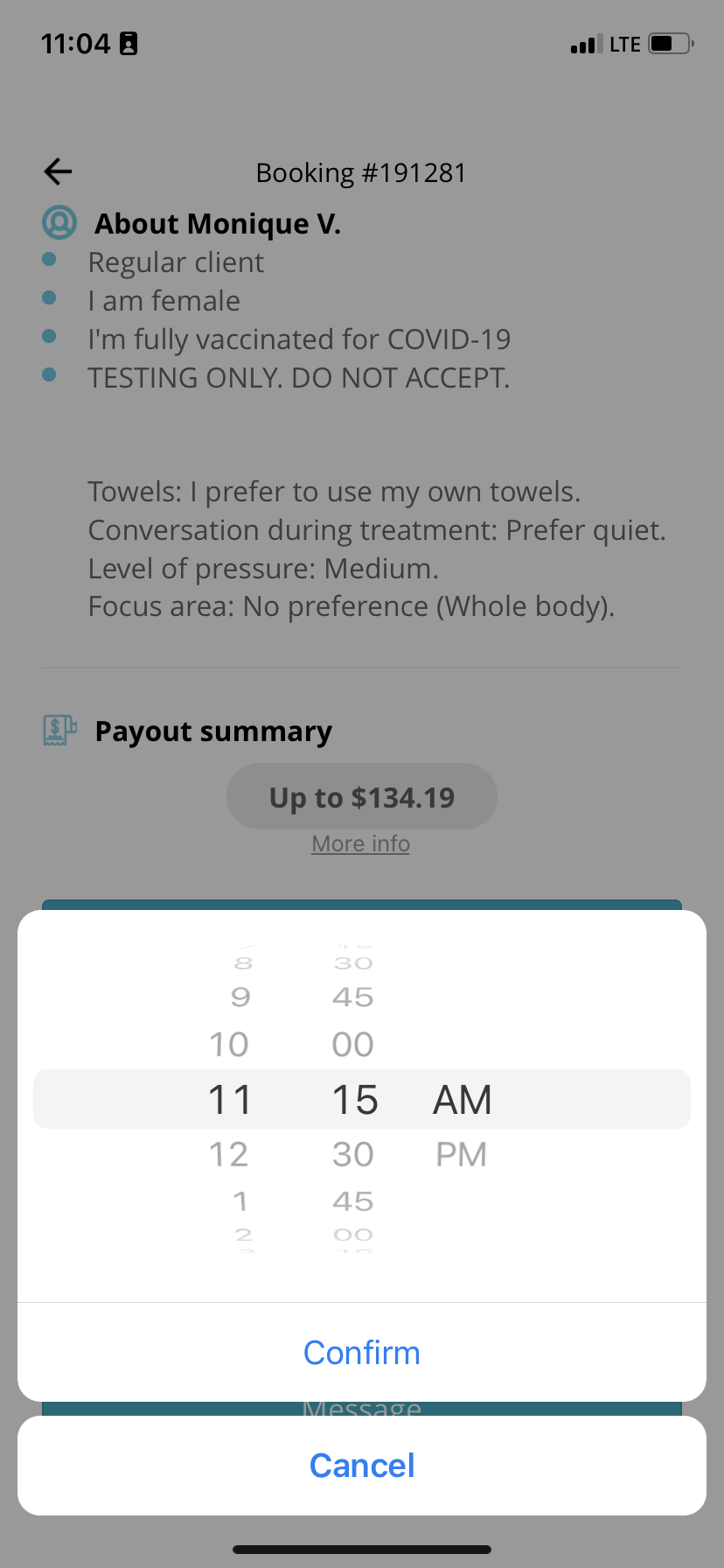
- Your arrival time can be anytime between the earliest & the latest start time as indicated by the client. (e.g. – Wednesday, July 27 @ 1:00 pm – 4:00 pm)
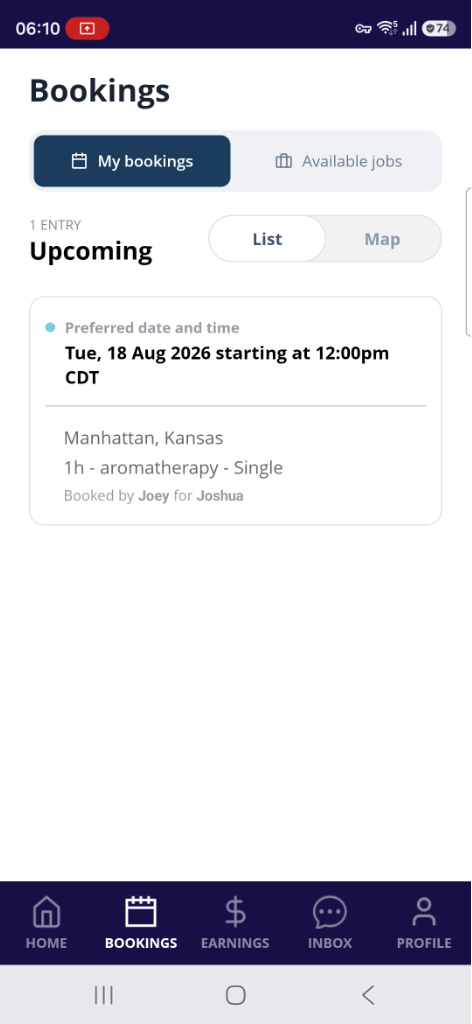
- All your confirmed bookings will be listed in the My Bookings section of the Bookings page in the app.
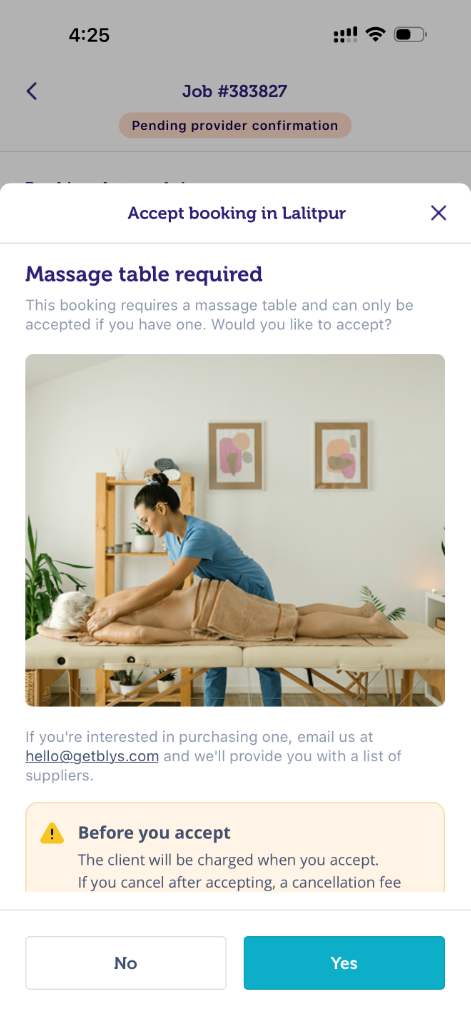
You are also eligible to accept corporate booking requests. Since corporate bookings mostly require massage tables and/or massage chairs, you will need to carry a massage chair or massage table with you so that the services can be provided as requested by the clients.
If you are accepting a corporate booking for the first time, there will be a confirmation pop-up where you can confirm if you have a massage chair or table with you.
The confirmation pop-up will look something like the following:
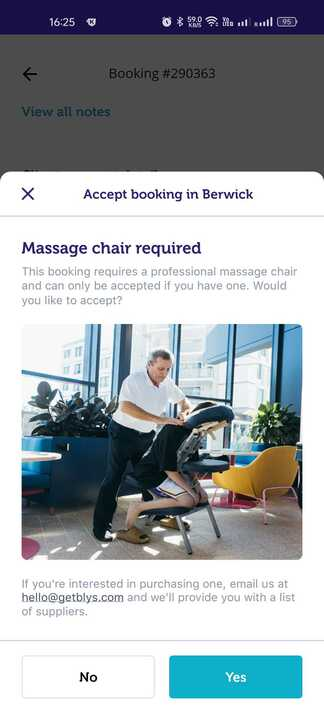
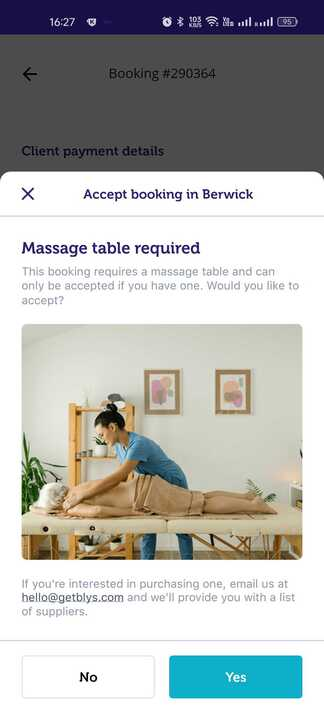
Once you have confirmed that you do have a chair or table, you can accept the corporate booking. If you do not have a chair or table required for corporate bookings, tap on No, and you will not be able to accept the booking.
However, if you do not have a massage chair or table, we can also provide you with a list of suppliers who can help you with purchasing the professional chair or table. This has been further highlighted in:
Does Blys offer other benefits like discounts to service providers?
Via Web
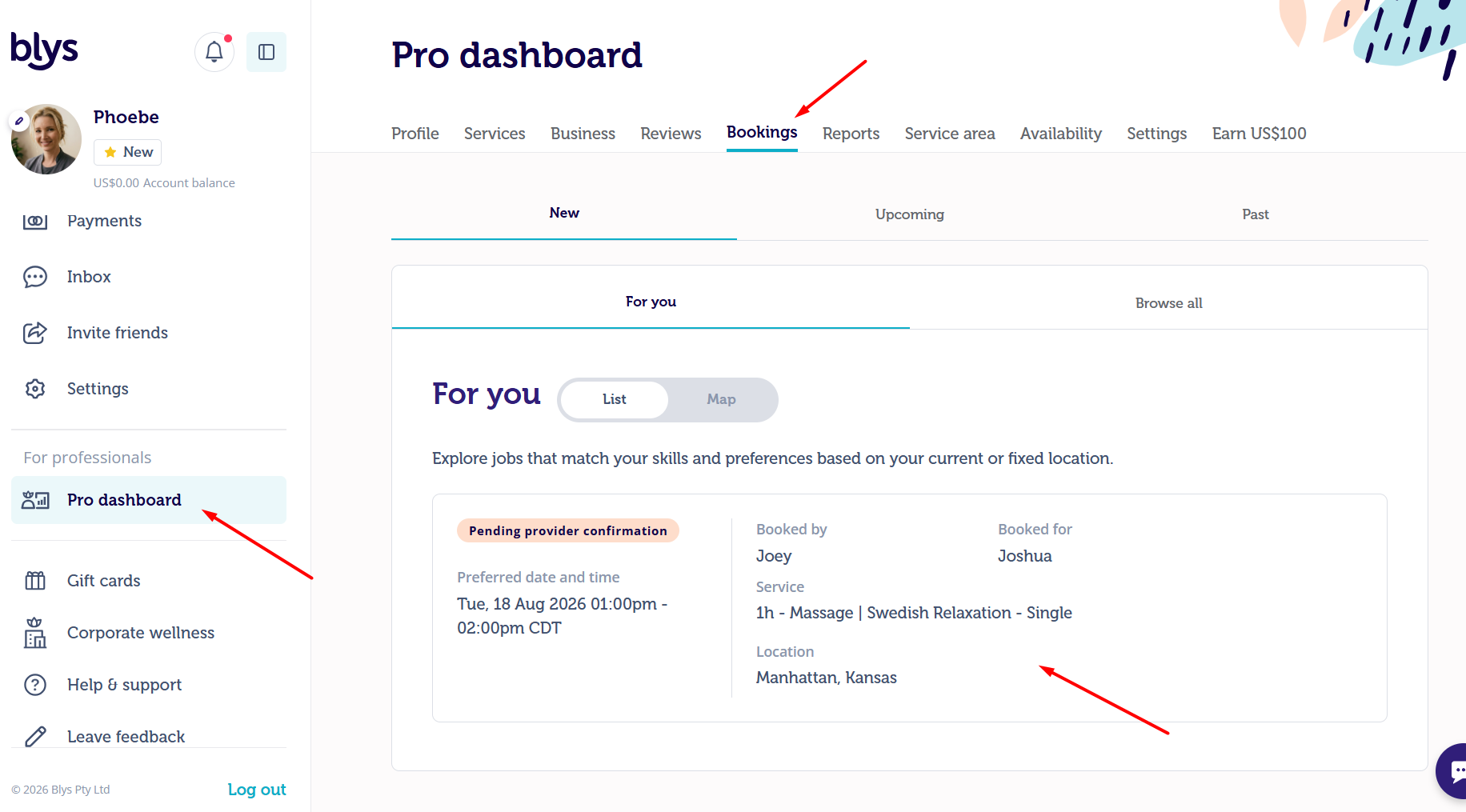
- Go to Pro Dashboard > Bookings > New.
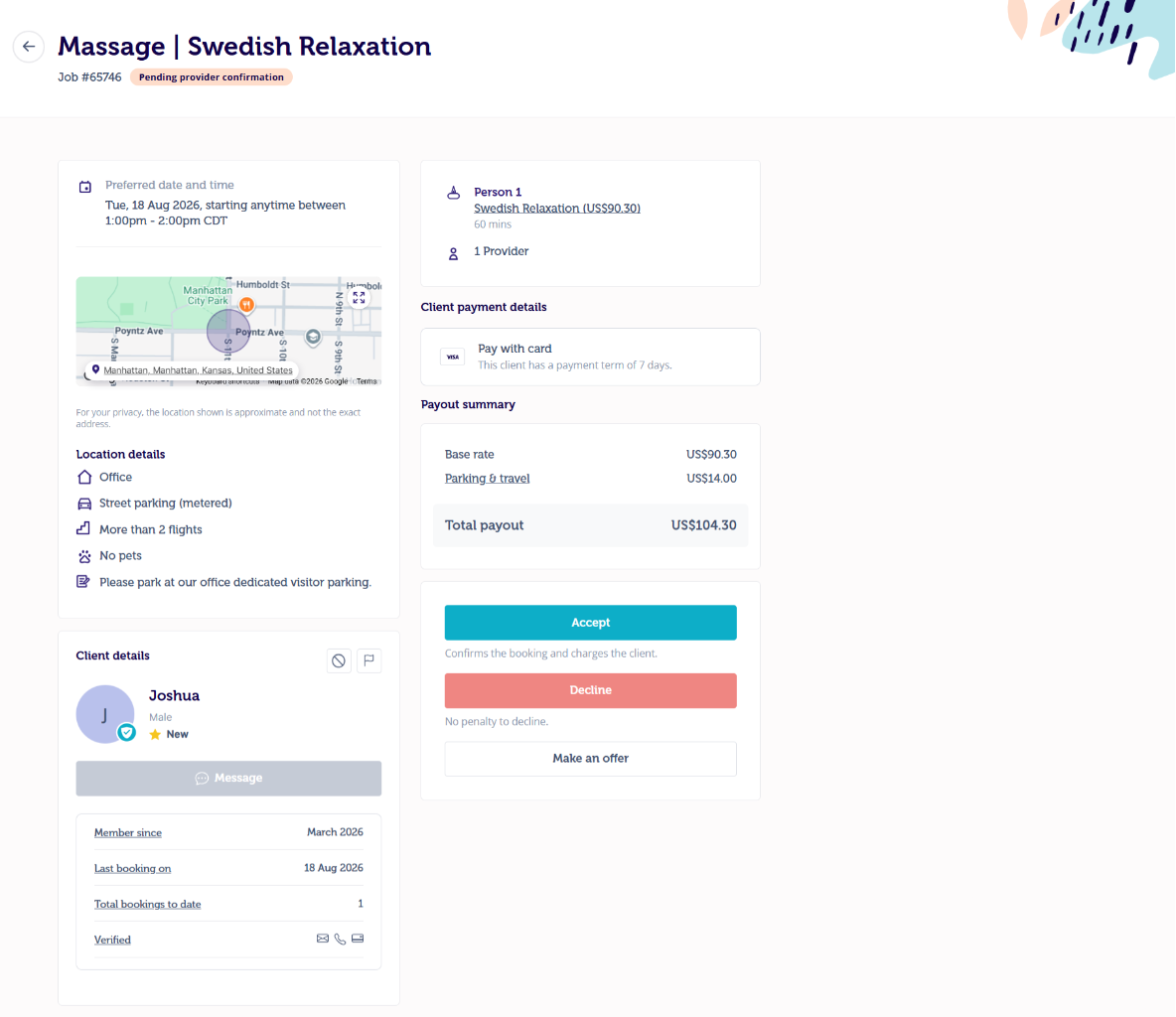
- Click on the booking you’d like to view.
- Click Accept.
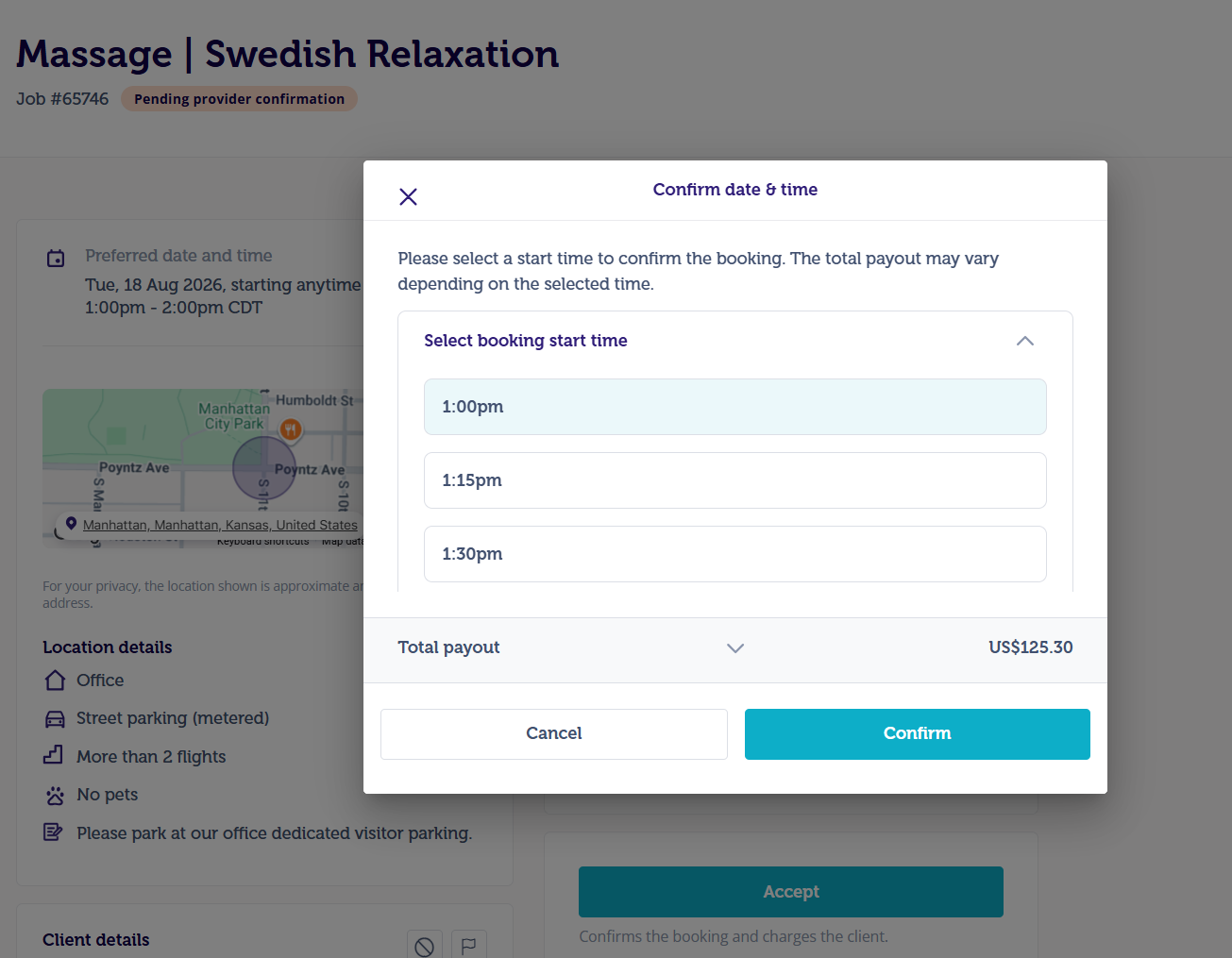
- If in case the booking has a selection of earliest start time and latest start time, the app will prompt you to confirm your time of arrival before you accept the booking.
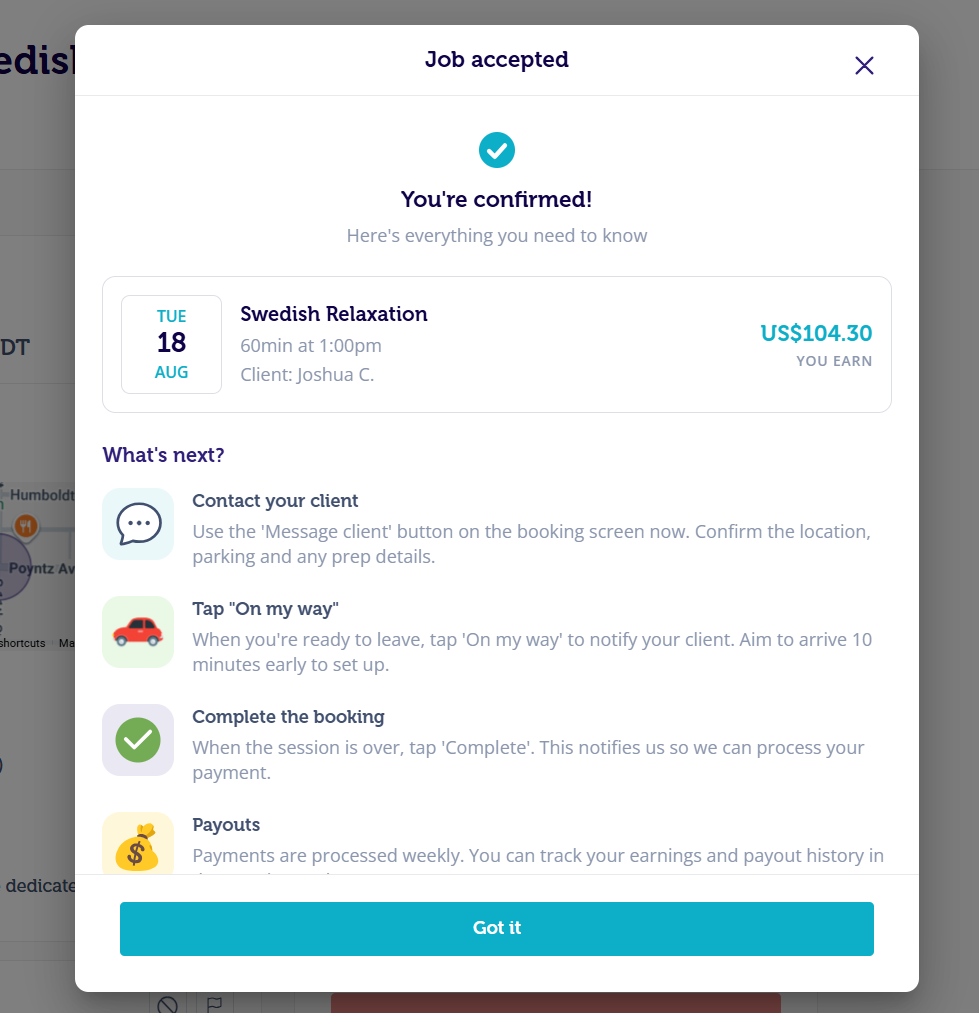
Similar to the Blys Pro app, you will also see corporate bookings happening in your service area in the New bookings section on the web version of Blys that you can accept.
A confirmation pop-up will appear in the web version of Blys as well to see if you have a professional massage table and chair with you to proceed with the booking.
The pop-up will look like the following:
|
|
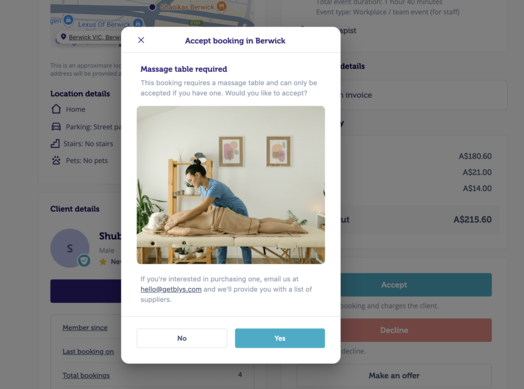
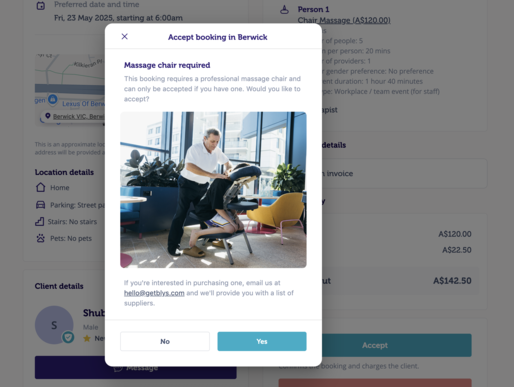
You can accept the corporate bookings only once you confirm that you have a professional massage chair and table required for the services to be provided.
Navigation
You can use the address link in the Blys Pro app to find out the distance to the booking, the estimated driving time, and the directions.
You can also find the location notes – such as location type and parking instructions – just below the address link.
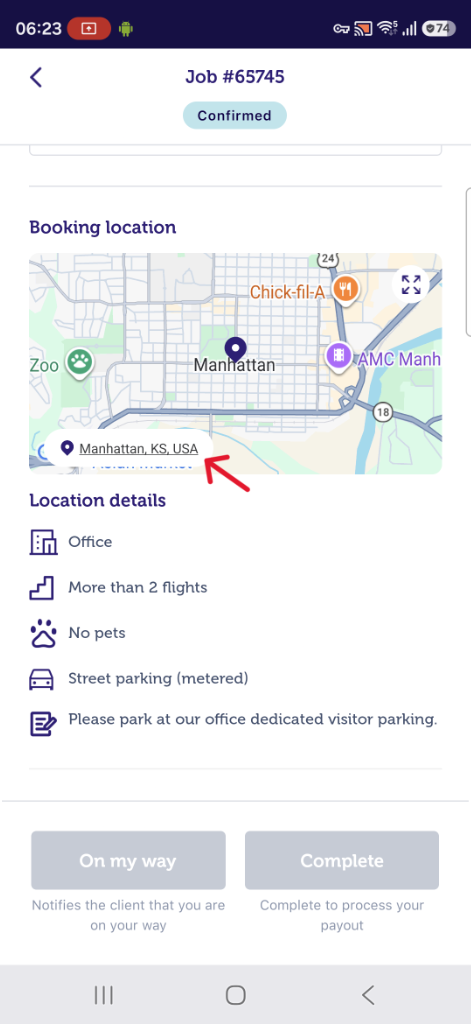
You can also change the treatment type and duration of Confirmed bookings via Blys Pro App.
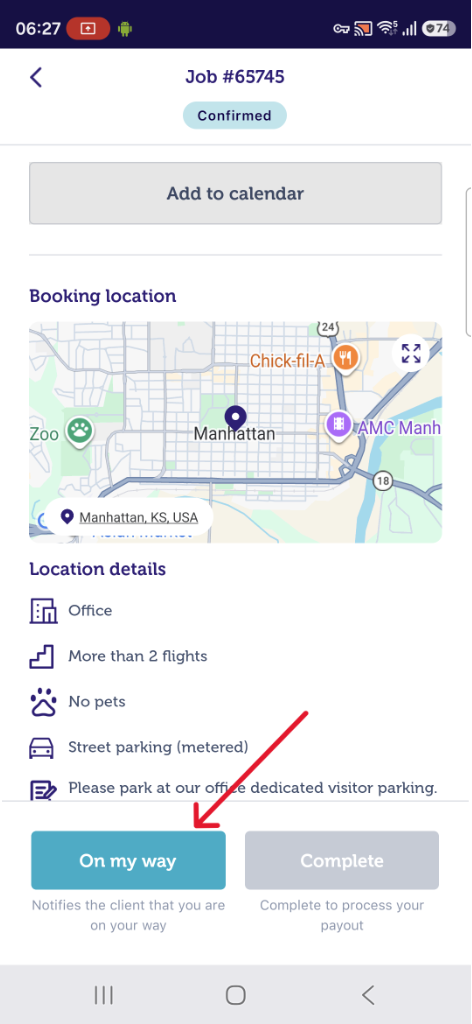
Once you’re ready to head to your appointment, simply tap the ‘On my way’ button in your app which will notify the client that you’re on your way. (For virtual/digital services delivered via video chat, press the "Start Session" button instead)
Please remember to arrive 10-15min before the booking start time to give yourself ample time to set up.
Contacting the Client
If you require clarification on the client’s address or parking/ door number, or if you’re running a few minutes late to your appointment, you can contact the client directly from the Blys Pro App by tapping the Message button or call the client via an in-app feature.
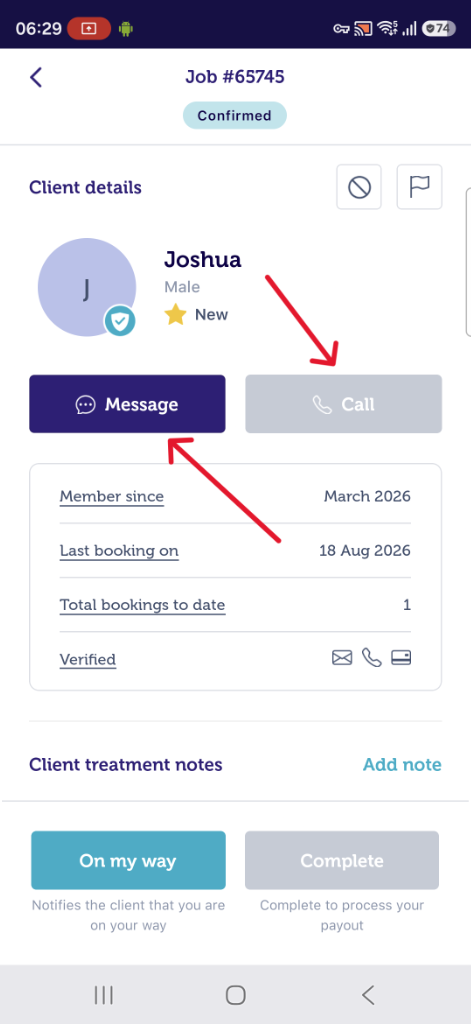
Please refer also to this article: How do I contact the client? When is the best time to contact the client?
Completing the Job
As the last step, jump back into your app as soon as you finish and tap ‘Complete’ to finalise the booking. Note that tapping the ‘Complete’ button also processes your payment, so to avoid delays in payments, make sure you tap ‘Complete’ immediately after your appointment.
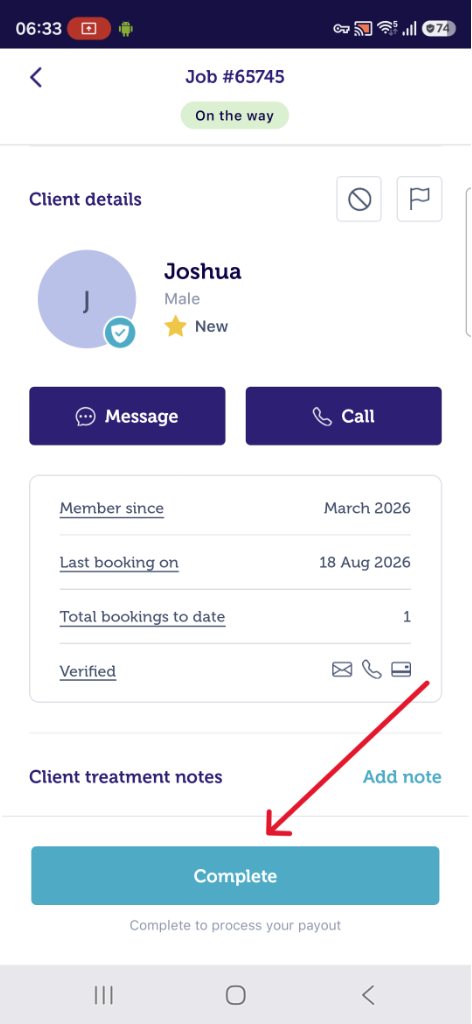
Please also see: How do the payments work? How and when do I get paid?
Direct Booking Requests
When a client books you directly, you will receive a push and email notification.
|
|
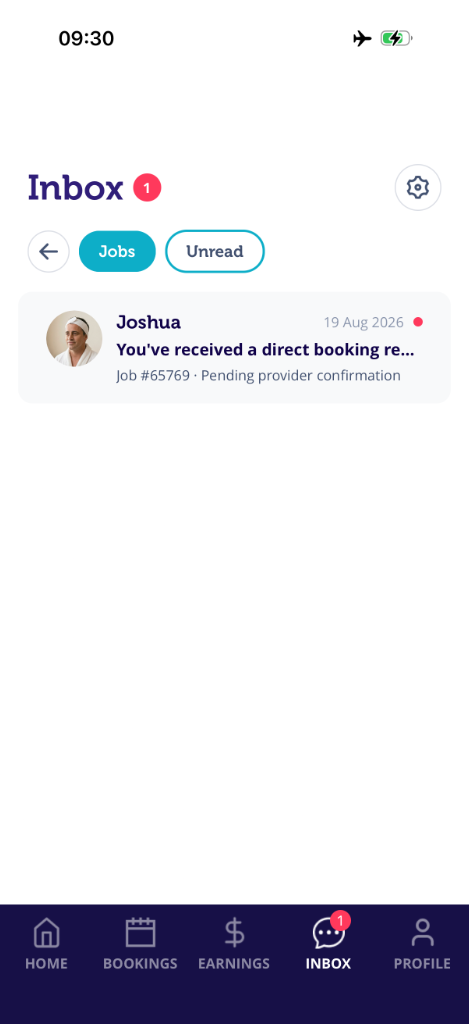
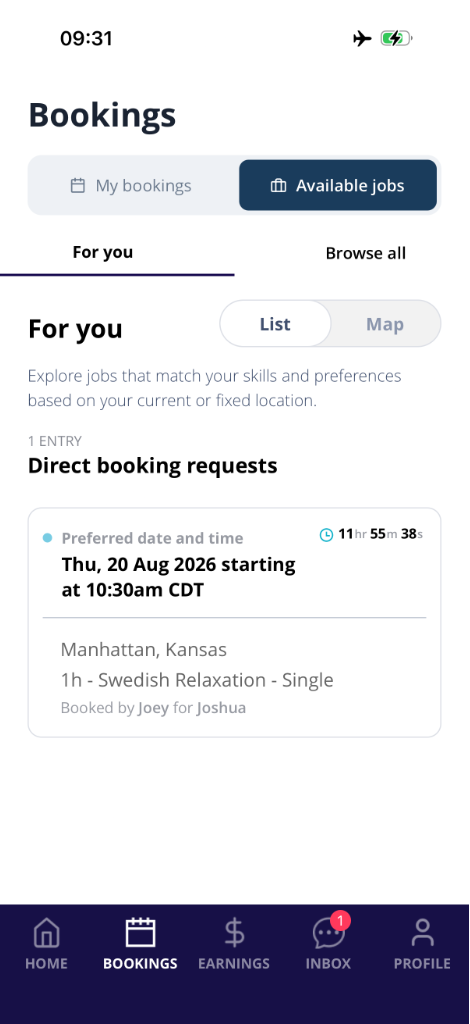
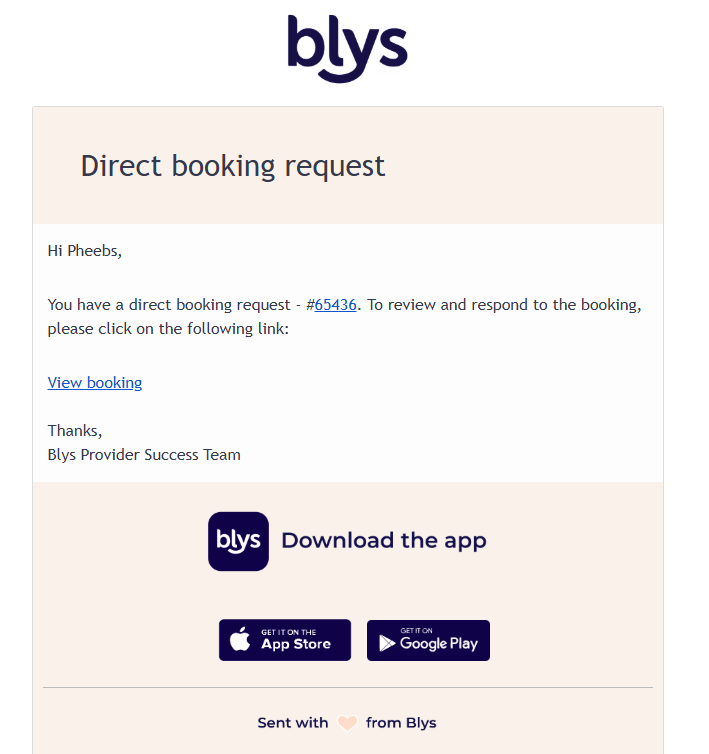
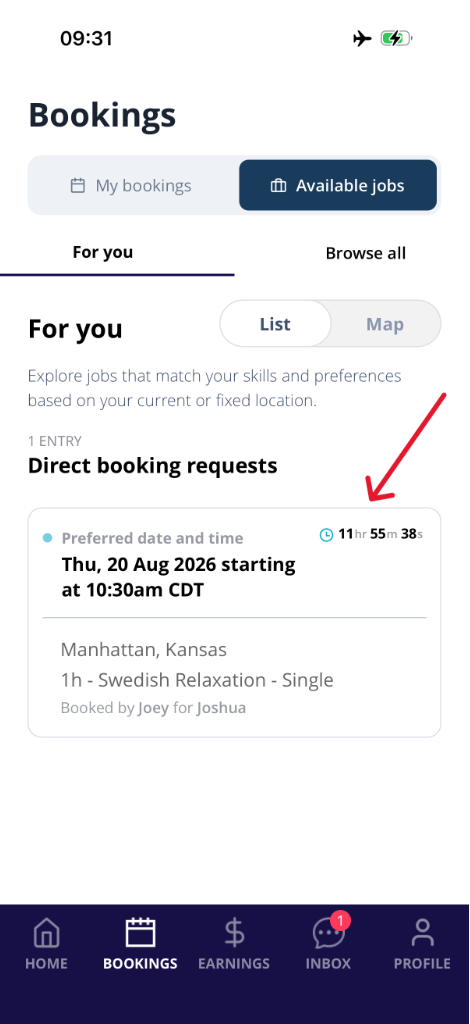
Direct booking requests are exclusively available for you for a limited time. The time you have to respond to a direct booking request depends on the booking window (e.g. the sooner the booking, the shorter the time you have to respond), and is available to you in your Blys Pro app - see the sample below.
If you are not available to accept the offer within the given time, the client will then be notified via email or on their app whether to try another provider, reschedule, or cancel the booking.
Don't stress about losing the job, as the app gives you plenty of time to respond to your client.
Blys clients can easily rebook the same provider from our app or website by selecting the Rebook option when booking. In case you need to explain to the client how to rebook you, see this blog post about How To Rebook Your Favourite Therapist for details.
Additionally, being rebooked is an acknowledgement of the level of service you provided – so, thank you for being awesome!
All bookings must go through Blys to ensure your safety and to ensure we keep Blys running, as we rely on the fees we collect. If your client tries to book you privately, advise them to book via the app or website or the Blys team instead.
Job History and Earnings
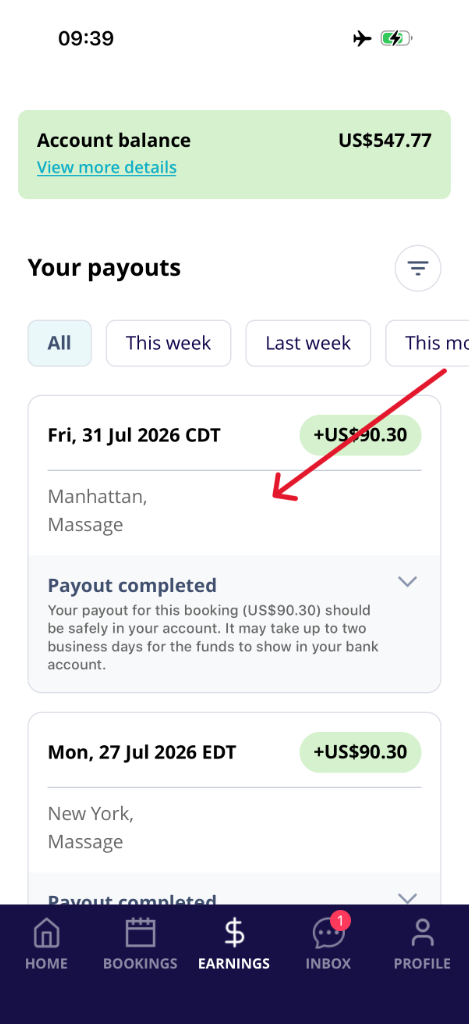
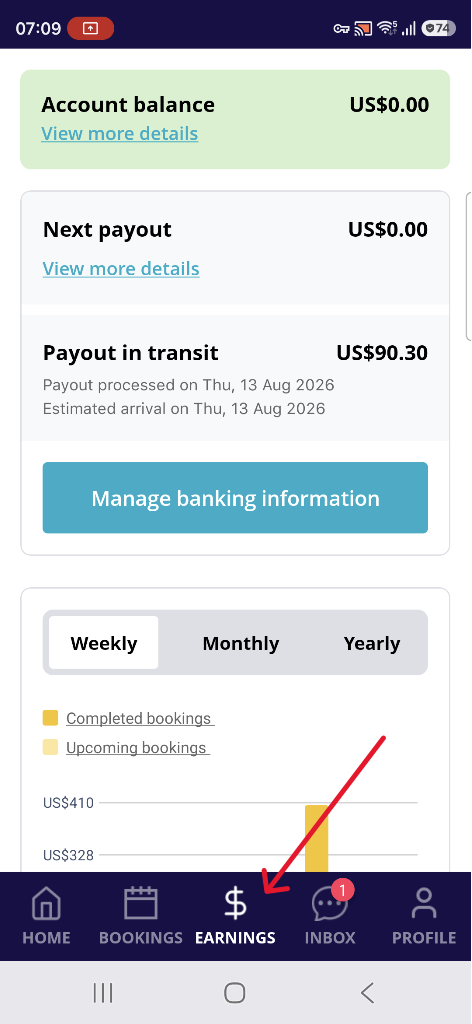
You can see all your past jobs and your weekly earnings in the ‘Earnings’ section of your app.
|
|
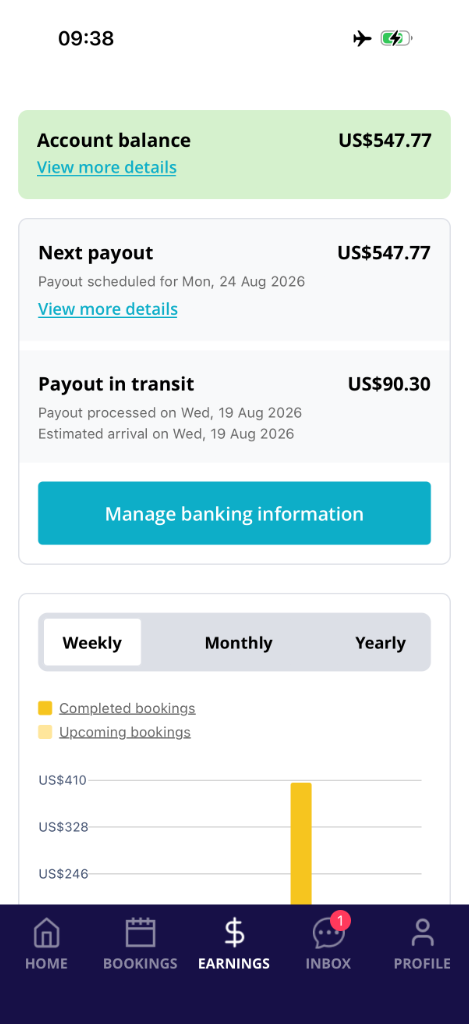
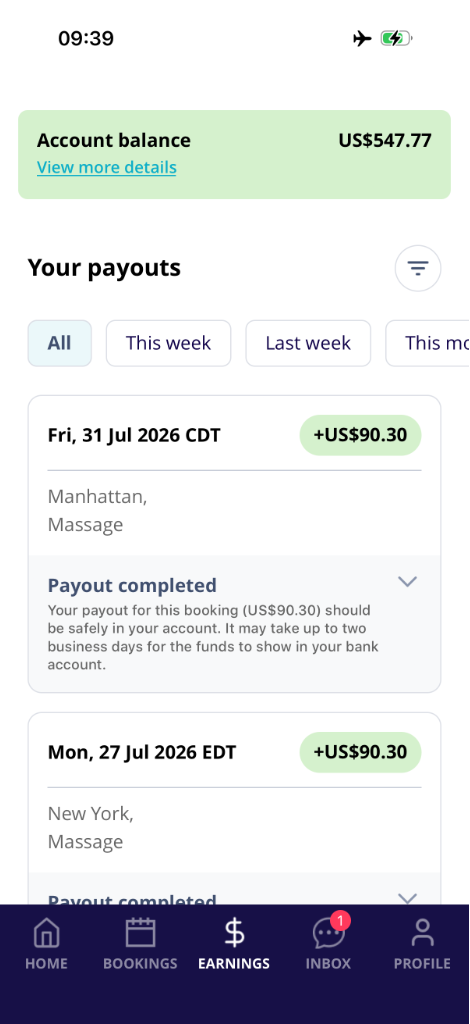
The jobs on this page are ranked from the most recent to the oldest.
Ratings and Reviews
To maintain the HIGHEST level of service quality, Blys collects feedback from clients for the service they received (a rating from 1 to 5).
You can find your personal rating & all your client reviews in the Account section of your app. Your personal rating is calculated based on the last 50 ratings you received.
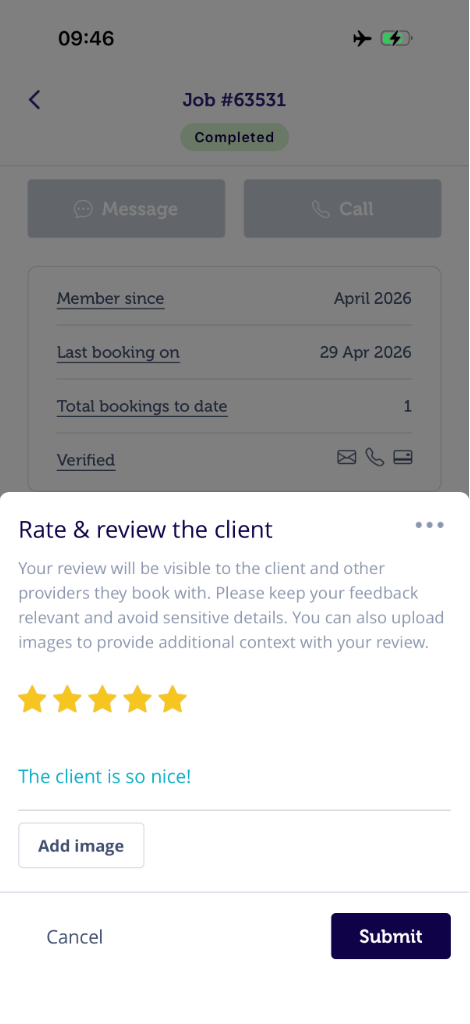
You can also rate & review the clients (it’s a two-way street at the end) from your app.
Updating your details
You can update your personal details (such as your password, contact details, and qualifications) from the Blys Pro app in the Account section.
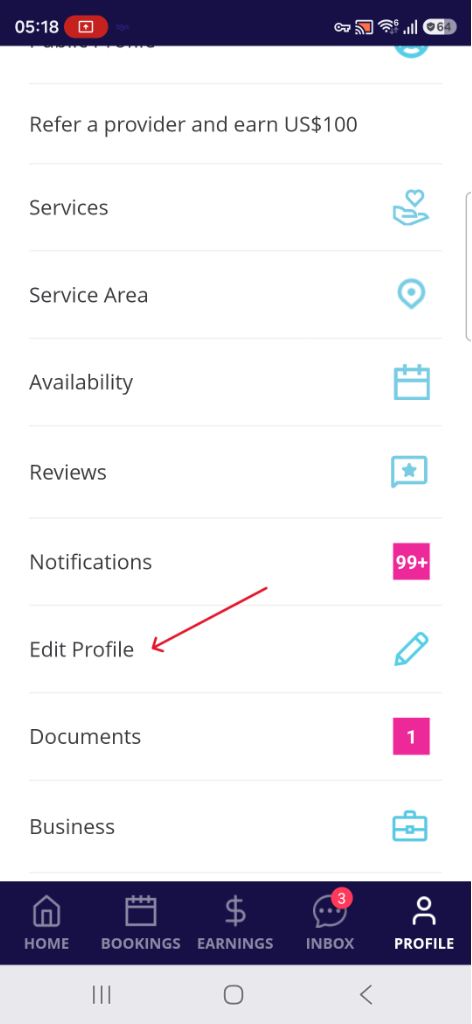
If you need to update other details such as your bank account or ABN, you can do that from our website.
Simply head to the login page and enter the same email & password that you use for your Blys Pro app.
You'll then be able to view & update all your details from the "Pro Dashboard" section located in the bottom left-hand corner. You can also check here How do I view & update my professional account details?
Rate and Review Clients
Providers can rate & review clients. Here's how it works:
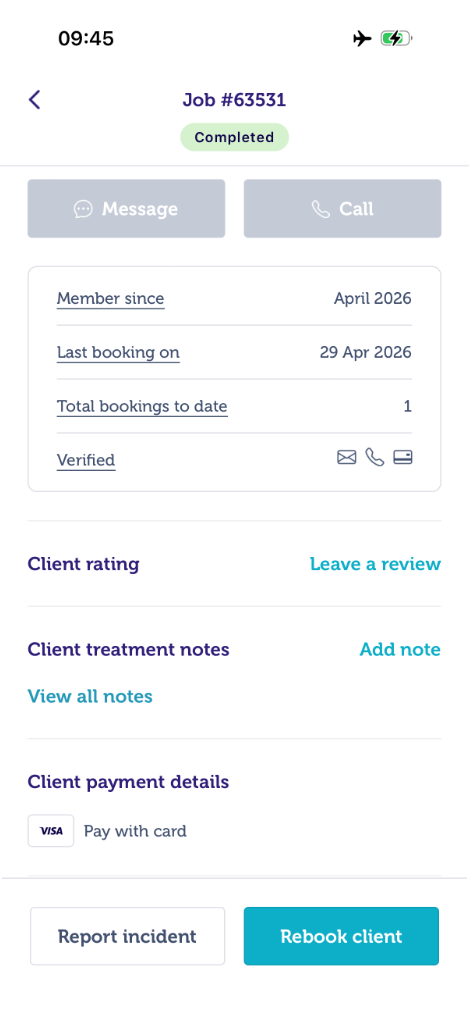
- Go to "Earnings", then select a past job, and then tap “Leave a review”
|
|
|
- Should you wish to make any changes to your review, just select the job and click on "Update review"
|
|
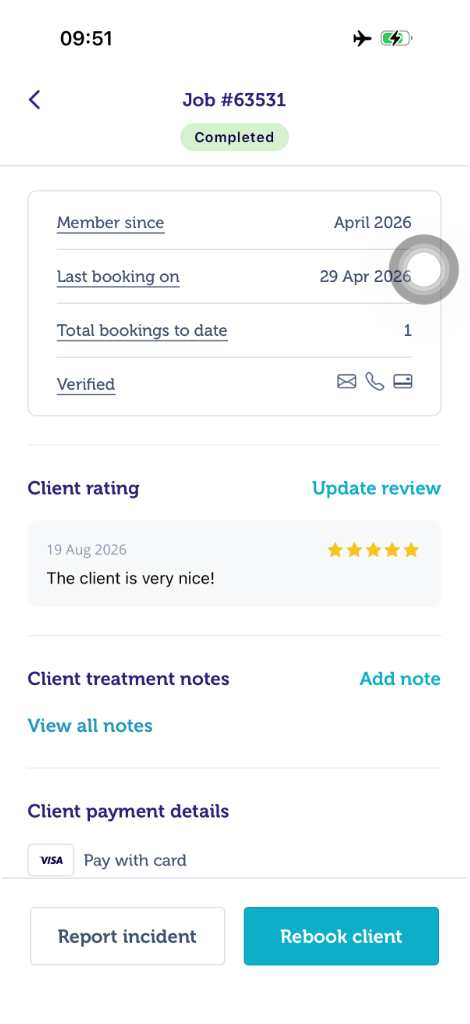
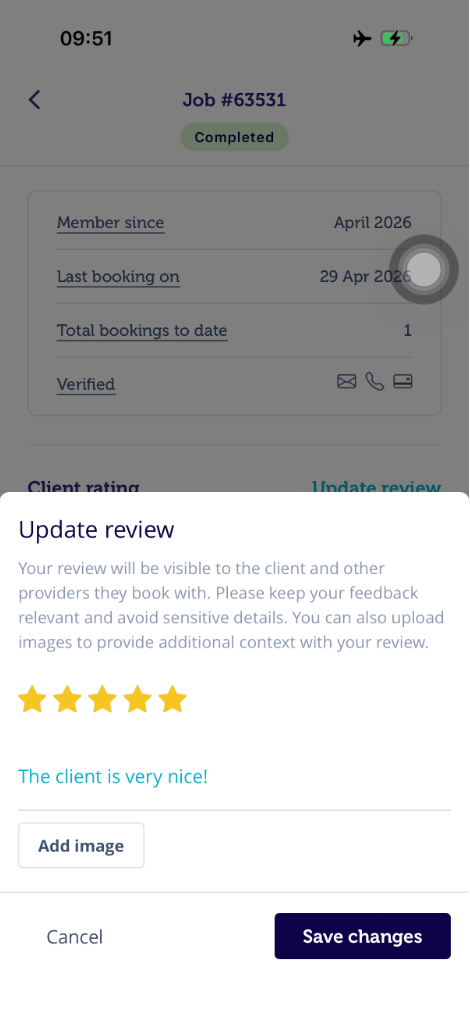
- Your rating and review will be visible (only visible to you) in the client details section of the booking page
Blocking Individual Clients
You can block individual clients in the Blys Pro App if you don't want to receive booking requests from - for whatever reason there may be. Once you block the client, you won't receive any requests from the specific client again.
Via App
- Go to Earnings.
- Select the corresponding booking that you have cancelled and for which you want to block the client.
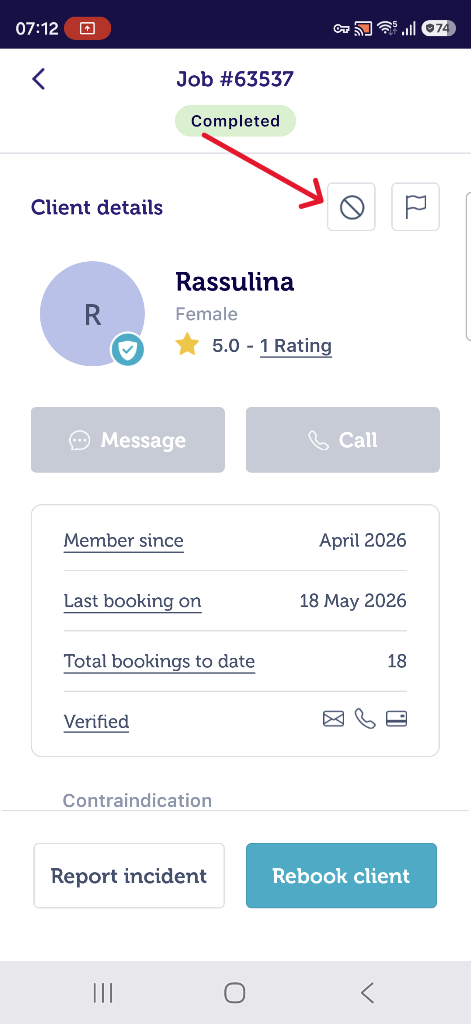
- Tap on Block Client.
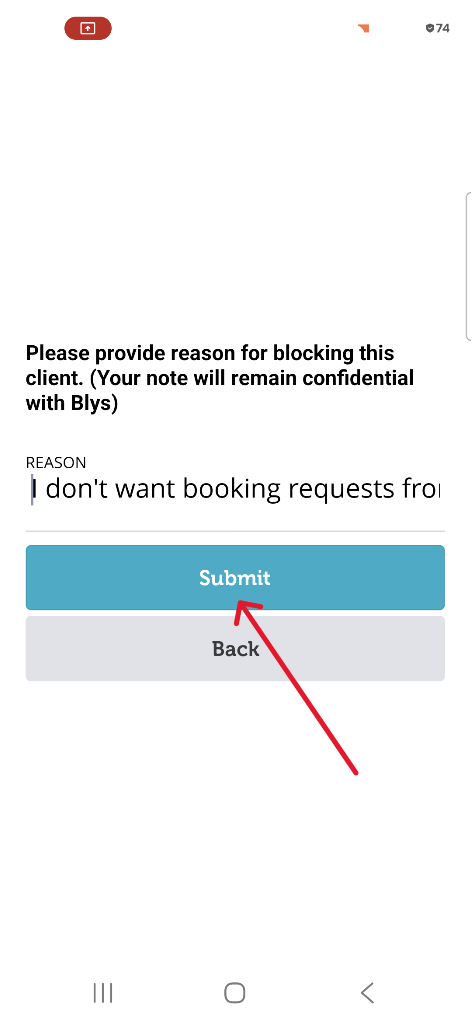
- Provide the reason for blocking the client and click on Submit.
 |  |  |
Via Web
- Go to Earnings.
- Select the corresponding booking that you have cancelled and for which you want to block the client.
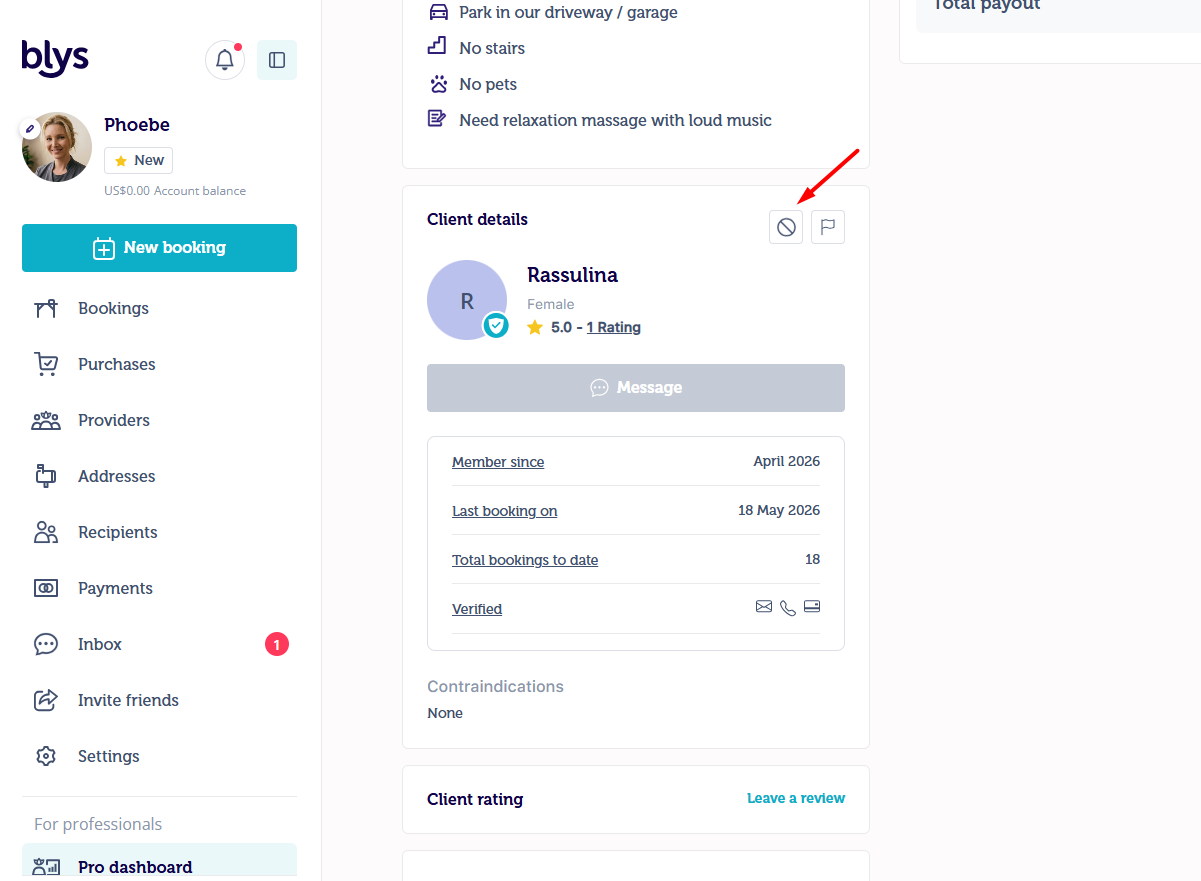
- Tap on Block Client.
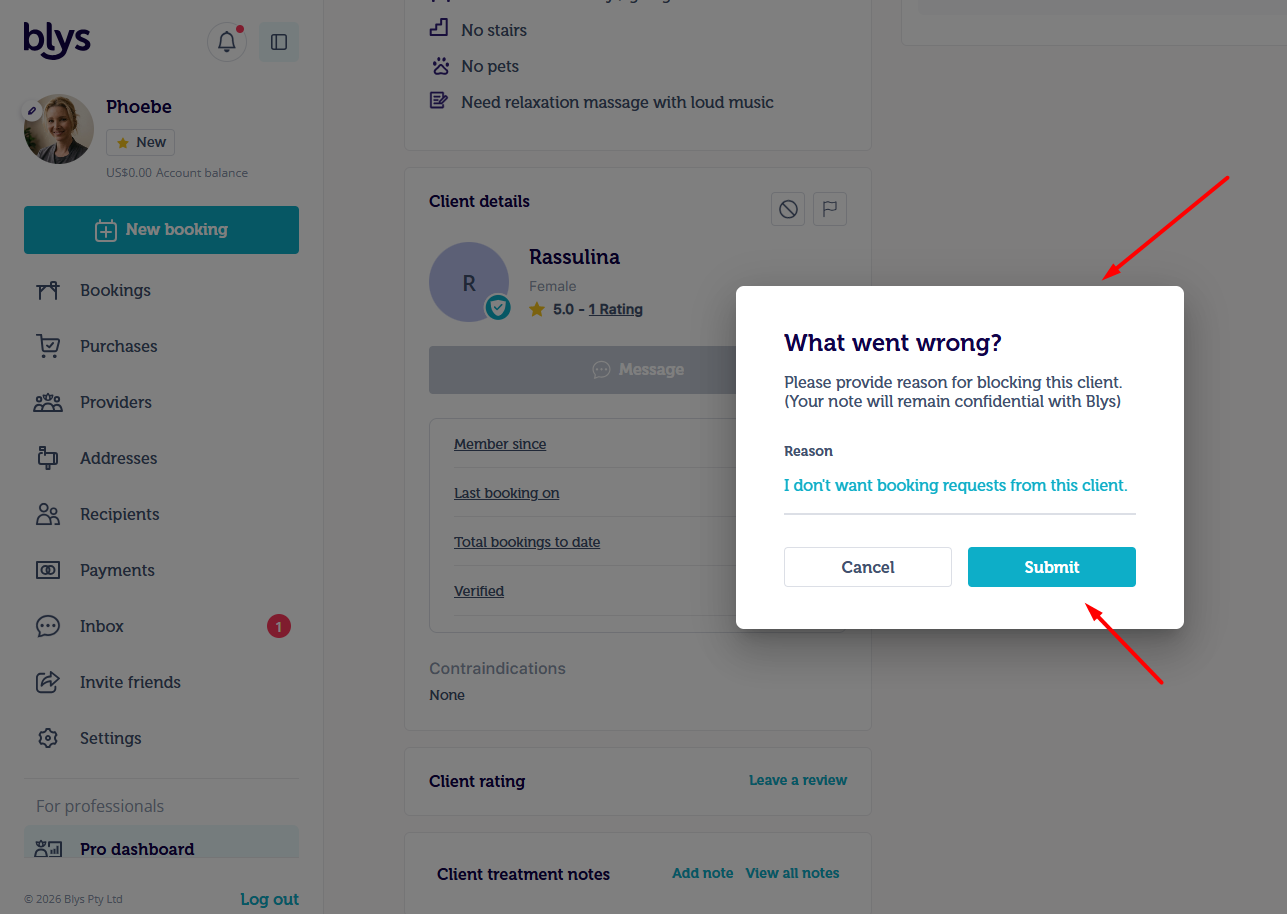
- Provide the reason for blocking the client and click on Submit.
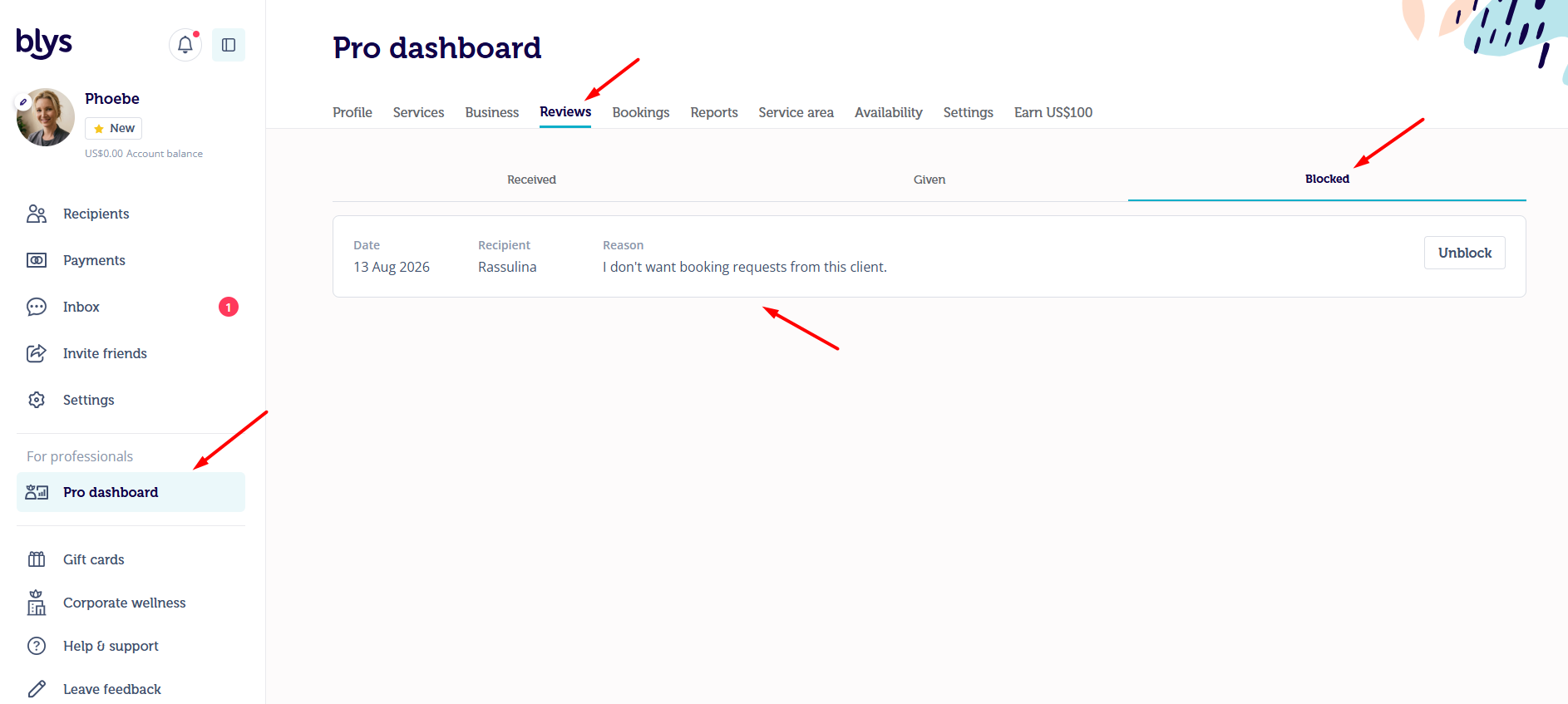
- To unblock a client via web, simply go to your Reviews section, navigate to Blocked section, and click on Unblock.
Blocking a client for bookings that have not been completed
You can also blocking clients who have been NOT previously been accepted or whose booking you have not completed for any valid reason.
Pending Bookings
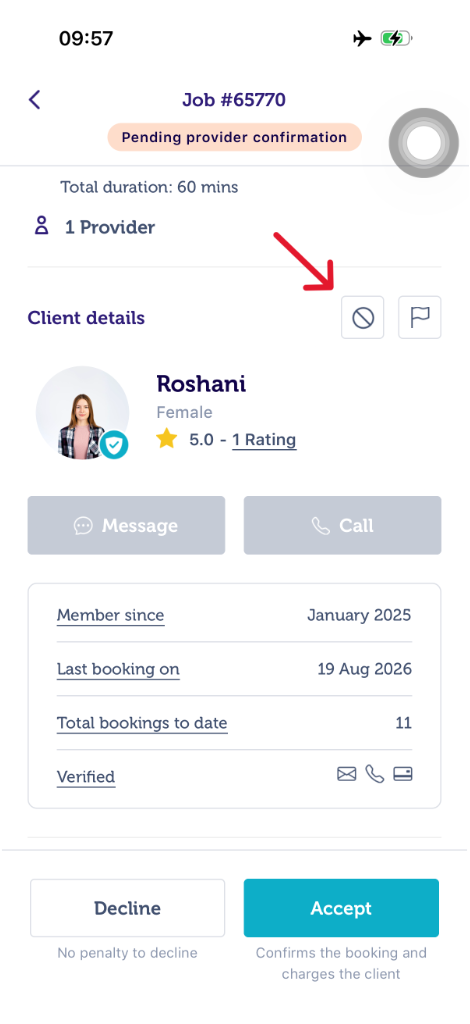
If you’ve received a booking request from a client you do not wish to accept, simply go to the booking and tap the Block icon to follow the same process.
Cancelled Bookings
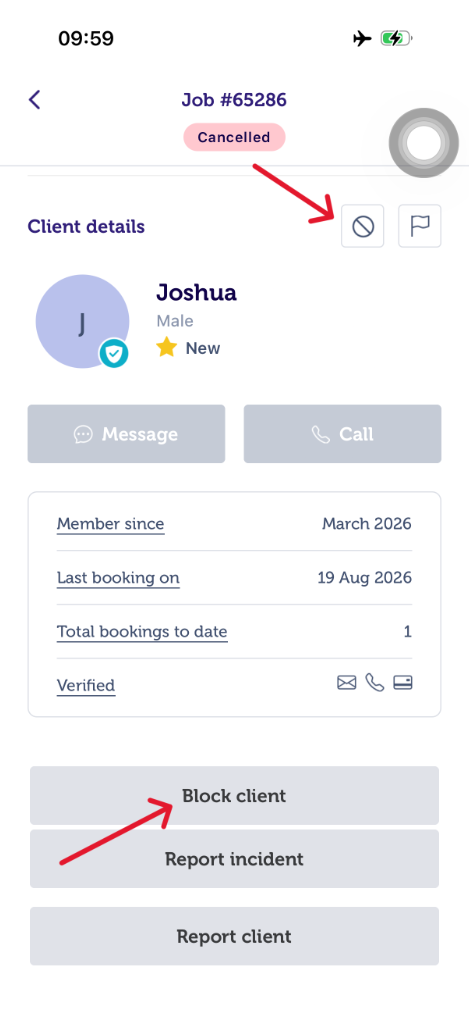
If you wish to block a client whose booking you had cancelled, simply go to Earnings, tap on the concerned booking, and tap on the Block icon or “Block client” button
Unblocking Individual Clients
You can unblock the clients by navigating to your client block list.
Via App
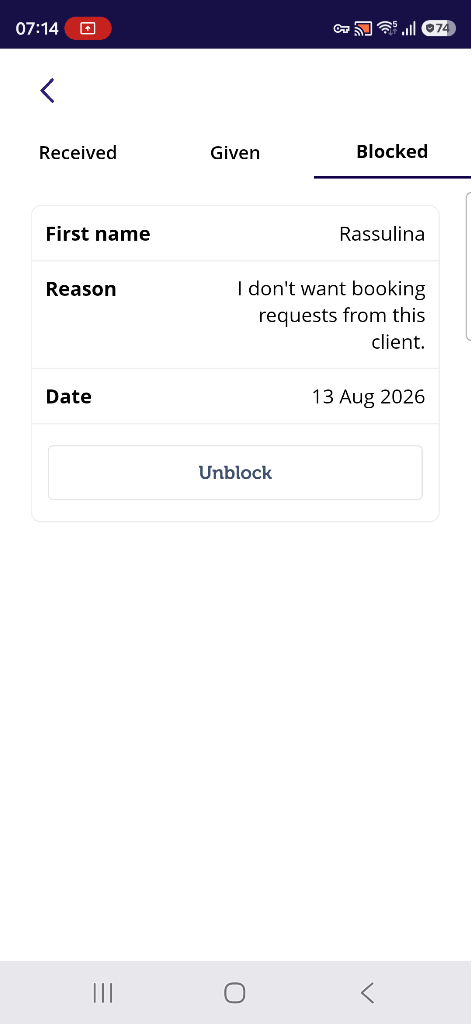
In case you accidentally blocked a client, you may still unblock them from your app:
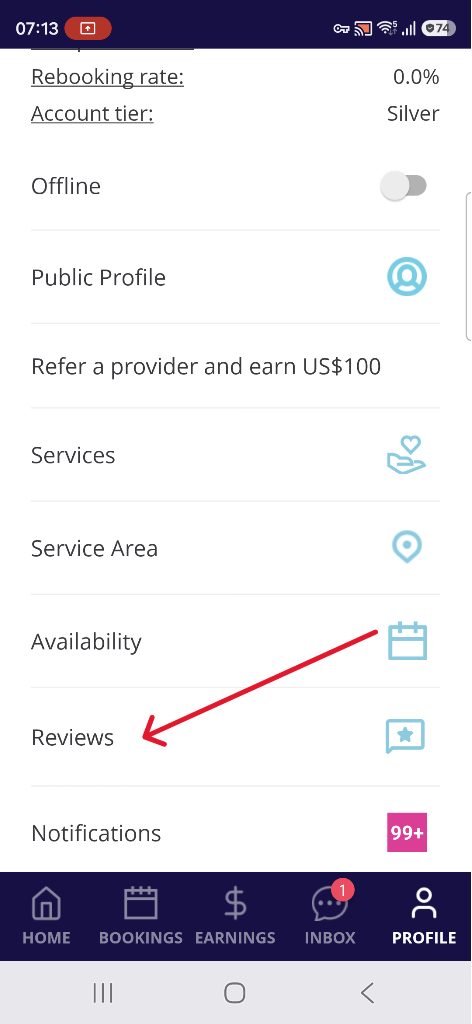
- Tap on Reviews.
- Navigate to the Blocked section and tap on Unblock for any client you want to unblock.
 |  |
Via Web
- To unblock a client via web, simply go to your Reviews section, navigate to Blocked section, and click on Unblock.
- Once the client is successfully removed from your block list, you will receive a notification on the top right of the screen saying "Client unblocked"
Contacting Blys
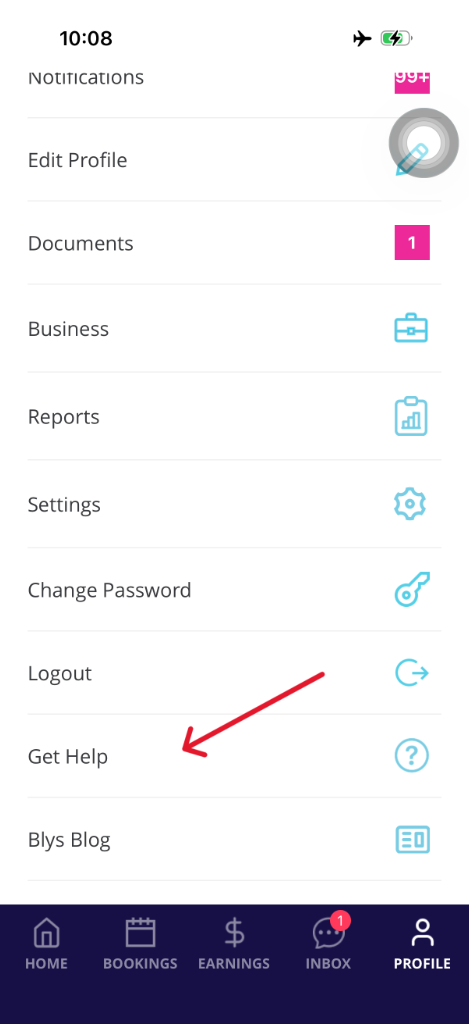
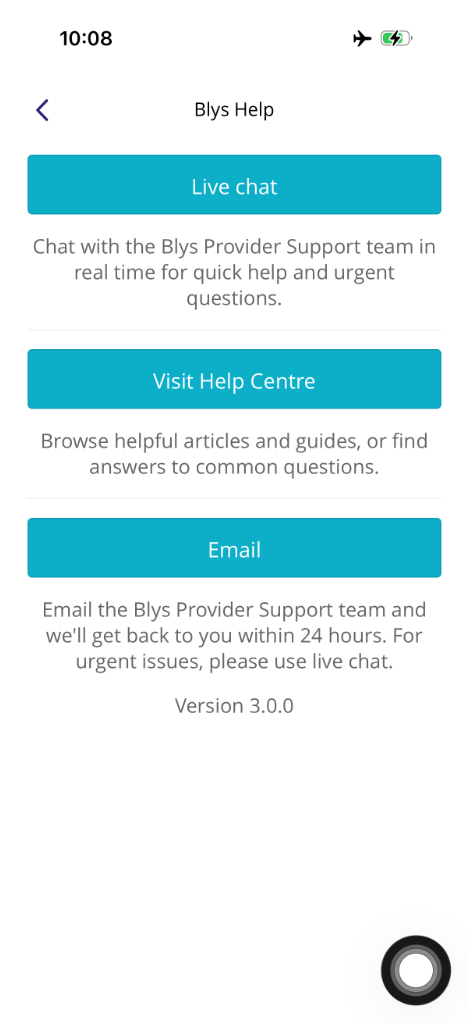
If you have any questions about your booking or your app, or simply need some help, our team is only a few taps away.
You can email us directly from your app any day, any time. We’re here to help.
|
|
Deleting your profile
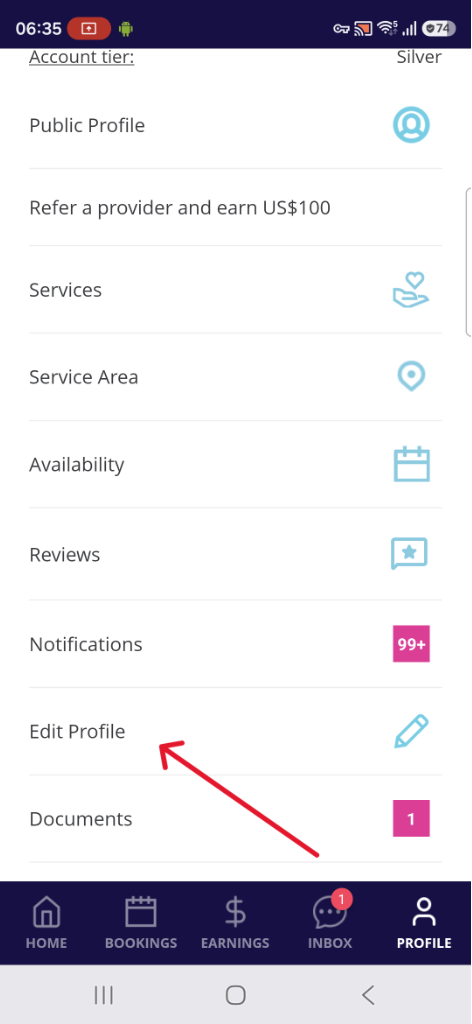
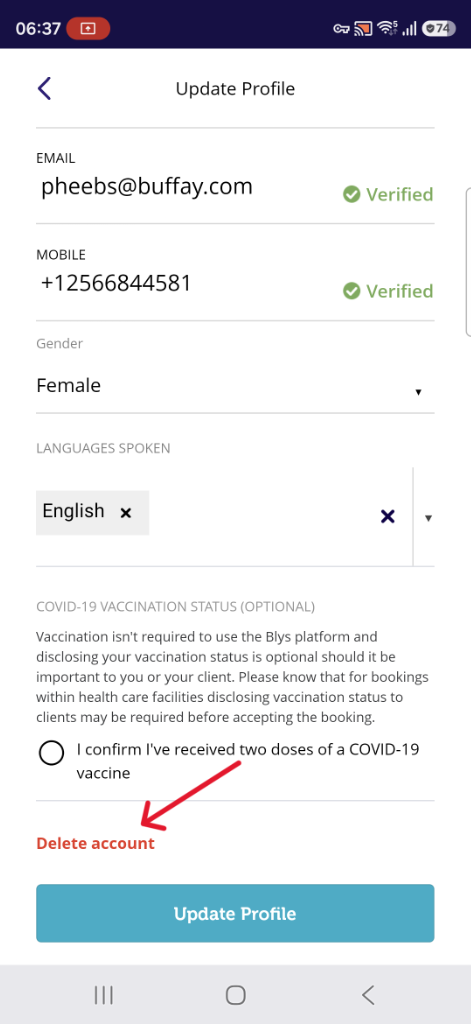
- If you wish to delete your provider profile, you can go to Account > Edit Profile > Delete Account.
- You need to provide a reason for your deletion then click Continue.
|
|
|
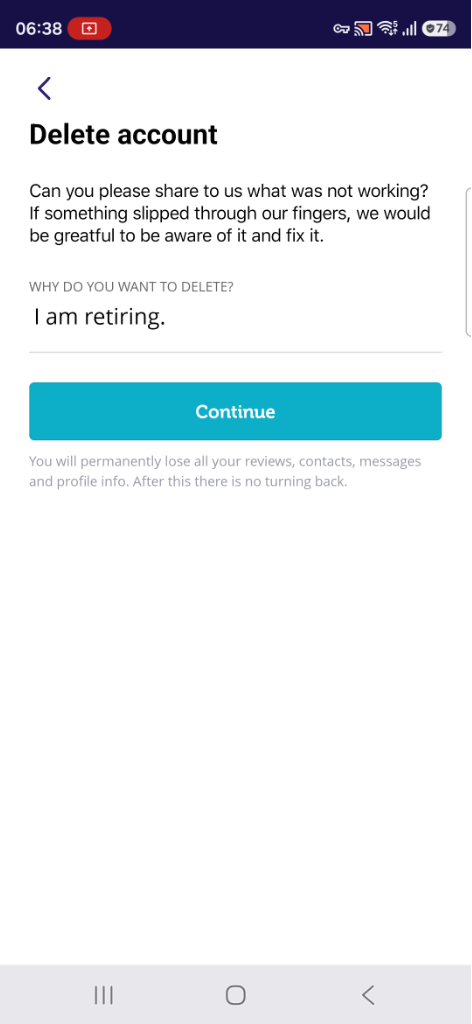
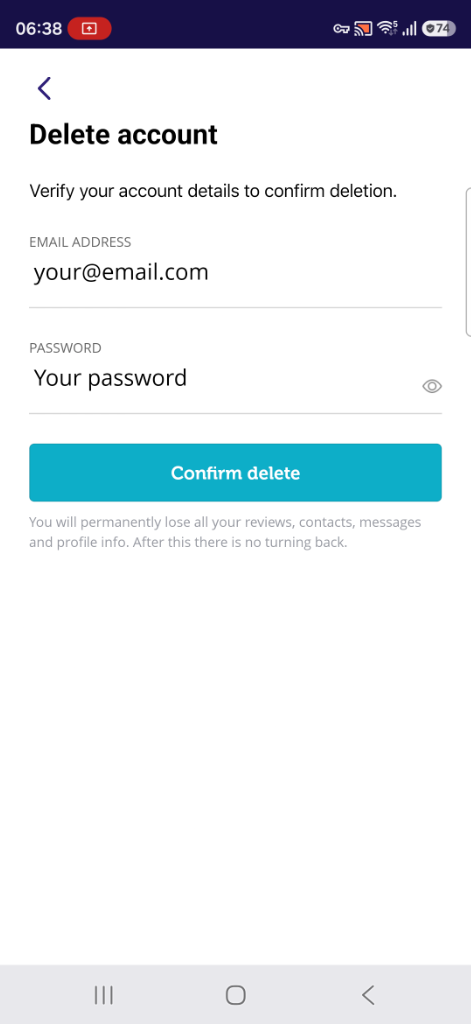
- You will be asked to re-enter your email and password to verify the account deletion. Please note that you will permanently lose all your reviews, contacts, messages, and profile info.
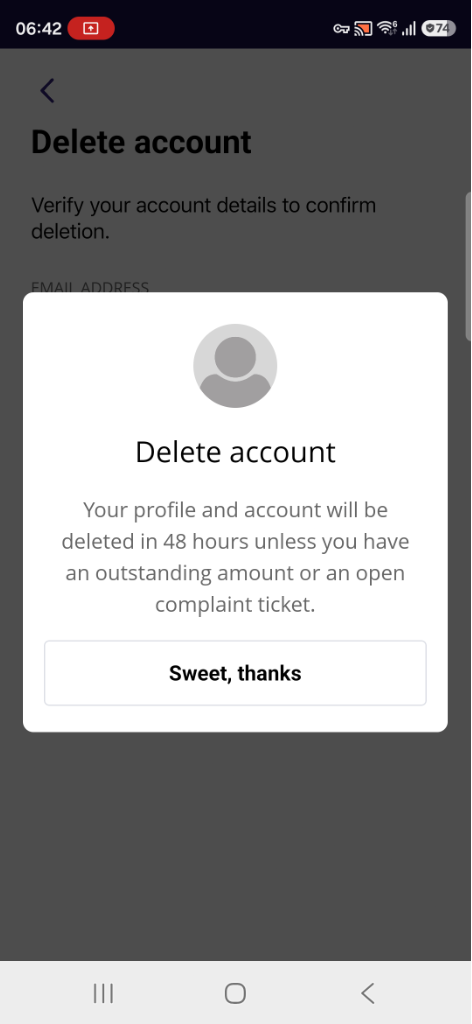
- Click "Confirm Delete". Your profile and account will be deleted in 48 hours unless you have an outstanding amount or an open complaint ticket.
|
|