In this article
- What is the snooze feature?
- What happens when you snooze your job notifications?
- How do I turn on the snooze feature?
- Does it have any effect on my account tier or ranking?
- What if my job notifications are not snoozed and I’m still not getting any notifications?
What is the snooze feature?
We’ve recently removed the Online/Offline feature and introduced the snooze feature in the Blys Pro app to make it easier for you to temporarily pause new job requests when you are unavailable. You can choose a preset duration of 1 day, 3 days, 1 week, 2 weeks or 1 month. You can also choose a custom start and end date, where your max range is 90 days.
What happens when you snooze your job notifications?
When you snooze your job notifications:
- You will not receive new job requests.
- Your confirmed bookings are not affected.
- Notifications resume automatically when your selected period ends. Snooze is enabled from the time you set your job requests on snooze until the same time as your end date. For example, if you toggle on snooze on your profile at 7:20 PM on August 25, 2026, and set it for up to 1 day, your new job requests are paused until 7:20 PM on August 26, 2026, i.e. the next day.
- However, if you wish to, you can turn off snooze early at any time.
How do I turn on the snooze feature?
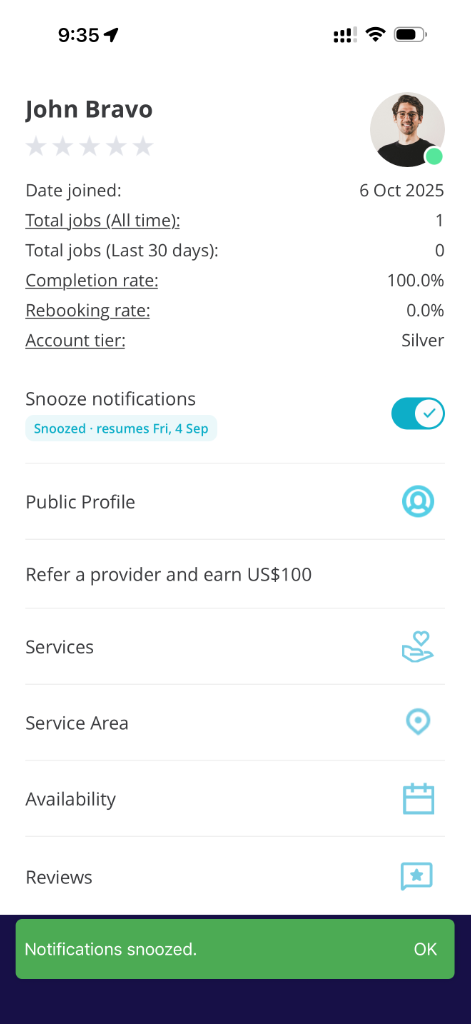
Via App
1. Open your Blys Pro app and tap on Profile.
2. You’ll be able to see the Snooze toggle just below your account summary and account tier.
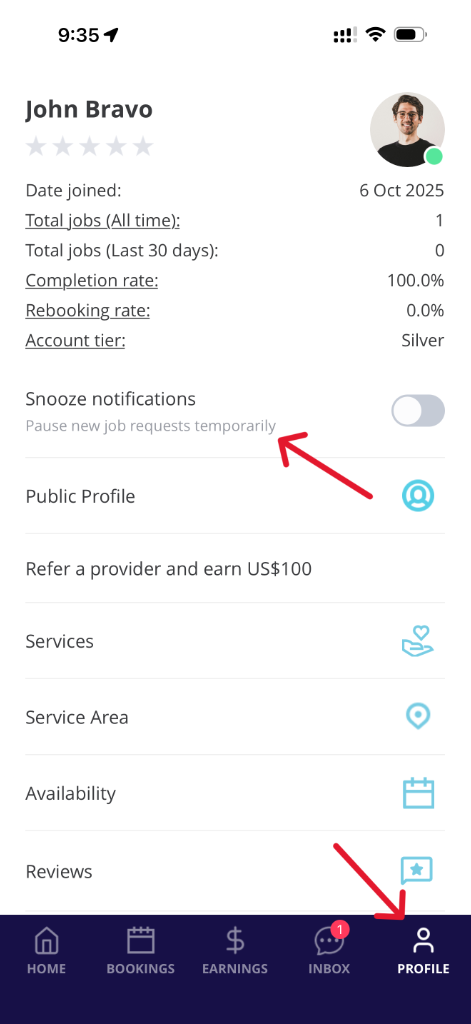
3. Toggle on to snooze your new job requests.
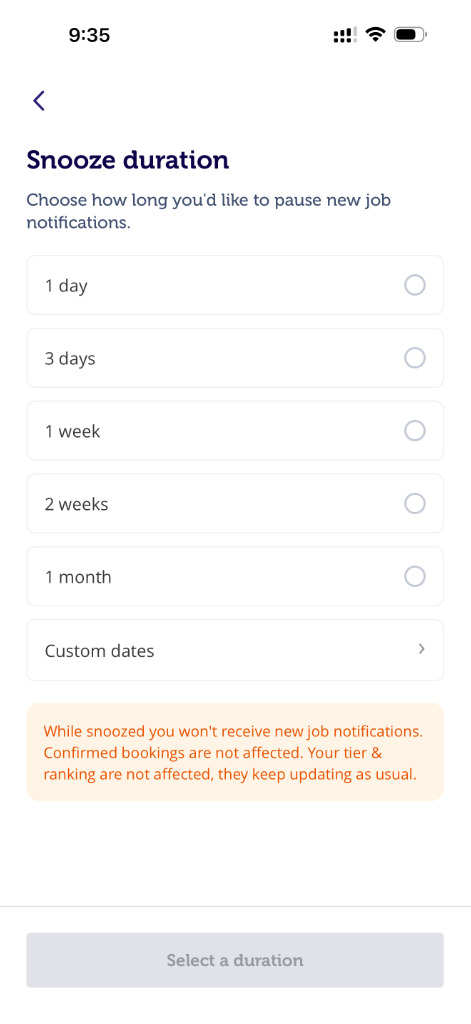
4. You’ll be asked to select the snooze duration. You can choose to snooze new job notifications for 1 day, 3 days, 1 week, 2 weeks, 1 month, or even set custom dates. Snooze is enabled from the time you set your job requests on snooze until the same time as your end date. For example, if you toggle on snooze on your profile at 7:20 PM on August 25, 2026, and set it for up to 1 day, your new job requests are paused until 7:20 PM on August 26, 2026, i.e. the next day.
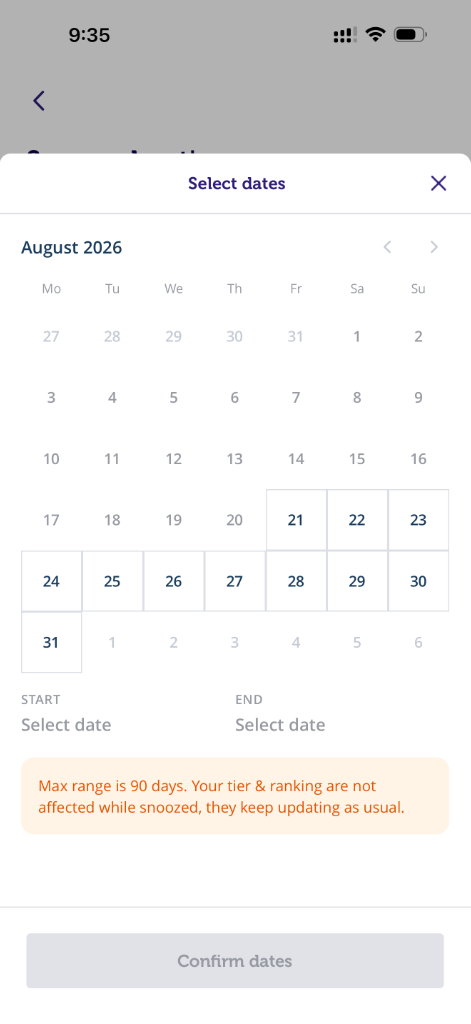
5. If you wish to set custom dates, tap on Custom dates, and then select the start date and end date accordingly. If you toggle on snooze on your profile and set custom dates at 7:20 PM on August 25, 2026, and set it for up to August 28, 2026, your new job requests are paused until 7:20 PM on August 28, 2026.
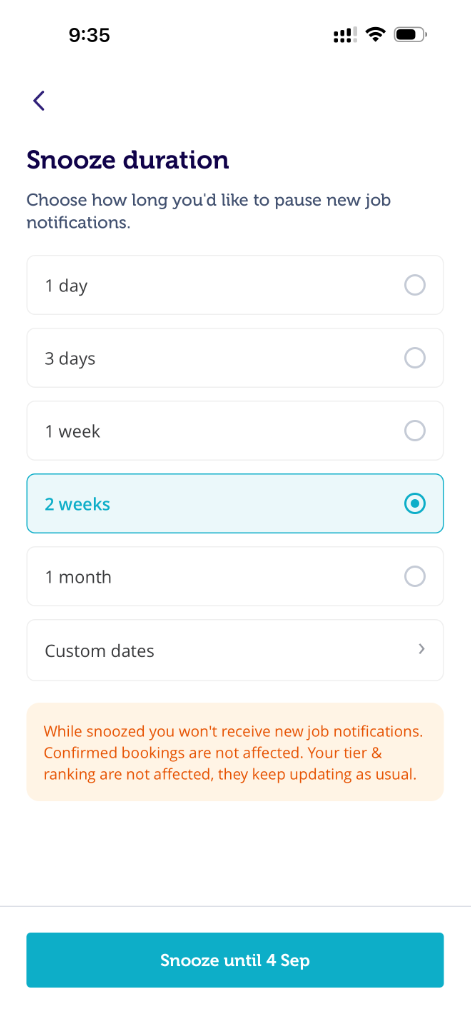
6. Once selected, tap on the “Snooze until“ button, which shows the end date.
|
|
Via Web
1. Open your Blys Pro dashboard.
2. You’ll be able to see the Snooze toggle just below your account summary and account tier.
|
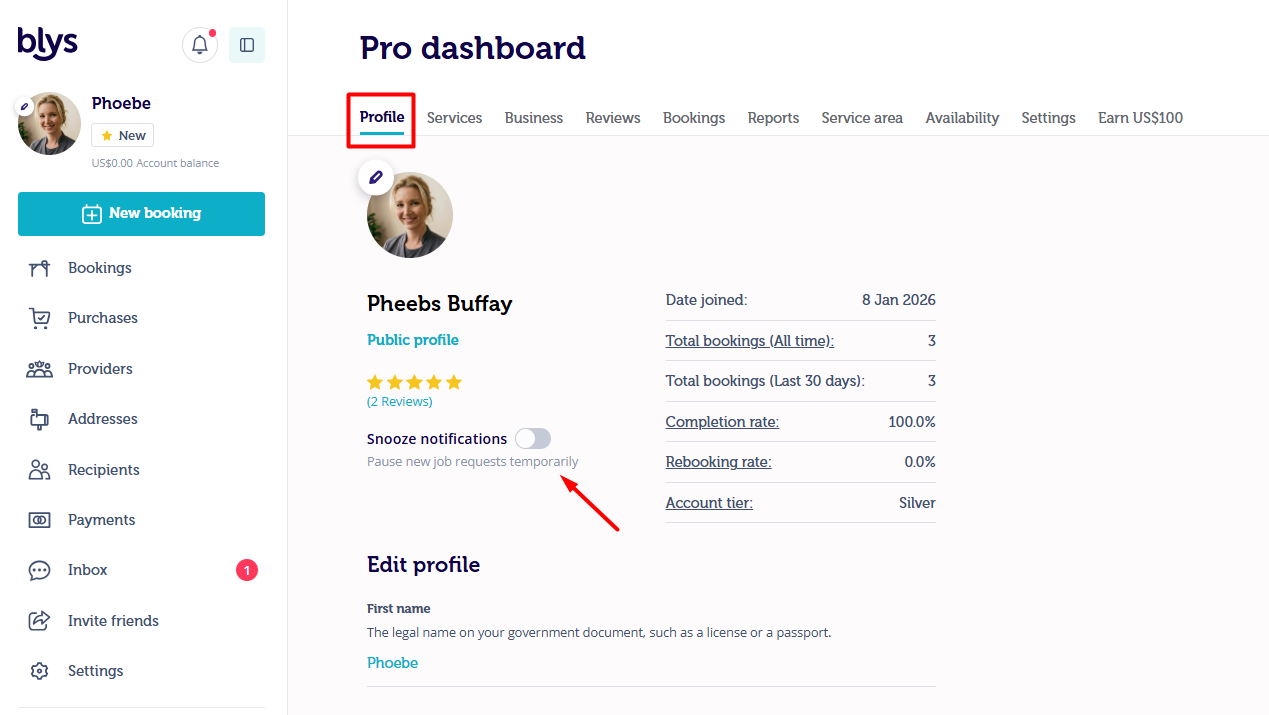
3. Toggle on to snooze your new job requests.
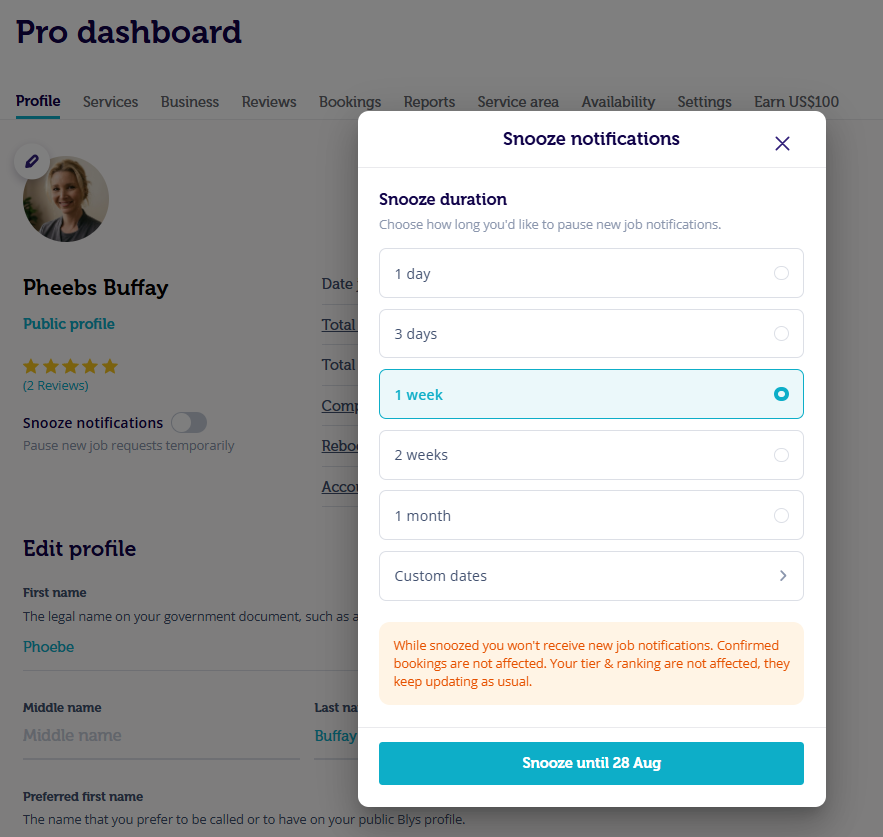
4. You’ll be asked to select the snooze duration. You can choose to snooze new job notifications for 1 day, 3 days, 1 week, 2 weeks, 1 month, or even set custom dates. Snooze is enabled from the time you set your job requests on snooze until the same time as your end date. For example, if you toggle on snooze on your profile at 7:20 PM on August 25, 2026, and set it for up to 1 day, your new job requests are paused until 7:20 PM on August 26, 2026, i.e. the next day.
|
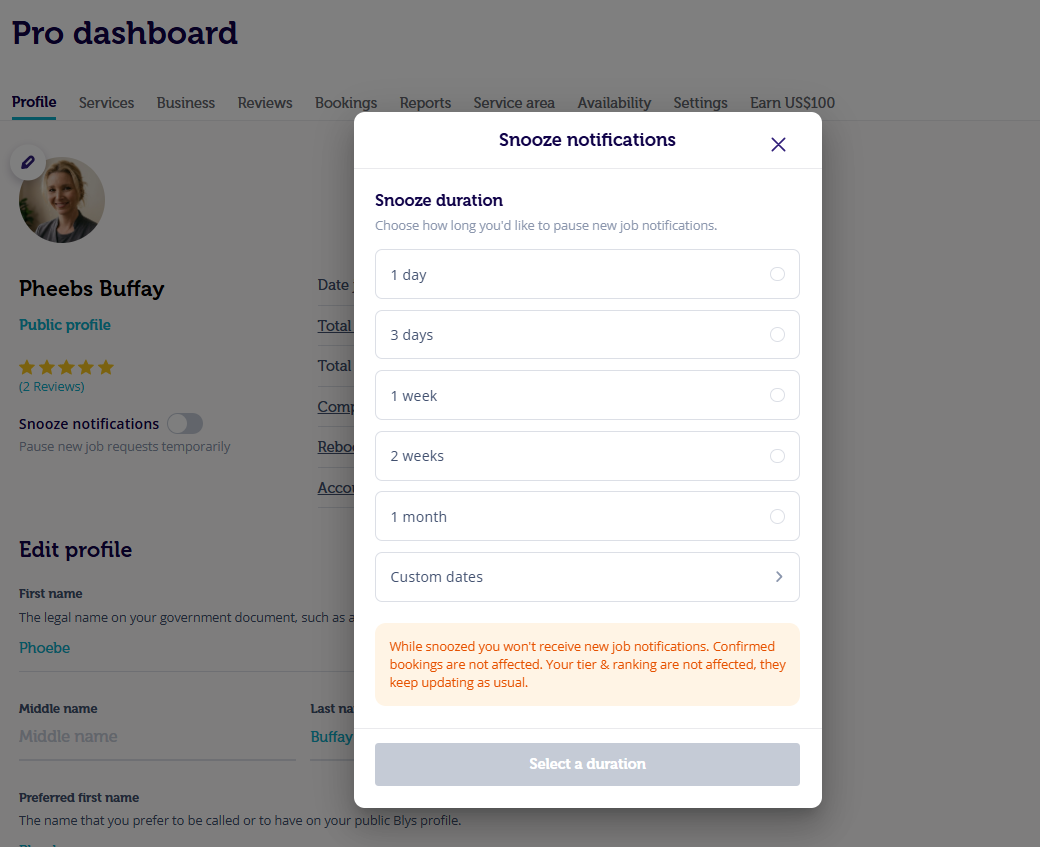
5. If you wish to set custom dates, click on Custom dates, and then select the start date and end date accordingly. If you toggle on snooze on your profile and set custom dates at 7:20 PM on August 25, 2026, and set it for up to August 28, 2026, your new job requests are paused until 7:20 PM on August 28, 2026.
|
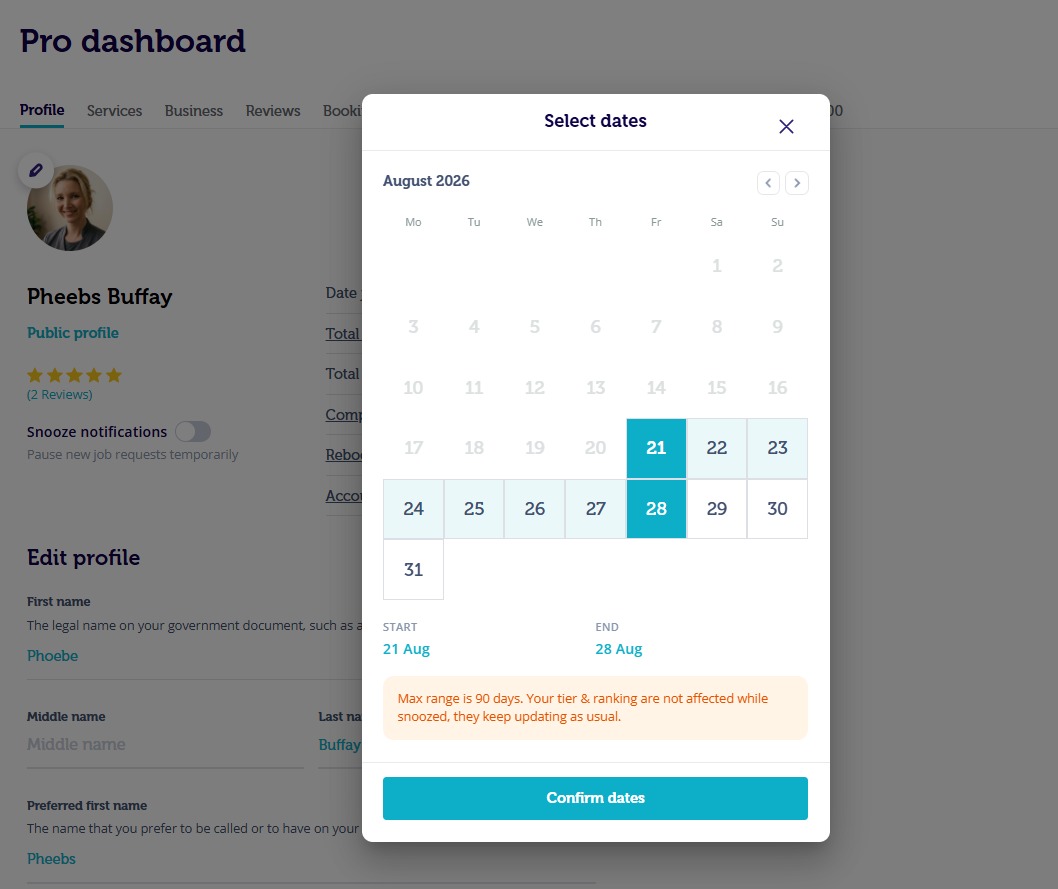
6. Once selected, click on the “Snooze until“ button, which shows the end date.
|
|
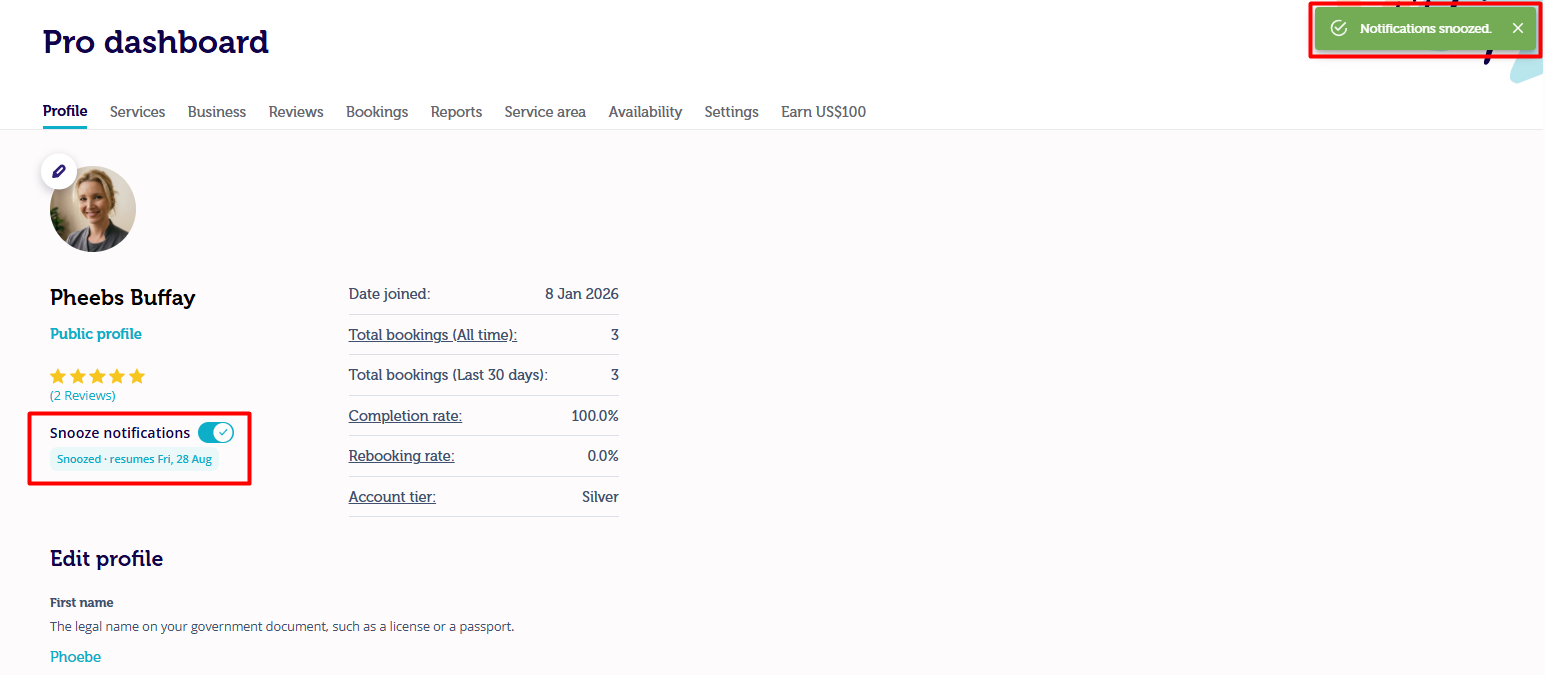
Does it have any effect on my account tier or ranking?
No, it does not have any effect on your account tier or ranking. This feature is only to pause your new job notifications and does not concern notifications regarding your pending direct bookings or confirmed bookings.
What if my job notifications are not snoozed and I’m still not getting any notifications?
If you are not receiving job notifications and Snooze is not active, see troubleshooting for delayed or missing booking notifications.