In this article
Why does the Blys Pro app need location access?
The Blys Pro app uses your location after you tap On my way for a confirmed booking. This allows the client to receive relevant arrival updates while you travel to the booking.
You do not need to keep location access set to Always to receive job notifications.
How to allow location access
When you tap On my way, the app will ask for location permission if it has not already been granted. Follow the prompt on your phone to allow location access while using the app.
While tapping “On my way”
iPhone
- Open your upcoming booking.
- When you’re ready, tap on “On my way”.
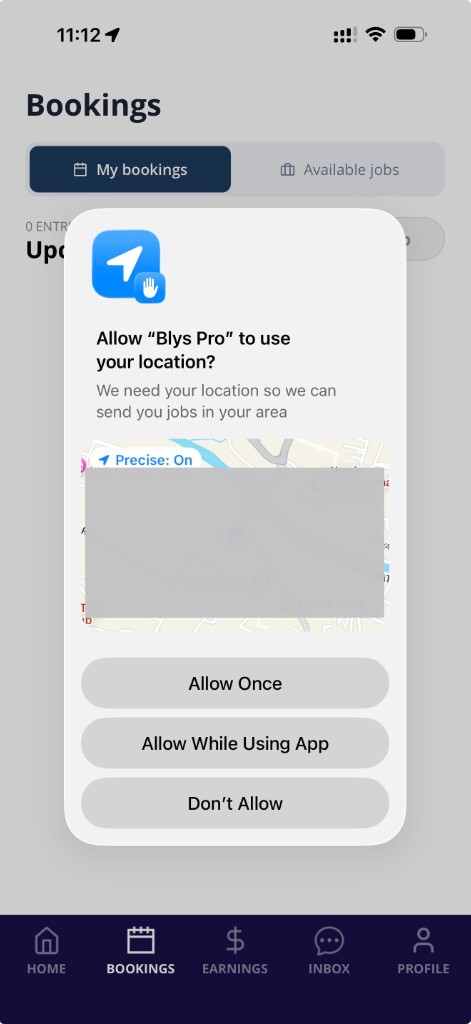
- If you haven’t allowed location access, you’ll be prompted to share your location.
- Once redirected to your phone’s location sharing settings, tap on “While using the app”, or “Ask Next Time Or When I Share”.
|  |  |
Android
- Open your upcoming booking.
- When you’re ready, tap on “On my way”.
- If you haven’t allowed location access, you’ll be prompted to share your location.
- Once redirected to your phone’s location sharing settings, tap on “Allow only while using the app”, or “Ask every time”.
|
|
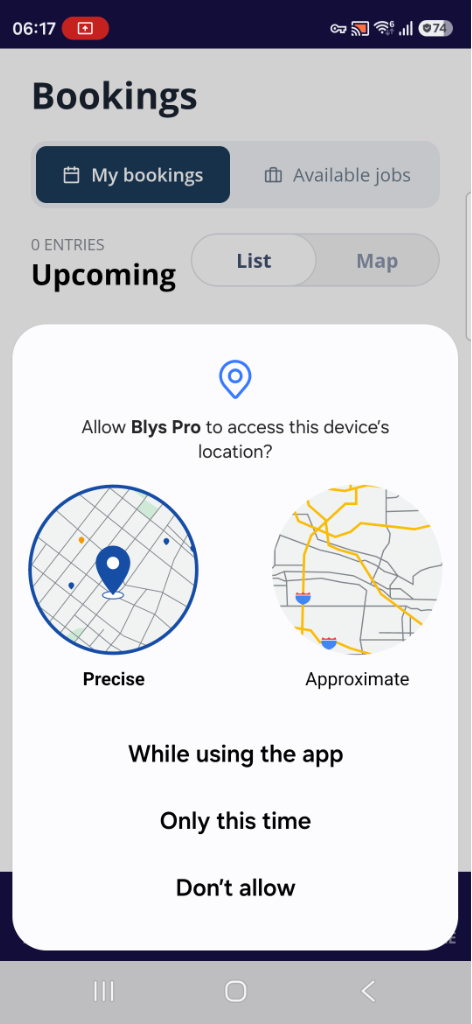
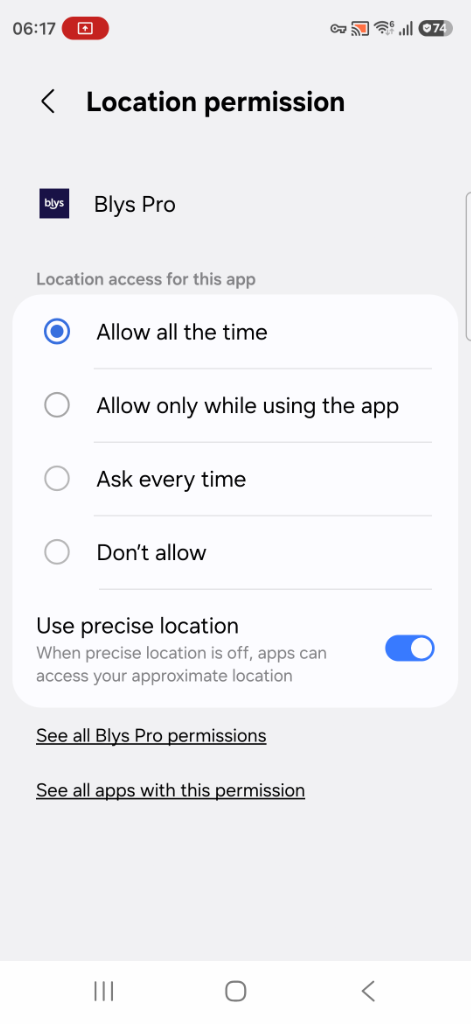
Allowing access through your phone’s settings
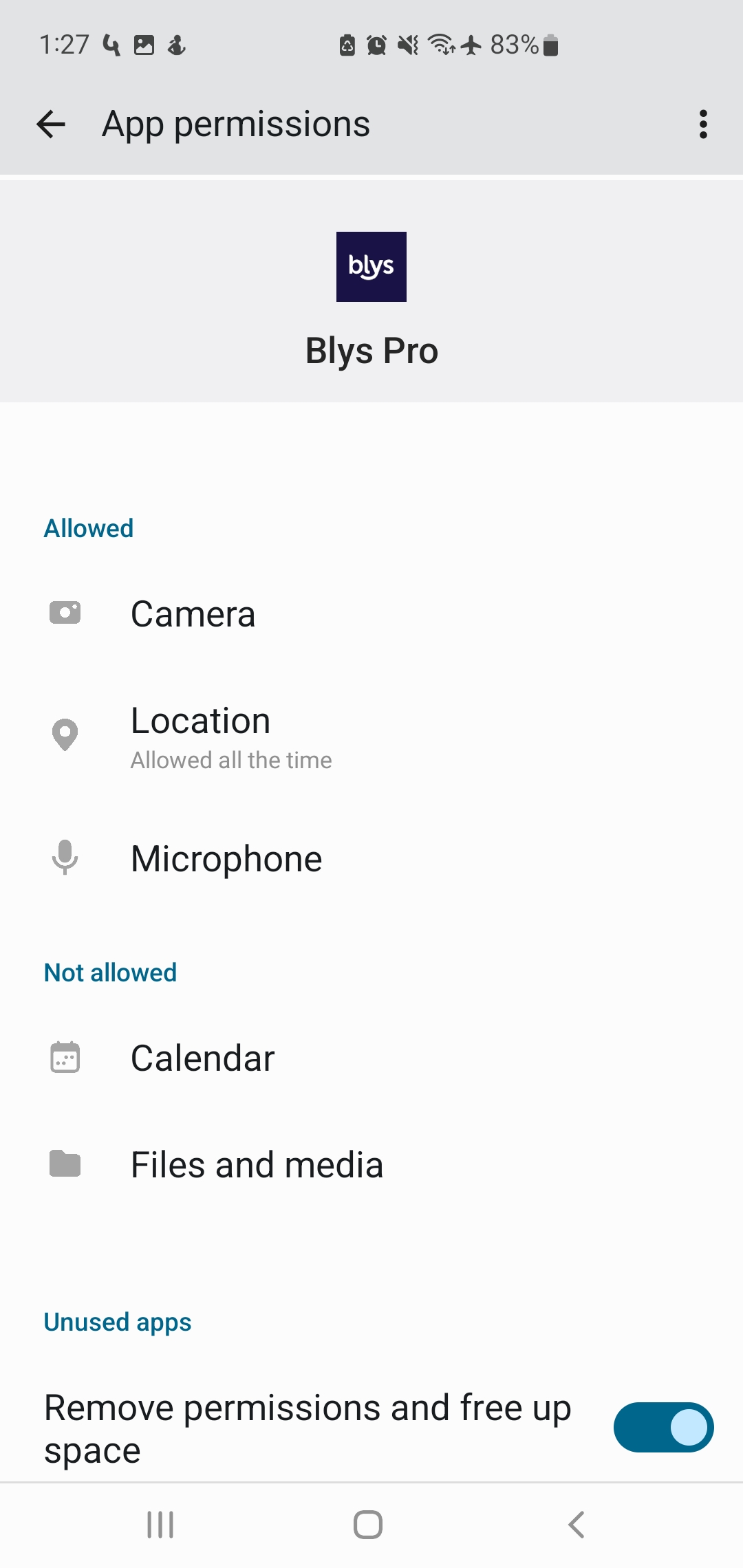
If you previously denied access, open your phone's Settings, select the Blys Pro app, then open Location or Permissions and allow location access while using the app.
If location access is denied, you may be unable to start the On my way status until permission is enabled.
iPhone
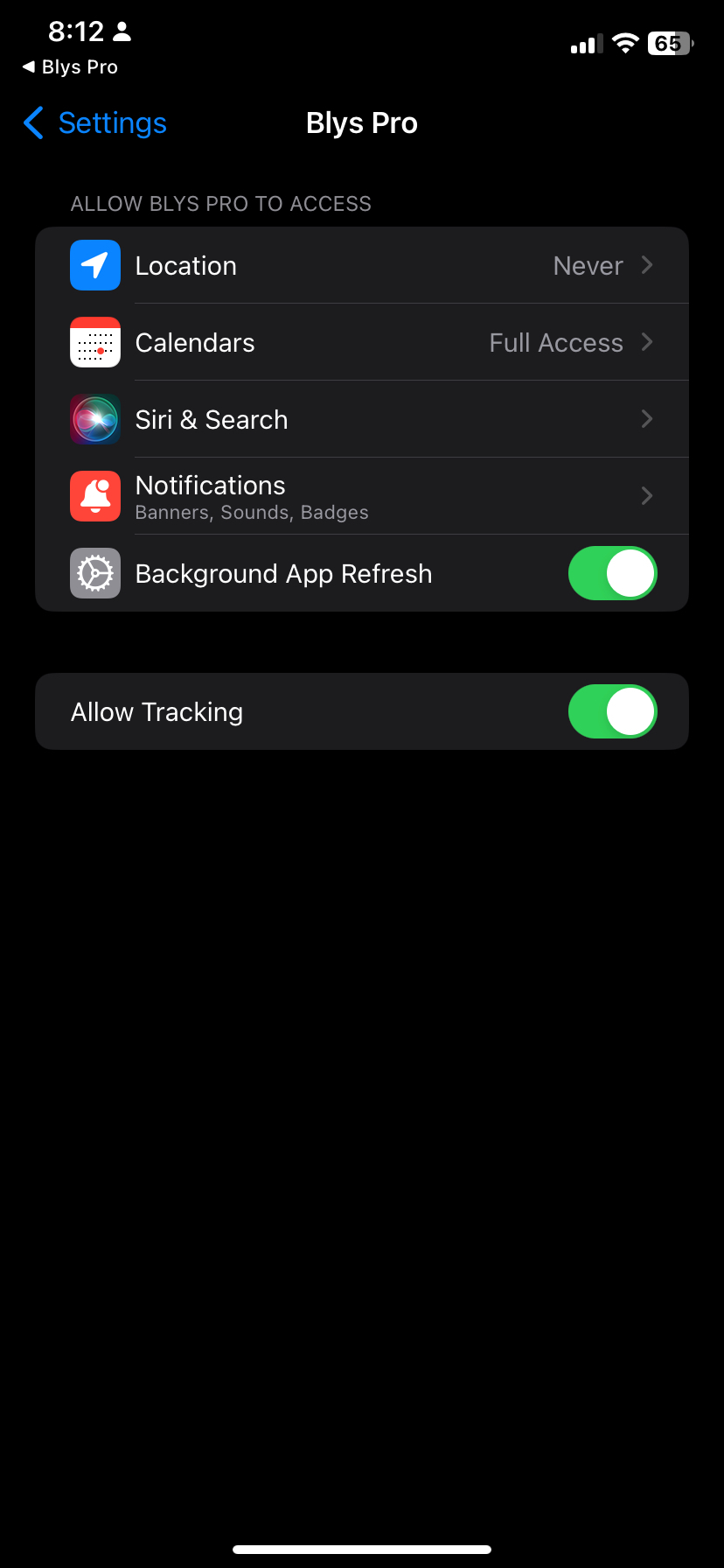
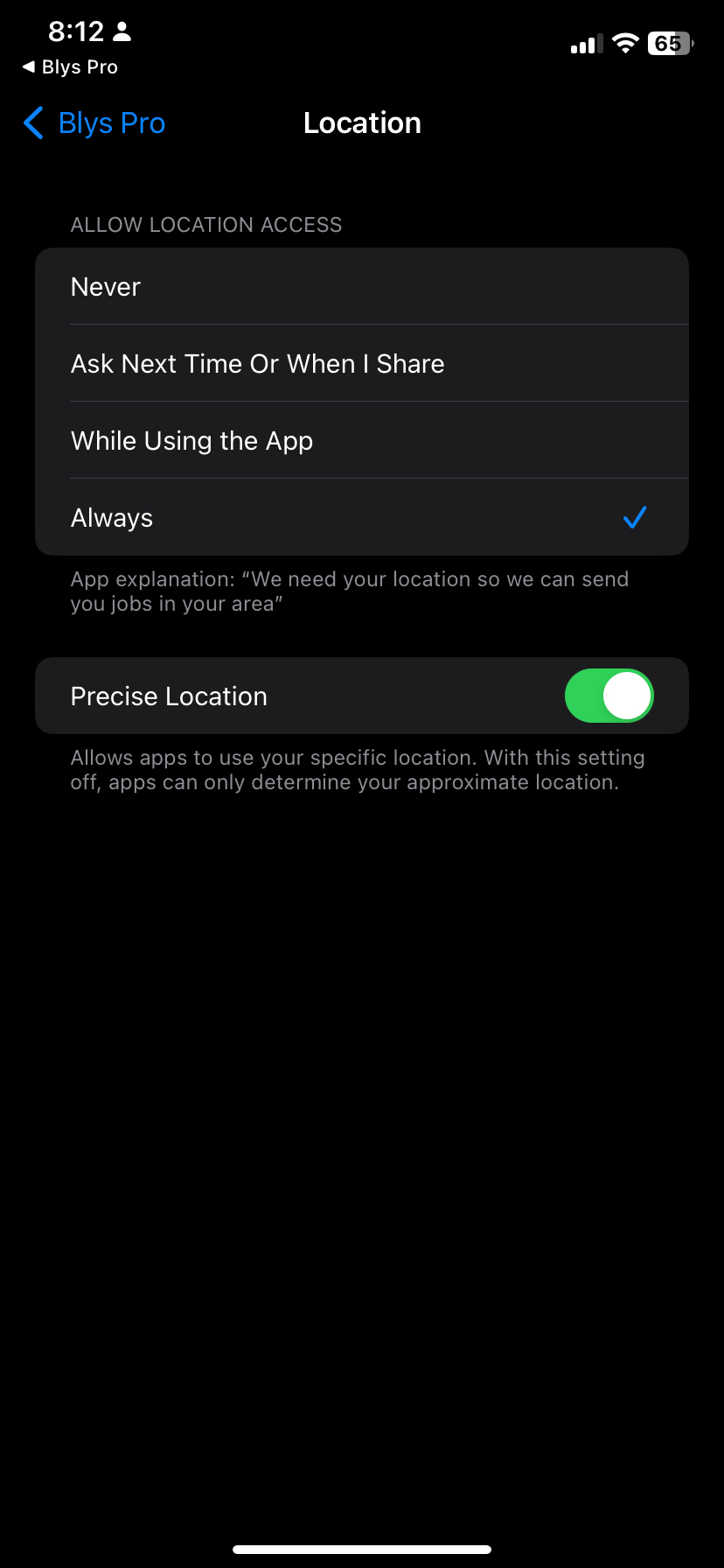
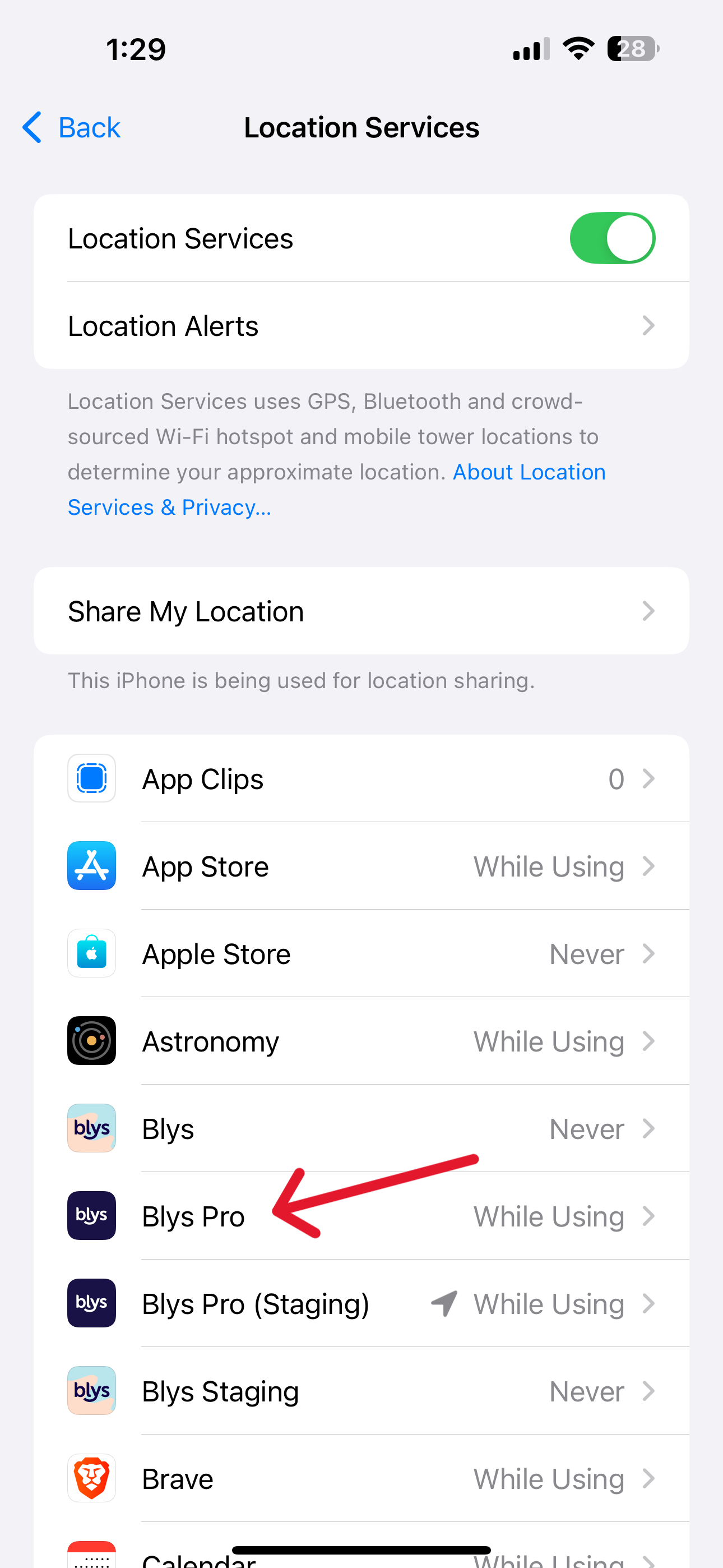
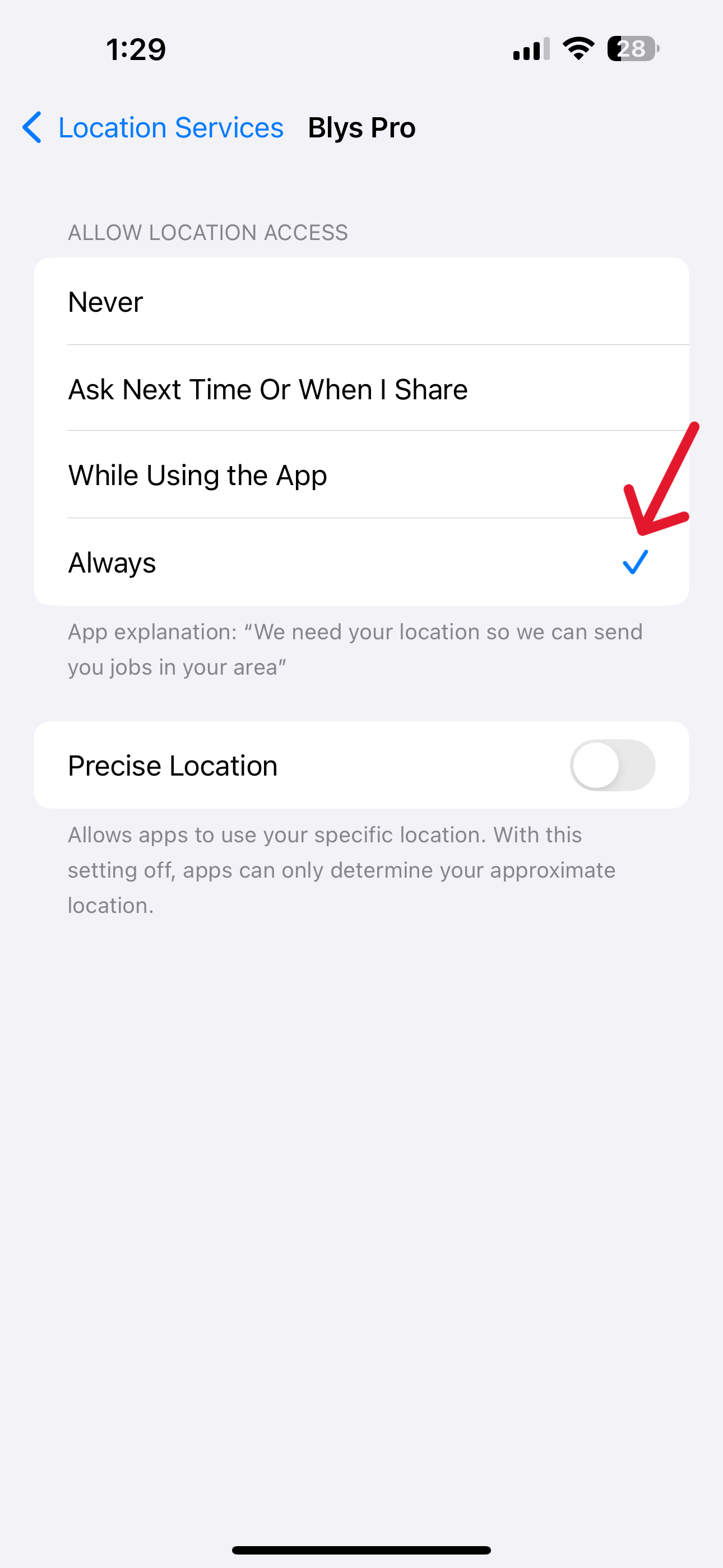
To allow location access to the Blys Pro app:
- On your device, open the main Privacy & Security settings..

- Tap Location Services or
- Tap the Blys Pro app.
- Tap “While Using the App”.
|
|
|
|
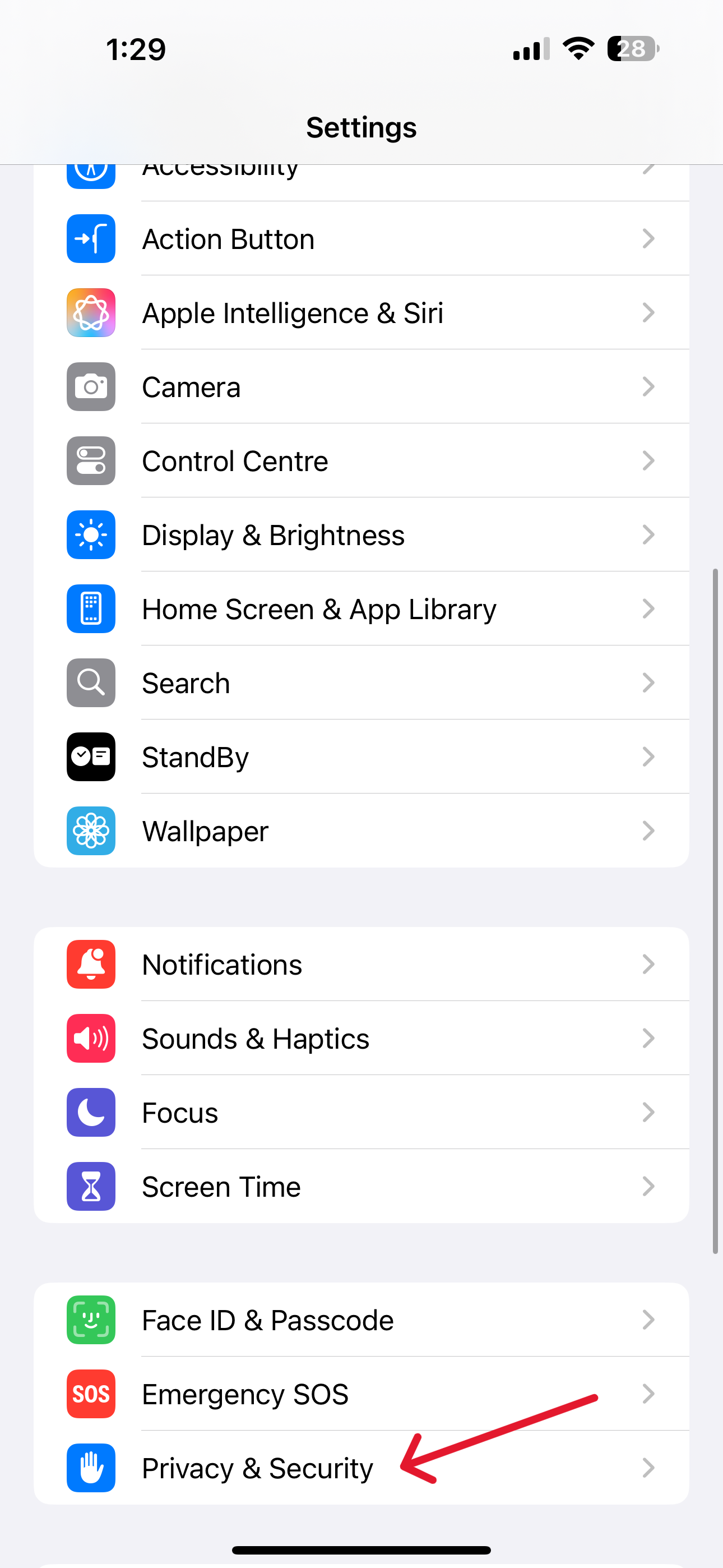
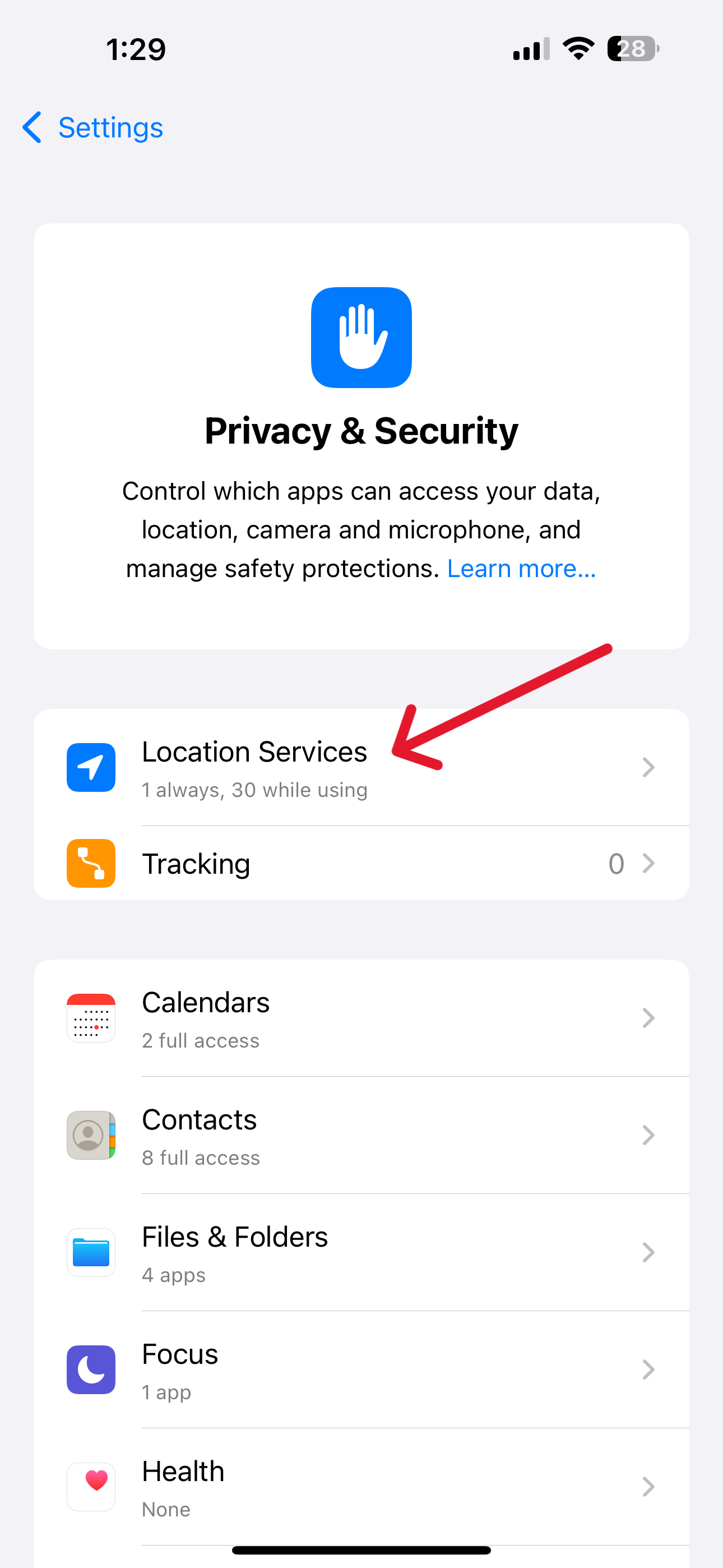
Android
For apps installed on your device:
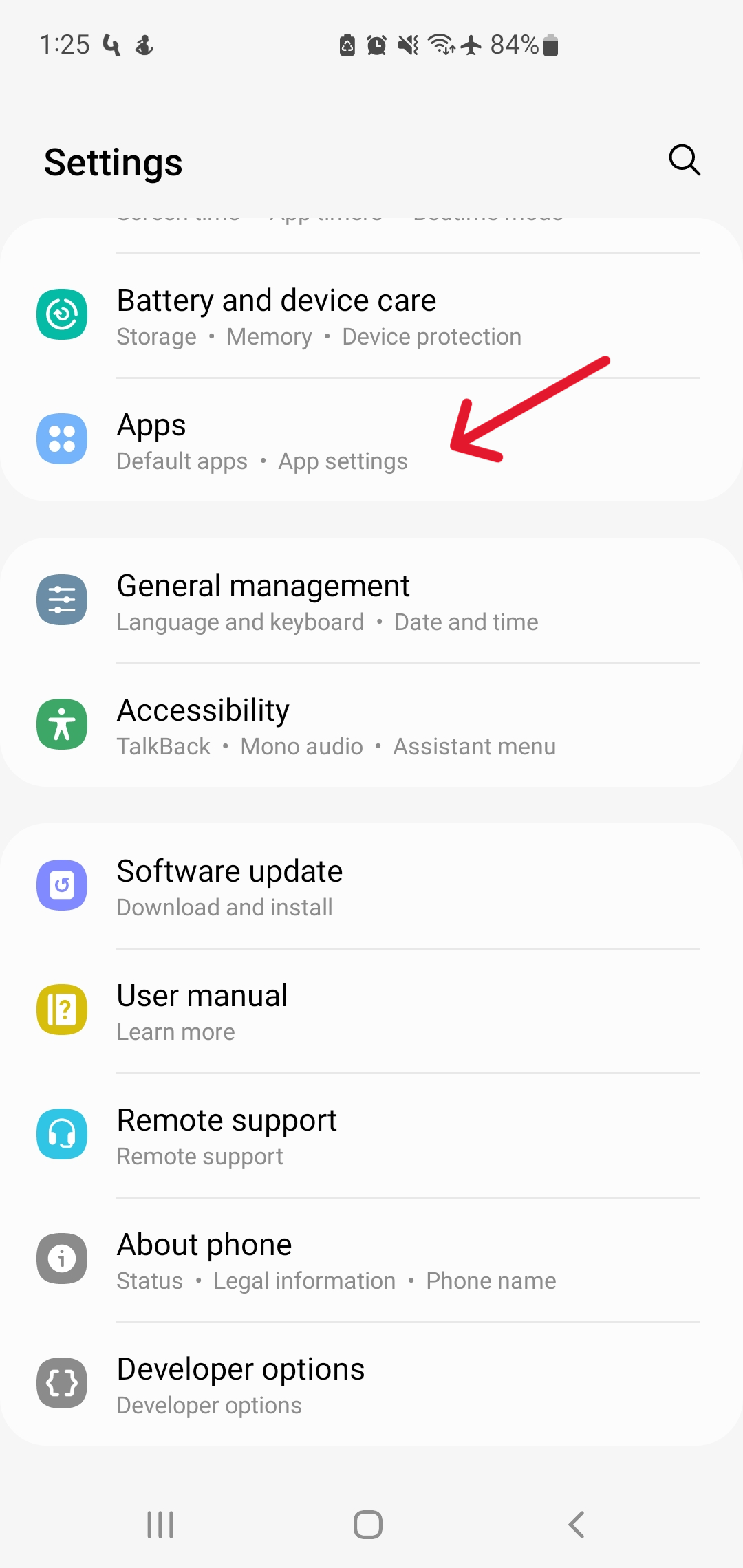
- On your device, open the main Settings app.
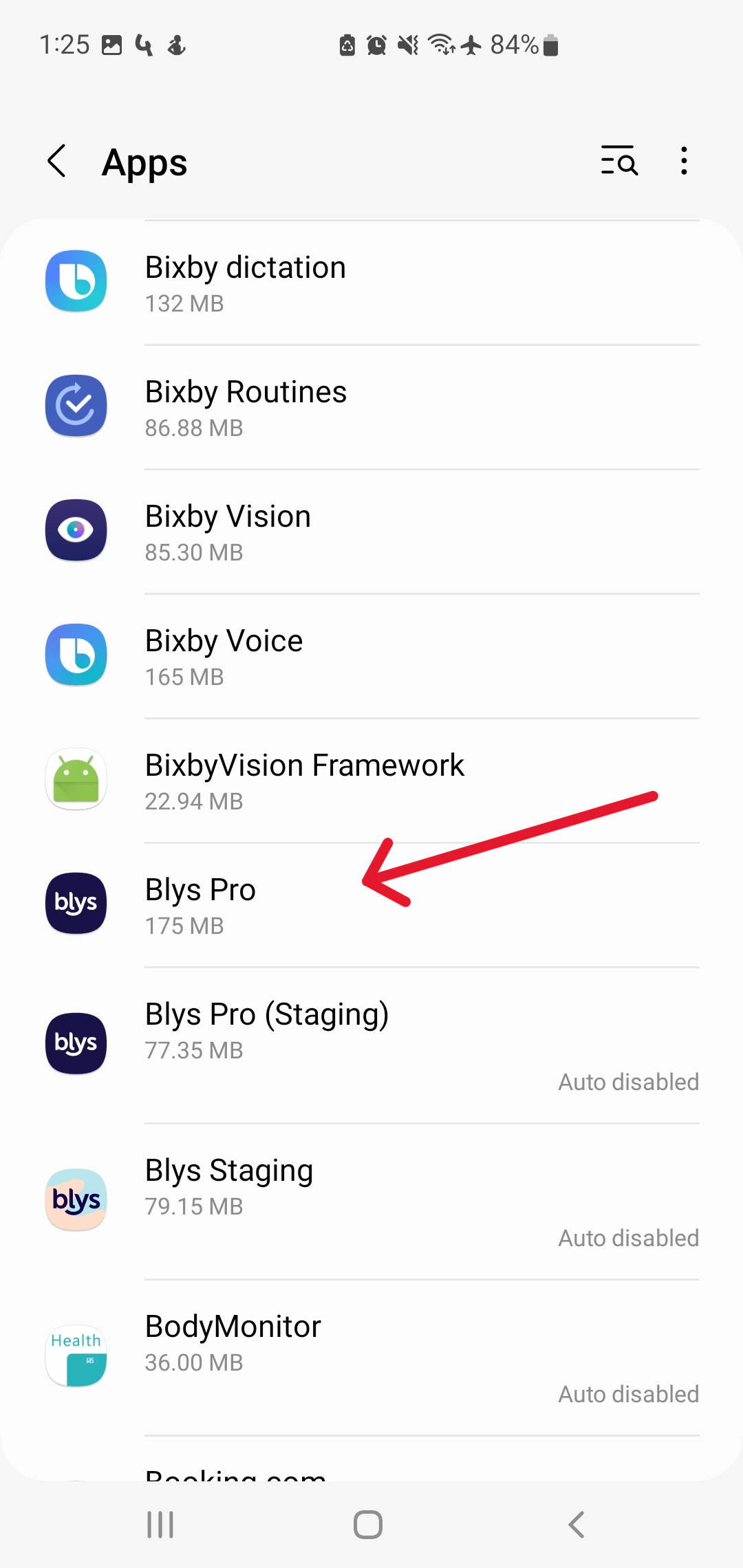
- Tap Apps or Application Manager (depending on your device, this may look different).
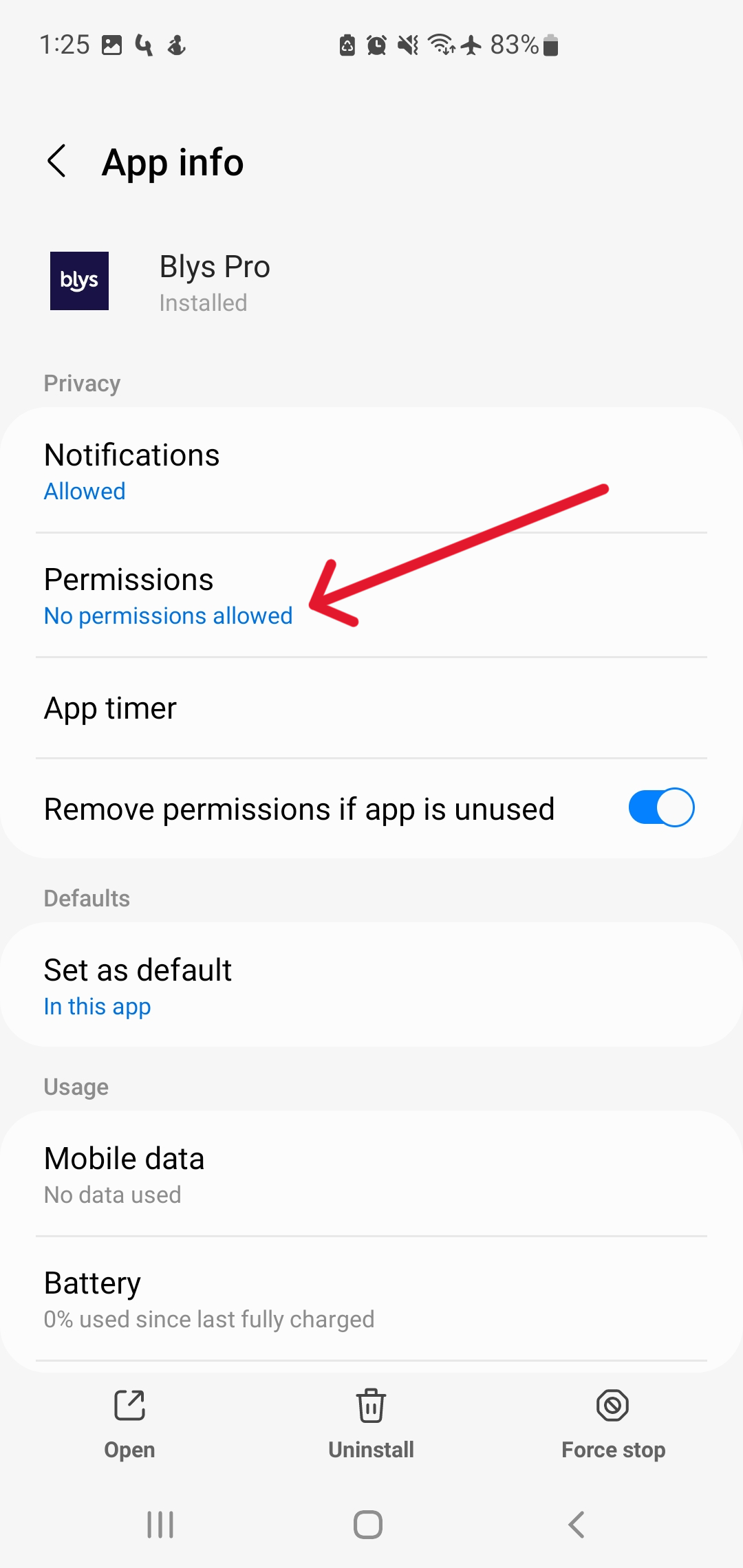
- Tap the Blys Pro app.
- Tap Permissions.
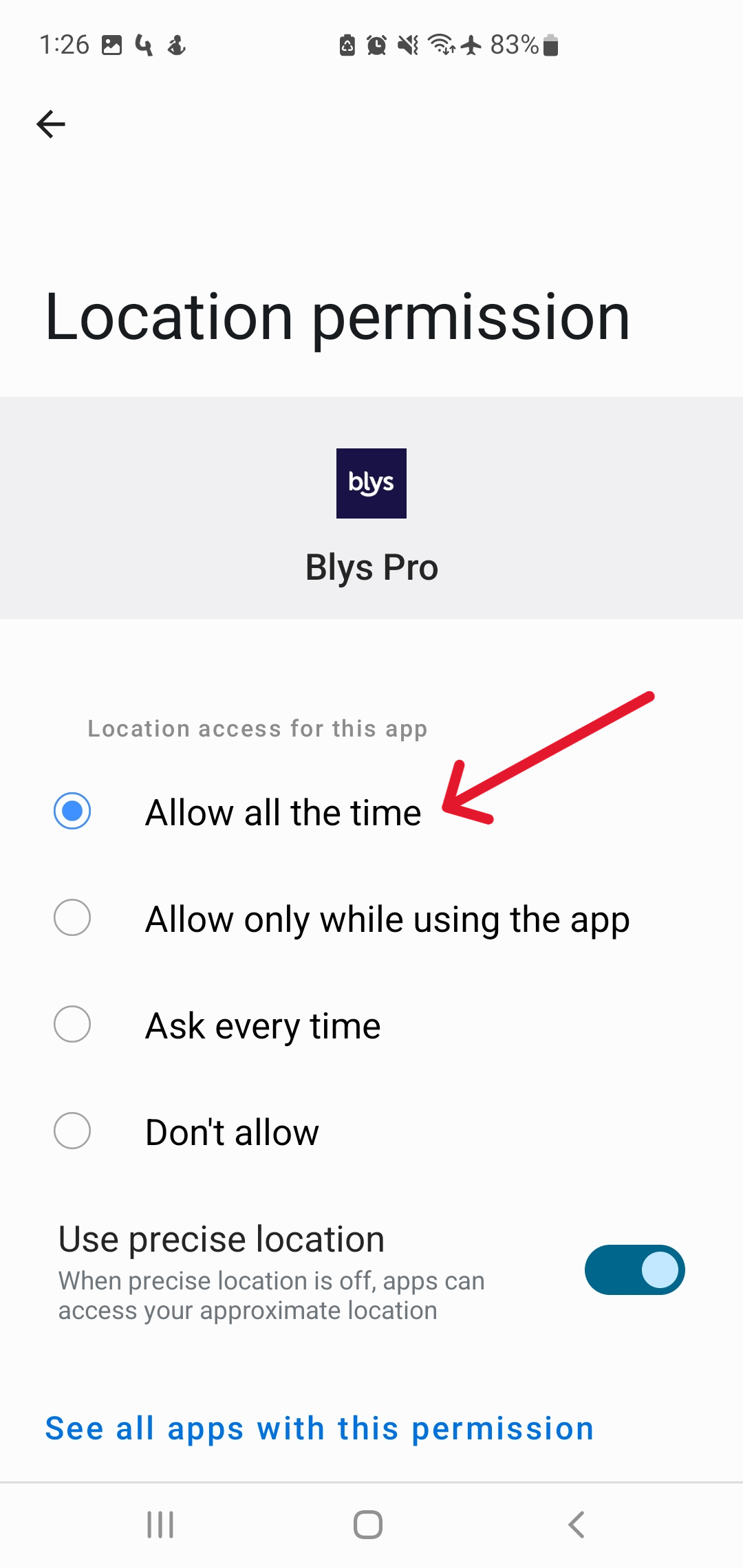
- Next to the "Location" permission, select "Allow only while using the app".
|
|
|
|
|