Portfolio photos let you showcase your work on your Blys provider profile, giving clients a sense of your style and expertise.
How to add portfolio photos
Portfolio photos are managed from the Pro Dashboard (web app only).
1. Log in to your Pro Dashboard and go to the Profile tab.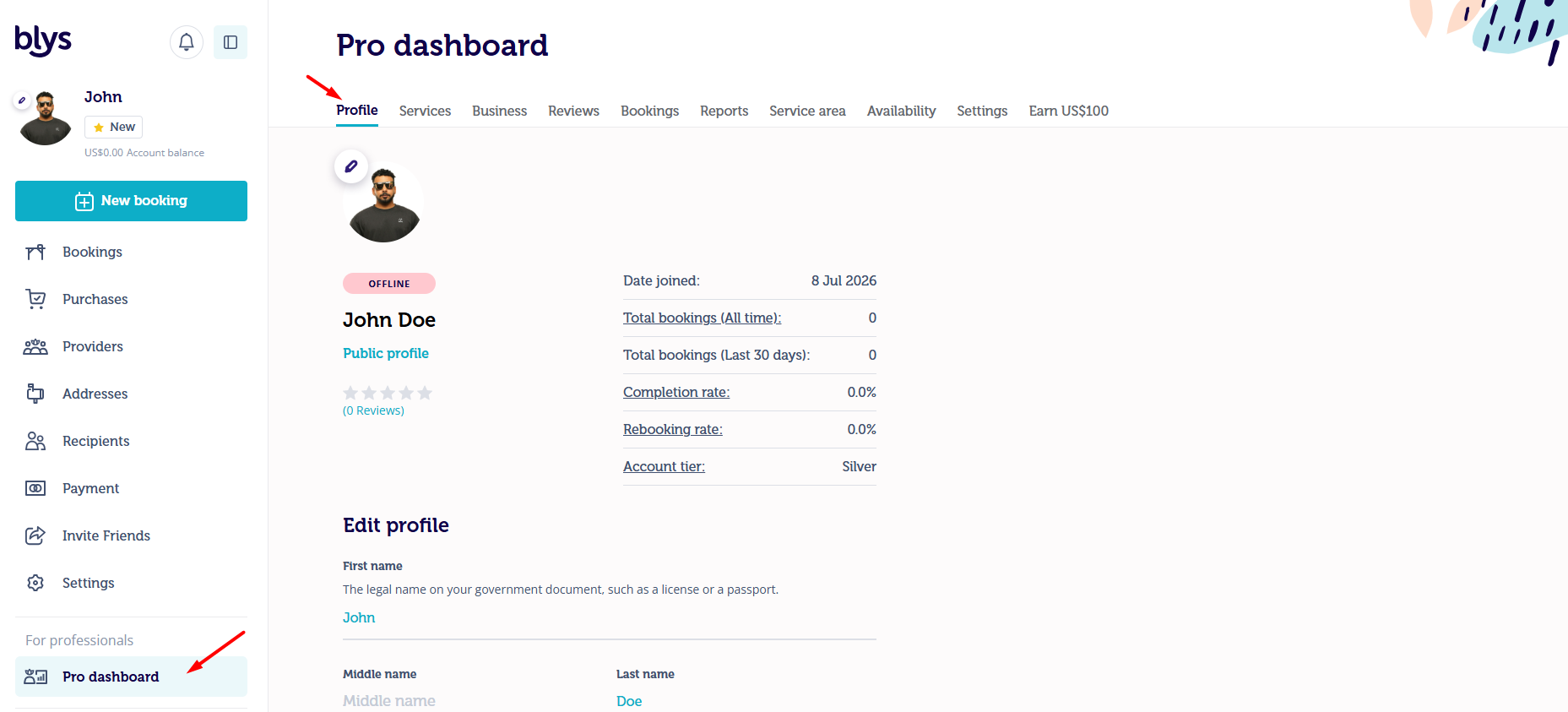
2. Scroll down to the My Portfolio section.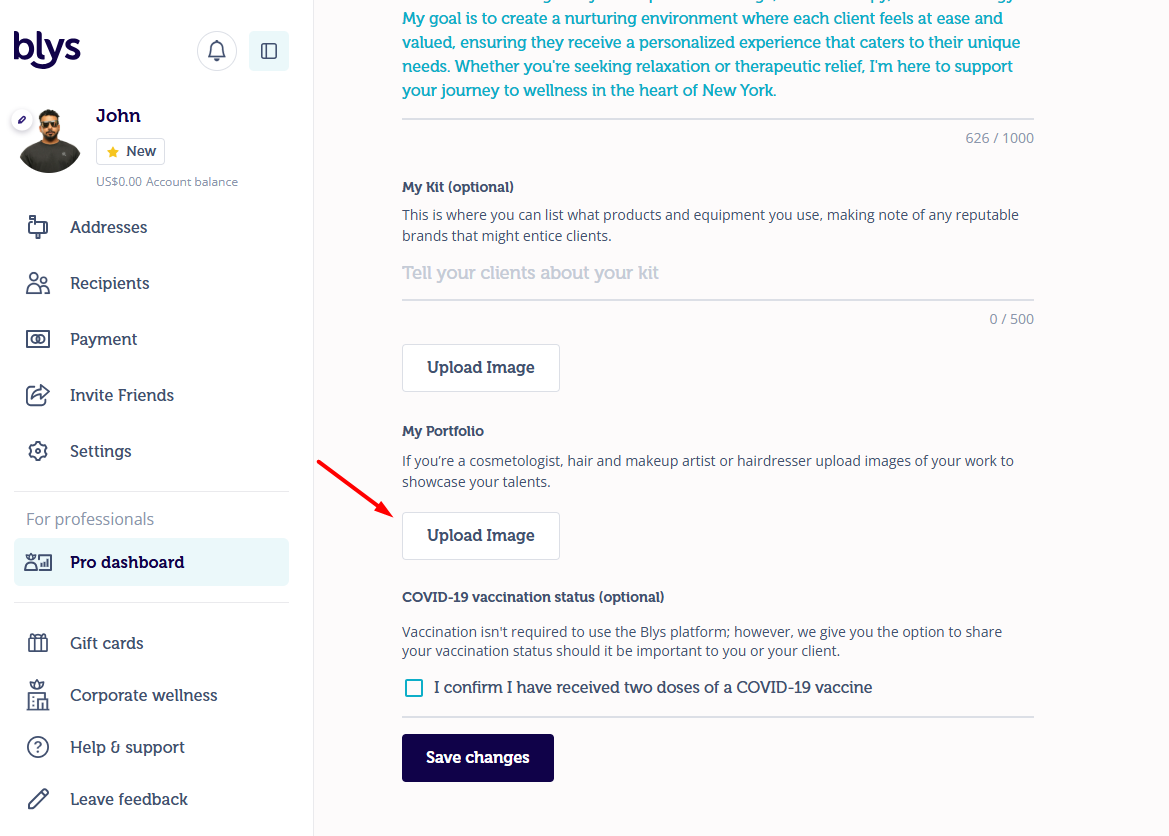
3. Click the Upload Image button, select a photo from your device, and upload it. Only image files are accepted.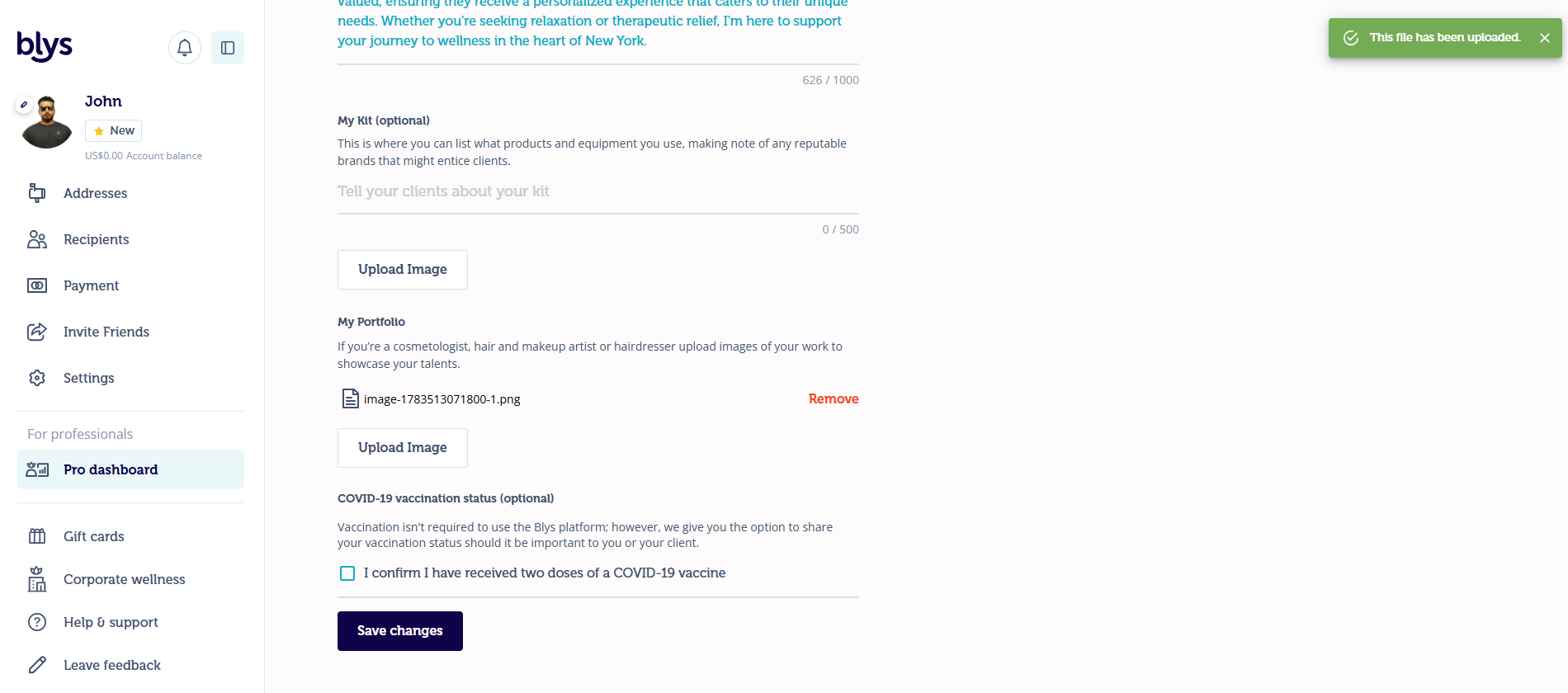
4. Click the Save changes button to save your changes.
Privacy & image processing
Heads up: If a portfolio photo contains personal information — such as a visible phone number, email address, or physical address — that information will be automatically removed from the image before it appears on your profile. This helps protect the privacy of you and your clients.
For best results, use photos that showcase your work without text overlays or contact details.